Computing Foundations › The Command Line › Day 12
Day 12: Shell Scripting: Variables, Loops, and Conditionals
After this lesson you will be able to turn a sequence of commands into a reliable shell script — using variables, quoting, command substitution, arguments, conditionals, loops, and functions under strict mode — so your work runs the same way every time and is genuinely reproducible.
Hands-on lab for this lesson
Lab files on GitHub: https://github.com/ai-roadmap-365/ai-roadmap-365.github.io/tree/main/labs/sections/computing-foundations/day-012-shell-scripting-variables-loops-and-conditionals
- Get the hands-on files. Clone the labs repository once (you can reuse this clone for every lesson). This works on macOS, Linux, and Windows (PowerShell or WSL):
git clone https://github.com/ai-roadmap-365/ai-roadmap-365.github.io.git cd ai-roadmap-365.github.io - Open this lesson's lab. Move into the directory for this specific day. Every lab lives at the same predictable path — section / subsection / week / day:
cd labs/sections/computing-foundations/day-012-shell-scripting-variables-loops-and-conditionals - Read the lab guide. Open `README.md` in that directory. It lists the exact commands, what each does, the expected output, and how to check your work — read it before running anything.
- Run it and check your work. Follow the README's "How to run" section: run the example first to see the finished result, then complete the numbered exercises in `starter/`, then run the tests. The tests pass (exit 0) only when your work is correct.
bash tests/run_tests.sh # or the test command named in the lab README
You can also open the lab as a local page (works offline, shows the file tree and expected output).
Learning objectives
By the end of this lesson you will be able to:
- Save a sequence of commands as a script, add the shebang #!/usr/bin/env bash, and make it executable or run it with bash
- Assign and read variables, and explain why quoting every expansion ("$var") prevents word-splitting and globbing bugs
- Use command substitution $(...) to turn a command's output into a value, and read positional parameters $1, $@, and $# with a sensible default
- Write conditionals with if, test/[ ], and [[ ]], and explain how exit codes drive the branch, including the difference between string and integer comparisons
- Write for and while loops and package reusable steps into functions with local variables
- Add set -euo pipefail to make a script stop on errors, catch unset variables, and detect pipeline failures, and connect this discipline to reproducible AI pipelines
Prerequisites
- Days 8–11: comfort in the terminal, navigating the filesystem, working with text, and setting environment variables
- A computer running macOS or Linux (or Windows with WSL) and a text editor
Why this matters
You have spent the last few days typing commands one at a time — listing files, searching text, setting environment variables. That works, but it does not scale, and it does not last. Type a five-command sequence today and by next week you will misremember one of them; run it by hand ten times and you will fumble at least once. The moment a task is worth doing twice, it is worth writing down so a machine can do it the same way every time. That written-down form is a shell script: a plain text file of commands the shell reads from top to bottom.
This matters enormously for the work ahead. Almost nothing in modern machine learning is a single command. Downloading a dataset means fetching files, checking their sizes, unpacking archives, and verifying nothing was corrupted. Launching a training run means setting environment variables, activating the right tools, pointing at the right data, and recording what you did. Evaluating a model means running it over hundreds of inputs and tallying the results. Every one of those pipelines is glued together by shell scripts, and the quality of the glue decides whether your results are reproducible or a mystery. A reliable script is not a convenience on top of the real work — for a practitioner, a reliable script is the reproducibility. When a colleague asks “how did you get that number?”, the honest and useful answer is “run this script,” not “I think I typed some things last Tuesday.”
The concrete consequences are money, time, and trust. A script that silently keeps going after a failed download will happily train on half a dataset and waste hours of compute — real money on a rented machine. A script with an unquoted variable will do the wrong thing the first time a filename contains a space, and you will lose an afternoon finding out why. Today you learn to write scripts that stop when something breaks, handle names safely, make decisions, and repeat work without complaint — the difference between automation you can trust and automation that quietly lies to you.
The idea in plain language
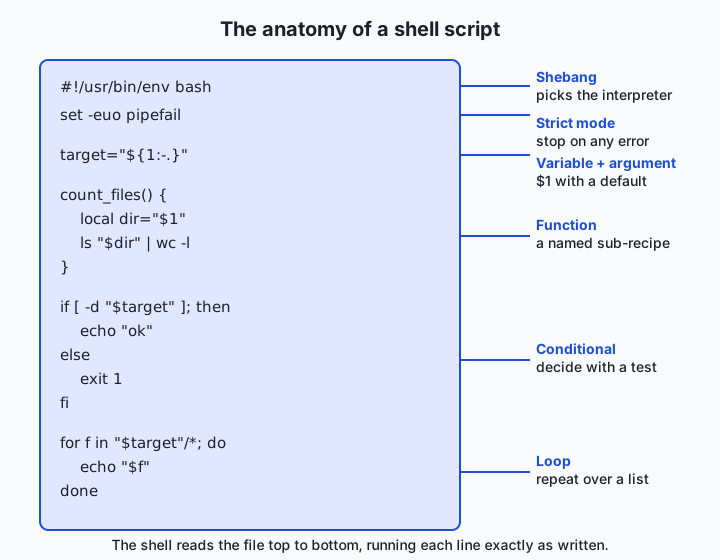
A shell script is a text file whose lines are shell commands. When you run the file, the shell executes each line exactly as if you had typed it, in order, without improvising. That literalness is the whole point: the machine does precisely what the file says, the same way today, tomorrow, and on your teammate’s laptop.
Four ideas turn a flat list of commands into something powerful. Variables are named boxes that hold a value — a filename, a count, a directory — so you can write it once and reuse it everywhere, and change it in one place. Command substitution lets a command’s output become a value, so a script can react to what it finds rather than to what you guessed in advance. Conditionals let the script make decisions: if the directory exists, proceed; otherwise, stop and complain. Loops let the script repeat work: for each file in a folder, do the same thing. Wrap a chunk of these into a named function and you have a reusable sub-recipe you can call as easily as any command.
The last ingredient is discipline. By default the shell is forgiving to a fault: it shrugs off failed commands, treats undefined variables as empty, and hides errors in the middle of a pipeline. For interactive typing that is convenient; for a script that must be trusted, it is dangerous. A single line near the top, set -euo pipefail, flips the shell into a strict mode that stops at the first sign of trouble. Learn these six ideas — variables, substitution, conditionals, loops, functions, and strict mode — and you can automate almost anything you can type.
Historical background
The shell is nearly as old as Unix itself. When Ken Thompson and Dennis Ritchie built Unix at Bell Labs around 1969–1971, the command interpreter was a separate program rather than part of the kernel — a deliberate design choice that let it be replaced and improved independently. Thompson wrote the earliest version, which could run commands and redirect their input and output but had only rudimentary control flow.
The shell that made scripting a real programming activity arrived in 1979. Stephen Bourne, also at Bell Labs, wrote the Bourne shell — the program still known by the filename sh — and it shipped with Version 7 Unix. Bourne’s shell introduced the constructs this lesson is built on: variables, if/then/else, for and while loops, case statements, and functions. Its syntax is the ancestor of everything you will write today. Around the same time at the University of California, Berkeley, Bill Joy wrote the C shell (csh), whose syntax borrowed from the C language and which added interactive conveniences like command history. A few years later, in 1983, David Korn at Bell Labs released the KornShell (ksh), which combined Bourne-compatible scripting with better interactive features.
In 1989 the shell you will use most was born. Brian Fox wrote Bash — the Bourne-Again Shell — for the GNU Project, a free-software reimplementation and extension of the Bourne shell; Chet Ramey has maintained it for decades since. Because it is both free and Bourne-compatible, Bash became the default shell on most Linux distributions and the lingua franca of scripting. To keep the core language portable across all these shells, the POSIX standard (part of IEEE 1003, developed through the late 1980s and 1990s) defined a common “shell command language” that every compliant shell must support. Meanwhile, in 1990, Paul Falstad wrote the Z shell (zsh), which extended the Korn and Bourne lineage with powerful interactive features; in 2019, Apple made zsh the default login shell in macOS Catalina, though the older Bash 3.2 still ships with the system. The through-line across forty years is unbroken: the vocabulary Bourne chose in 1979 is the vocabulary you are about to learn.
What it is — and what it is not
A shell script is a text file containing shell commands, marked as a program to run rather than a document to read. It is interpreted, not compiled: there is no separate build step, and the shell reads and executes it line by line each time. It is a glue language, superb at orchestrating other programs — copying files, running tools, wiring one command’s output into another’s input — and at making simple decisions and repetitions around them.
It is not a general-purpose programming language, and pretending otherwise leads to pain. The shell has no real numbers beyond integers, awkward handling of complex data, and error-prone rules around spaces and special characters. Heavy data processing, anything with nested data structures, and anything needing careful arithmetic belong in a language like Python, which you will meet later in the course. The professional rule of thumb is a length test: if a script grows past roughly a hundred lines, or starts manipulating data rather than orchestrating commands, it has outgrown the shell. A script is also not automatically safe or portable — it does exactly what its text says on the shell it runs under, which is why the strict-mode line and the choice of interpreter, both covered below, matter so much.
| Common misconception | The reality |
|---|---|
| ”A script is a different kind of thing than commands.” | It is the exact same commands you type, saved in a file and run top to bottom. |
| ”The shell warns me about mistakes.” | By default it silently continues after failures and treats typos in variable names as empty strings — you must opt into strictness. |
| ”Quotes around variables are optional style.” | Quoting changes behavior: an unquoted value containing a space or * is split or expanded, often doing the wrong thing. |
| ”Bash and sh and zsh are basically the same.” | They share a POSIX core but differ in features and defaults; a script that works in one can silently misbehave in another. |
| ”If it printed output, it worked.” | A script can print a partial result and still have failed halfway — only the exit code and strict mode tell you the truth. |
Why it was created and what problems it solves
The shell script solves the oldest problem in computing: humans are slow and inconsistent at repetition, and machines are fast and perfect at it. Before scripts, an operator ran the same sequence of commands by hand every day, and every day was a fresh chance to skip a step, mistype a path, or run things in the wrong order. Writing the sequence into a file once removes the human from the loop for everything except deciding when to run it.
Three problems in particular melt away. The first is repeatability: a script runs identically every time, so the result no longer depends on whether you remembered the exact flags. The second is transferability: a script is documentation that executes, so a teammate can reproduce your work by running your file instead of interrogating your memory. The third is composition: because the shell’s job is to launch and connect other programs, a script can stitch dozens of specialized tools into one pipeline that would be tedious and error-prone to drive by hand. For anyone building machine-learning systems, these three add up to reproducibility — the property that lets you, or an auditor, or a future version of yourself, get the same answer from the same inputs. That is why the shell script, a technology from the 1970s, sits underneath the most modern AI pipelines: the problem it solves never went away.
How it works
Let’s build up a real script from nothing, one concept at a time, so that by the end no line looks like magic.
From a command to a script
Anything you can type, you can save. Put a few commands in a file called hello.sh:
#!/usr/bin/env bash
echo "Starting up"
echo "Today is $(date '+%Y-%m-%d')"
The first line is the shebang — the two characters #! followed by the path to the interpreter that should run the file. Writing #!/usr/bin/env bash rather than a hard path like /bin/bash asks the system to find bash on the user’s PATH, which is more portable across macOS and Linux, where Bash lives in different places. The shebang only takes effect when you run the file as a program; the shell reads it, launches that interpreter, and feeds it the rest of the file.
Making a script executable
A fresh text file is not yet a runnable program. Two ways exist to run it. You can hand it to the shell explicitly, which ignores the executable bit entirely:
bash hello.shOr you can mark the file executable and run it directly, at which point the shebang chooses the interpreter:
chmod +x hello.sh
./hello.sh
chmod +x adds the “executable” permission bit; the ./ says “the file here in this directory,” because for safety the shell does not search the current directory for programs. Throughout this course we often run scripts with bash script.sh so you never have to think about permissions, but real tools ship as executables you invoke by name.
Variables and quoting
A variable stores a value under a name. Assign with no spaces around the =, and read the value by putting $ in front of the name:
name="Ada"
greeting="Hello, ${name}"
echo "${greeting}"        # Hello, Ada
The braces in ${name} are optional here but are a good habit: they mark exactly where the name ends, so ${name}_backup is unambiguous. Now the single most important rule in all of shell scripting: quote your variables. Consider a filename with a space in it:
file="my notes.txt"
rm $file        # WRONG: runs rm with two arguments, "my" and "notes.txt"
rm "$file"      # RIGHT: runs rm with one argument, "my notes.txt"
Unquoted, the shell performs word splitting — it breaks the value at spaces — and globbing — it expands characters like *. So an unquoted variable holding my notes.txt becomes two arguments, and one holding * becomes every file in the directory. Quoting the variable with "$file" turns off both, passing the value through untouched. Almost every shell-scripting disaster you will read about traces back to a missing pair of quotes. Quote every variable expansion unless you have a specific, deliberate reason not to.
Command substitution
Command substitution captures the output of a command and uses it as a value, with the $(...) form:
today="$(date '+%Y-%m-%d')"
count="$(ls -1 | wc -l)"
echo "There are ${count} entries as of ${today}"
The shell runs the command inside $(...), grabs everything it prints, trims the trailing newline, and substitutes the result. This is how a script reacts to reality: instead of hard-coding “there are 12 files,” it asks the system and stores the answer. An older backtick syntax, `date`, does the same thing, but $(...) is clearer, nests cleanly, and is what you should always write.
Reading arguments
A script becomes a real tool when it accepts inputs. The values you pass on the command line appear as numbered positional parameters: $1 is the first argument, $2 the second, and so on. Two more are indispensable: $# is the number of arguments, and $@ is all of them (quote it as "$@" to keep each one intact). A sensible default fills in when the caller supplies nothing, using the ${1:-default} form:
target="${1:-.}"          # first argument, or "." if none was given
echo "Working on: ${target}"
echo "You passed $# argument(s)"
Run ./tool.sh reports and target becomes reports; run ./tool.sh with nothing and it falls back to the current directory, .. This one line — take an argument, but default sensibly — makes a script both flexible and forgiving.
Conditionals and exit codes
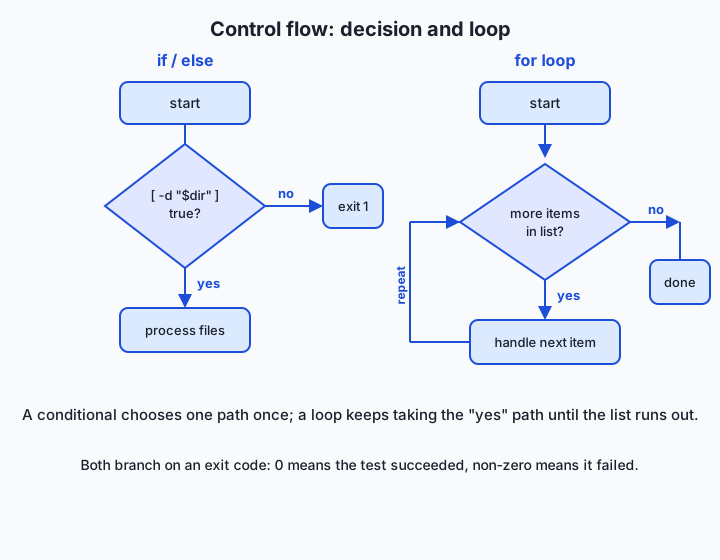
Every command reports whether it succeeded through an exit code: an integer the command returns when it finishes, where 0 means success and anything else means some kind of failure. Conditionals are built on this. The if statement runs a command and branches on its exit code:
if [ -d "${target}" ]; then
  echo "It is a directory"
else
  echo "No such directory: ${target}"
fi
Here [ is itself a command — the test command, whose alternate name is literally [ — and it exits 0 when its condition is true. [ -d "${target}" ] tests whether the path is a directory. Bash also offers [[ ... ]], a newer built-in test with the same spirit but safer behavior: it does not word-split its operands and supports pattern matching and &&/|| inside the brackets. Prefer [[ ... ]] in Bash scripts; use [ ... ] when you need to run under a plain POSIX sh. These are the test operators you will reach for constantly:
| Test | True when | Example |
|---|---|---|
-e path | the path exists | [ -e "$f" ] |
-f path | it exists and is a regular file | [ -f "$f" ] |
-d path | it exists and is a directory | [ -d "$f" ] |
-z string | the string is empty | [ -z "$name" ] |
-n string | the string is non-empty | [ -n "$name" ] |
str1 = str2 | the strings are equal | [ "$a" = "$b" ] |
int1 -eq int2 | the integers are equal | [ "$n" -eq 0 ] |
int1 -gt int2 | the first integer is greater | [ "$n" -gt 10 ] |
Note that strings compare with = while numbers use -eq, -gt, -lt, and friends — mixing them up is a classic beginner error. You can also test the success of any command directly: if grep -q "error" log.txt; then ... branches on whether grep found a match, because grep’s exit code says so.
Loops
A loop repeats a block of commands. The for loop walks over a list of items:
for f in *.txt; do
  echo "Found: ${f}"
done
The while loop repeats as long as a command keeps succeeding, which is how you read input line by line:
while read -r line; do
  echo "Line: ${line}"
done < notes.txt
The two forms suit different jobs, summarized here:
| Loop form | Repeats | Best for |
|---|---|---|
for item in list; do … done | once per item in a known list | files matching a pattern, a fixed set of names, arguments "$@" |
while command; do … done | as long as the command succeeds | reading a file line by line, retrying until something is ready, counting down |
until command; do … done | as long as the command fails | waiting for a condition to become true |
The -r flag on read tells it not to mangle backslashes, and redirecting the file into the loop with < notes.txt feeds it one line per iteration. Between for and while you can express nearly any repetition a script needs.
Functions
A function bundles commands under a name so you can call them like any other command, which keeps a script readable and avoids repeating yourself:
log() {
  echo "[$(date '+%H:%M:%S')] $*"
}

log "Starting"
log "Halfway done"
Inside a function, $1, $2, and $* refer to the arguments passed to the function, not to the script. Declare working variables local so they do not leak into the rest of the script. A function is exactly the “sub-recipe” idea: name a useful sequence once, then call it wherever you need it.
Strict mode: set -euo pipefail
Everything above works, but a default shell is too forgiving to trust. One line near the top of every serious script fixes that:
set -euo pipefailIt bundles three protections. -e makes the script exit the moment any command fails, instead of blundering onward. -u makes it an error to use a variable that was never set, catching typos in variable names before they cause silent damage. -o pipefail makes a pipeline fail if any command in it fails, not just the last one, so download | unpack is reported as failed when the download dies. (The u and the o pipefail are what turn a common mistyped ${targett} from a silent empty string into an immediate, loud error.) Adopt this line as a reflex. It is the difference between a script that stops and tells you when something is wrong, and one that cheerfully produces garbage.
Reading input
Sometimes a script must ask the person running it a question. The read command pauses, reads a line the user types, and stores it in a variable:
read -r -p "Delete these files? [y/N] " answer
if [ "${answer}" = "y" ]; then
  echo "Deleting..."
else
  echo "Cancelled"
fi
The -p flag prints a prompt; the -r flag protects backslashes as before. This is how interactive scripts confirm dangerous actions — though for automated pipelines you usually pass inputs as arguments instead, so the script can run unattended.
An everyday analogy
Think of a shell script as a recipe card handed to an extremely literal line cook. The cook — the shell — never improvises, never guesses what you meant, and does exactly what each line says, in order. That literalness is a feature: follow the same card twice and you get the same dish twice.
The pieces map cleanly. Variables are the labelled prep bowls of mise en place — “the onions,” “the stock” — set out once so the recipe can say “add the stock” without repeating where it came from. Command substitution is a step that says “taste the sauce and use that as the amount of salt” — the value comes from checking reality, not from a number written in advance. A conditional is the line “if the sauce is too thin, simmer five more minutes” — a decision the cook makes based on what is actually in the pan. A loop is “for each plate on the pass, add a sprig of garnish” — the same action repeated across a set. A function is a named sub-recipe like “make the roux” that the main recipe can invoke without spelling out every step again. And set -euo pipefail is the head chef’s standing order: if any step fails, stop immediately and call me — never plate a half-cooked dish and pretend service went fine. A kitchen that follows that order serves consistent food; a script that follows it produces trustworthy results. Keep this recipe card in mind and every construct below has an obvious purpose.
Examples in practice
Let’s build a genuinely useful script the way you would in real life: start with the smallest thing that runs, then grow it. The goal is a tool that summarizes a directory of notes — how many files, broken down by type — the kind of inventory you would generate before archiving a folder.
Step 1 — the skeleton. Every script starts with a shebang and strict mode:
#!/usr/bin/env bash
set -euo pipefail

target="${1:-.}"
echo "Summary for: ${target}"
Step 2 — validate the input. A tool that silently accepts nonsense is a trap. Check the directory exists, and fail loudly if not:
if [ ! -d "${target}" ]; then
  echo "Error: '${target}' is not a directory" >&2
  exit 1
fi
The >&2 sends the message to standard error, the stream reserved for diagnostics, and exit 1 returns a non-zero exit code so any script calling this one knows it failed.
Step 3 — a function to classify a file. Extracting a file’s extension is a small, reusable job — perfect for a function:
extension_of() {
  local name="$1"
  if [ "${name}" = "${name%.*}" ]; then
    echo "(no extension)"
  else
    echo "${name##*.}"
  fi
}
${name##*.} strips everything up to and including the last dot, leaving the extension; the conditional catches files like README that have no dot at all.
Step 4 — loop and count. Walk the files, tally the total, and collect one extension per line:
total=0
extensions=""
for path in "${target}"/*; do
  [ -f "${path}" ] || continue
  total=$((total + 1))
  extensions="${extensions}$(extension_of "$(basename "${path}")")
"
done
The [ -f "${path}" ] || continue skips anything that is not a regular file, and $((total + 1)) does integer arithmetic. Step 5 — report. Turn the collected extensions into a sorted count and print it:
echo "Total files: ${total}"
echo "By extension:"
printf '%s' "${extensions}" | sort | uniq -c | while read -r n ext; do
  echo "  ${ext}: ${n}"
done
sort | uniq -c is the classic idiom for counting duplicates: sort groups identical lines together, and uniq -c collapses each group into a single line prefixed by its count. Run this on a folder with two .txt files, one .md, and a README, and it prints a total of four and a tidy per-extension breakdown. You have just written a real tool — validated input, a function, a loop, a conditional, integer math, and strict mode — in about twenty lines. The Day 12 lab has you build exactly this script, one exercise per step.
Implications: security, privacy, performance, scalability, and cost
Security
A shell script is executable code, so running one is exactly as dangerous as trusting its author. The infamous pattern of piping a downloaded script straight into the shell — fetching a URL and executing whatever comes back — hands a stranger the power to run any command as you. Read scripts before you run them, and never run one you cannot read. Inside your own scripts, the biggest hazard is unquoted or unvalidated input: a filename or argument that contains spaces, *, or shell metacharacters can, unquoted, turn a harmless-looking line into a destructive one. Quoting every expansion and validating inputs is not just correctness hygiene; it is the security boundary.
Privacy
Scripts routinely handle sensitive values — API keys, tokens, paths that reveal a project’s structure. Two habits protect you. Never hard-code a secret into a script that might be shared or committed to version control; read it from an environment variable instead, as you learned on Day 11. And be careful with logging: a script that echoes its full environment or command line for debugging can splash a secret across a log file that outlives the run. What a script prints is data that leaks as easily as any other.
Performance
The shell is a launcher, and launching a program is comparatively expensive. A loop that starts a new process on every one of ten thousand iterations will crawl, not because the shell is slow at looping but because spawning processes has real overhead. The fix is usually to let a single tool do the bulk work — passing many files to one command rather than calling the command once per file. For the orchestration scripts do best, performance is rarely the issue; when it becomes one, it is almost always too many process launches, and the cure is to lean on the specialized tools the shell exists to connect.
Scalability
Scripts scale well in breadth and poorly in depth. Wrapping more tools, handling more files, gluing more steps — the shell absorbs this happily. But growing logic — nested data, intricate conditionals, real arithmetic — is where a script buckles, becoming fragile and unreadable. The scaling discipline is to recognize the ceiling: when a script’s complexity is in its data and logic rather than in the commands it orchestrates, it is time to move that part into a proper program and let the script keep doing what it is good at.
Cost
In machine-learning work, a shell script often stands between you and an expensive resource — a rented GPU, a metered API, a large data transfer. Here strict mode pays for itself directly. A script without set -e that fails to download a dataset but keeps going will spend an hour of paid compute training on nothing; one that stops at the failure costs you seconds. The cheapest possible outcome of a broken pipeline is that it stops immediately and tells you — and that outcome costs exactly one line of code.
Alternatives: free, open source, and commercial
The first “alternative” is a choice of shell to write for, and it genuinely matters. POSIX sh is the portable common denominator: a script whose shebang is #!/bin/sh and which avoids Bash extras will run almost anywhere, which is why system and installation scripts target it — at the cost of missing conveniences like [[ ... ]] and arrays. Bash is the pragmatic default for scripts you control: ubiquitous on Linux, present on macOS, and rich enough for real work, with #!/usr/bin/env bash. Zsh is a superb interactive shell and the macOS default login shell since 2019, but it is a poor target for portable scripts because its differences from Bash trip people up; use it as your prompt, write your scripts for Bash or POSIX sh. The practical rule: write scripts in Bash unless they must run on minimal systems, in which case restrict yourself to POSIX sh.
Beyond the shell itself, two free, open-source tools should be part of every scripter’s routine, and they are the standard of the field. ShellCheck is a static analyzer — a linter — that reads your script and points out bugs before you run them: unquoted variables, misused test brackets, portability traps. It is free and open source, runs offline, and integrates into most editors. Run it on a file like this:
shellcheck backup_notes.shOn a script with a bug like echo Backing up $dest, ShellCheck responds with precise, teachable warnings — for that line, SC2086: Double quote to prevent globbing and word splitting, and if dest is never assigned, SC2154: dest is referenced but not assigned. Each warning carries a code you can look up. shfmt is the companion formatter: it rewrites a script into a consistent style — uniform indentation and spacing — so that formatting is never something you argue about or do by hand. Both are free; there is no paid tier to consider, and they are the tools professionals actually use. For tasks that have outgrown the shell, the alternative is a different language entirely — Python for data and logic, or Make for expressing dependencies between build steps — each free and open source, each the right tool once your script stops being glue and starts being a program.
Comparison with related concepts
| Concept A | Concept B | Key difference |
|---|---|---|
| Shell script | Compiled program (C, Rust) | A script is interpreted line by line each run with no build step; a compiled program is translated to machine code once, then run — faster but less immediate |
| Shell script | Python program | Shell excels at launching and connecting other programs; Python excels at data, logic, and arithmetic. Reach for shell as glue, Python once logic dominates |
[ ... ] (test) | [[ ... ]] | [ is a POSIX command that word-splits its operands; [[ ]] is a Bash built-in that is safer with unquoted values and supports pattern matching — prefer it in Bash |
$(command) | "$variable" | Command substitution runs a command and yields its output; a variable expansion yields a stored value — both are ways to produce text, from different sources |
Running bash script.sh | Running ./script.sh | The first ignores permissions and the shebang; the second requires the executable bit and uses the shebang to pick the interpreter |
set -e on | set -e off (default) | With it, the script stops at the first failed command; without it, the script ignores failures and marches on, often producing partial, wrong results |
When to use it — and when not to
Reach for a shell script whenever a task is a sequence of commands you will run more than once, or that a teammate must be able to reproduce: setting up an environment, downloading and unpacking data, launching a job with the right flags, running a batch of evaluations, moving and renaming files in bulk. Whenever the work is orchestration — pointing existing tools at the right inputs in the right order — the shell is not just adequate, it is the natural home, and writing it down turns a fragile manual ritual into a dependable artifact.
Leave the shell in the drawer when the work is computation rather than orchestration. If your script is accumulating nested data, doing anything beyond simple integer arithmetic, parsing structured formats like JSON by hand, or sprawling past roughly a hundred lines of its own logic, it has outgrown the tool, and every further line will be more fragile than the last. That is the moment to move the heavy part into Python and keep the shell script as a thin wrapper that calls it. And never use a script — or any automation — as a substitute for understanding: a script encodes a decision you already know how to make correctly, so that the machine can make it the same way a thousand times. The professional habit is to automate the parts you have mastered and keep your judgment for the parts you have not.
The AI connection
Every machine-learning result you will ever produce rests on a stack of shell scripts, whether you write them or inherit them. The pipeline is the same everywhere: a script downloads and verifies the dataset, a script sets the environment variables and launches training with a recorded set of hyperparameters, a script runs the trained model over an evaluation set and tallies the metrics. Each is glue — orchestration of specialized tools — which is exactly what the shell is for. And each depends on the discipline from this lesson. Strict mode is what stops a failed download from quietly corrupting a training run and burning paid compute. Quoting is what keeps a dataset path with a space in it from silently processing the wrong files. Command substitution and conditionals are what let a script check that a checkpoint exists before resuming from it. When someone asks whether your result is reproducible, the real question is whether the scripts that produced it are reliable, readable, and version-controlled. A clear, strict, well-quoted script is not a side skill for an AI practitioner — it is the medium in which reproducible work is written.
Knowledge check
Try these from memory before looking back:
- Explain why
rm $fileandrm "$file"can behave differently, and give a concrete filename that makes them differ. - What does each of the three parts of
set -euo pipefaildo, and why does a serious script want all three? - You write
if [ $count = 5 ]to compare a number, and it sometimes misbehaves. What is the correct operator for comparing integers, and why does the string comparison bite you? - Describe, in your own words, what command substitution
$(...)does and give one reason a script would use it instead of a hard-coded value. - When would you choose a
forloop over awhileloop, and vice versa? Give one realistic example of each.
Hands-on exercise
Time to write a real script. In the Day 12 lab you will build backup_notes.sh — a tool that takes a directory, counts its files by extension, and prints a summary — completing it through five numbered exercises that add one concept each: the argument with a default, the validation conditional, the extension function, the counting loop, and the report. Here, warm up by writing the smallest useful script yourself.
Create a file called count_here.sh with this content, then run it:
#!/usr/bin/env bash
set -euo pipefail

target="${1:-.}"

if [ ! -d "${target}" ]; then
  echo "Not a directory: ${target}" >&2
  exit 1
fi

count=0
for path in "${target}"/*; do
  [ -f "${path}" ] || continue
  count=$((count + 1))
done

echo "Regular files in ${target}: ${count}"
Run it two ways and watch the argument-with-default in action:
bash count_here.sh
bash count_here.sh /etc
The first counts files in the current directory (the default .); the second counts them in /etc.
Expected output
Exact numbers depend on your machine, but the shape is fixed. Run in a directory containing, say, three files:
$ bash count_here.sh
Regular files in .: 3

$ bash count_here.sh /etc
Regular files in /etc: 118

$ bash count_here.sh /no/such/place
Not a directory: /no/such/place
The first two lines report a count; the third shows the validation conditional firing, printing to standard error and exiting non-zero. Confirm the failure with echo $? immediately after the third run — it prints 1, the exit code your script returned.
Validate your work
You are done when you can check every box:
- The script runs without errors when given no argument, counting the current directory.
- Passing a real directory as
$1counts that directory instead. - Passing a path that is not a directory prints an error to standard error and exits with code
1(verify withecho $?). - Every variable in your script is quoted as
"${target}"and"${path}". - The first line is exactly
#!/usr/bin/env bashand the second isset -euo pipefail.
Troubleshooting
command not foundor the script does nothing. You saved the file but ran the wrong name, or you are in the wrong directory. Runbash count_here.shfrom the folder where you saved it.unbound variableerror. Withset -u, referencing a variable you never set is a hard error — check for a typo in a variable name (${targett}instead of${target}).- The count is
0in a folder you know has files. Theforloop counts only regular files at the top level, skipping subdirectories; that is[ -f ]doing its job, not a bug. syntax error near unexpected token 'done'. A missing; thenafter anifcondition, or a missingdoafter the loop header. Compare your file against the example line by line.
Common mistakes
- Forgetting to quote variables.
for path in ${target}/*unquoted breaks the momenttargetcontains a space. Always write"${target}"/*. - Spaces around
=in an assignment.count = 0is read as running a command calledcount; assignment must becount=0with no spaces. - Comparing numbers with
=. Use-eq,-gt,-ltfor integers and reserve=for strings;[ "$n" -eq 0 ], not[ "$n" = 0 ].
Practice assignment
Complete the five exercises in starter/backup_notes.sh in the Day 12 lab so that the finished script matches the reference in examples/, then run the lab’s test suite and confirm it passes. Before you run the tests, open starter/scripting-worksheet.md and do the prediction exercise: given the listed sample directory, write down — by hand, before running anything — how many total files the script should report and the count you expect for each extension. Then run your completed script against that directory and compare. Getting a prediction wrong and understanding why is worth more than getting it right by luck; note in the worksheet any place your mental model of the loop or the counting differed from what the script actually did.
Extension challenge
Extend backup_notes.sh with a feature real inventory tools have: reporting the total size of the files, not just their count. Inside your counting loop, use command substitution and a size-reporting command to add each file’s size to a running total — on macOS, stat -f%z "${path}" prints a file’s size in bytes; on Linux, stat -c%s "${path}". Detect the platform with uname -s and a conditional, exactly as you would in a portable pipeline, then print a final line like Total size: N bytes. For a harder version, convert the byte total to a human-readable figure in mebibytes by integer division ($((bytes / 1048576))), and add a conditional that prints a warning if the directory holds more than, say, a hundred files — the kind of guardrail a real backup script uses to catch a mistakenly enormous folder before it wastes time and disk. You will have turned a counting toy into something you would genuinely run before archiving a project.
Quiz
Q1. What is the purpose of the first line `#!/usr/bin/env bash` in a script?
- It is a comment the shell ignores completely
- It is the shebang, telling the system to run the file with bash found on the PATH
- It imports a library of extra shell commands
- It makes the file executable automatically
Show answer
Answer: B. It is the shebang, telling the system to run the file with bash found on the PATH
The shebang `#!` followed by an interpreter path tells the system which program should run the file. Using `/usr/bin/env bash` finds bash on the user's PATH, which is more portable than a hard-coded path. It does not, by itself, set the executable permission bit.
Q2. Why should you almost always quote a variable expansion, writing `rm "$file"` instead of `rm $file`?
- Quoting makes the script run faster
- Unquoted, the value is subject to word-splitting and globbing, so a filename with a space or a `*` becomes multiple arguments or expands unexpectedly
- Unquoted variables are a syntax error in bash
- Quotes convert the value to uppercase
Show answer
Answer: B. Unquoted, the value is subject to word-splitting and globbing, so a filename with a space or a `*` becomes multiple arguments or expands unexpectedly
Without quotes the shell splits the value at spaces and expands glob characters like `*`. A value such as `my notes.txt` becomes two arguments, and `*` becomes every file in the directory. Quoting passes the value through as a single, literal argument.
Q3. What does `set -euo pipefail` do?
- Turns on verbose logging of every command
- Exits on the first failed command, errors on unset variables, and fails a pipeline if any stage fails
- Disables all error checking so the script never stops
- Sets three environment variables named e, u, and o
Show answer
Answer: B. Exits on the first failed command, errors on unset variables, and fails a pipeline if any stage fails
`-e` exits on the first command that fails, `-u` treats use of an unset variable as an error (catching typos), and `-o pipefail` makes a pipeline report failure if any command in it fails, not just the last. Together they turn a forgiving shell into a strict one that stops when something is wrong.
Q4. What does command substitution `$(date +%Y)` produce?
- The literal text "date +%Y"
- The output of running the `date +%Y` command, substituted in place
- An error, because commands cannot appear inside scripts
- The exit code of the date command
Show answer
Answer: B. The output of running the `date +%Y` command, substituted in place
Command substitution runs the command inside `$(...)`, captures what it prints, trims the trailing newline, and substitutes the result as a value. It lets a script react to real information rather than a hard-coded guess.
Q5. A script uses `if [ $count = 5 ]` to compare a number and behaves oddly. What is the correct integer comparison?
- `if [ $count == 5 ]`
- `if [ $count -eq 5 ]`
- `if [ $count -is 5 ]`
- `if ( count = 5 )`
Show answer
Answer: B. `if [ $count -eq 5 ]`
In test expressions, `=` compares strings while `-eq`, `-gt`, `-lt`, and similar operators compare integers. Use `[ "$count" -eq 5 ]` for numbers. Quoting the variable also avoids an error when the value is empty.
Q6. Which loop is the natural choice for reading a file one line at a time?
- A `for` loop over `*.txt`
- A `while read -r line; do ... done < file` loop
- A `case` statement
- Recursion, since shells have no loops
Show answer
Answer: B. A `while read -r line; do ... done < file` loop
A `while read -r line` loop reading from a redirected file processes one line per iteration and stops at end of file, which is exactly the "repeat while the command succeeds" pattern `while` is built for. A `for` loop suits iterating over a known list such as files matching a pattern.
Q7. What is the difference between `$1` and `$@` in a script?
- They are identical
- `$1` is the first positional argument; `$@` is all of the positional arguments
- `$1` is the exit code; `$@` is the script name
- `$1` is the number of arguments; `$@` is the first one
Show answer
Answer: B. `$1` is the first positional argument; `$@` is all of the positional arguments
`$1` is the first argument passed to the script, `$2` the second, and so on. `$@` expands to all the arguments (quote it as `"$@"` to keep each one intact), and `$#` is the count of arguments.
Q8. Why is `[[ ... ]]` generally preferred over `[ ... ]` in a bash script?
- It runs on every shell including minimal POSIX sh
- It is a bash built-in that does not word-split its operands and supports pattern matching, making it safer
- It is required for the shebang to work
- It automatically quotes every variable for you regardless of shell
Show answer
Answer: B. It is a bash built-in that does not word-split its operands and supports pattern matching, making it safer
`[[ ]]` is a bash keyword that avoids the word-splitting and globbing pitfalls of the older `[` command and adds pattern matching and logical operators inside the brackets. Use `[ ]` only when a script must run under plain POSIX `sh`, which lacks `[[ ]]`.
Glossary
- shebang
- The `#!` characters on a script's first line, followed by the path to an interpreter (e.g. `#!/usr/bin/env bash`), telling the system which program should run the file.
- variable
- A named holder for a value in a script, assigned with `name=value` (no spaces around `=`) and read with `$name` or `${name}`.
- quoting
- Wrapping a value in double quotes, as in `"$file"`, to stop the shell from word-splitting it at spaces and expanding glob characters like `*` — the single most important habit for correct scripts.
- command substitution
- The `$(command)` form, which runs a command and replaces itself with that command's captured output, letting a script use real results as values.
- exit code
- The integer a command returns when it finishes — `0` for success and non-zero for failure — which conditionals and loops branch on.
- conditional
- An `if`/`then`/`else` construct that runs commands based on whether a test succeeds, where the test is any command judged by its exit code.
- loop
- A construct that repeats a block of commands: `for` iterates over a known list, while `while` (and `until`) repeats based on a command's exit code.
- function
- A named, reusable group of commands defined with `name() { ... }` and called like any command; inside it, `$1` and `$2` are the arguments passed to the function.
- positional parameter
- The numbered inputs a script receives on the command line — `$1`, `$2`, and so on — with `$#` giving their count and `$@` expanding to all of them.
- test command
- The `[ ... ]` (also spelled `test`) or the bash-only `[[ ... ]]` construct that evaluates a condition, such as `-d` for "is a directory", and returns an exit code.
- ShellCheck
- A free, open-source static analyzer (linter) for shell scripts that flags bugs like unquoted variables and misused test brackets before the script is ever run.
- set -e
- A shell option (part of `set -euo pipefail`) that makes a script exit immediately when any command fails, instead of blindly continuing after an error.
- strict mode
- The convention of putting `set -euo pipefail` near the top of a script so it stops on errors, errors on unset variables, and detects failures anywhere in a pipeline.
Sources and further reading
- Bash Reference Manual — GNU (accessed 2026-07-12)
- The Linux Command Line — William Shotts (accessed 2026-07-12)
- Google Shell Style Guide — Google (accessed 2026-07-12)
- The Missing Semester of Your CS Education — Shell Tools and Scripting — MIT (accessed 2026-07-12)
- Shell script — Wikipedia (accessed 2026-07-12)
Kept in this browser, no account needed. Your progress page turns the whole record into one link you can bookmark or open on another device.