Computing Foundations › Git and GitHub › Day 34
Day 34: Undoing Things: Reset, Revert, and Reflog
After this lesson you will be able to fix a bad commit, un-stage and discard changes, rewind a branch with the right reset mode, safely undo shared history with revert, and recover "lost" commits with the reflog — so that nothing you do in Git ever feels irreversible again.
Hands-on lab for this lesson
Lab files on GitHub: https://github.com/ai-roadmap-365/ai-roadmap-365.github.io/tree/main/labs/sections/computing-foundations/day-034-undoing-things-reset-revert-and-reflog
- Get the hands-on files. Clone the labs repository once (you can reuse this clone for every lesson). This works on macOS, Linux, and Windows (PowerShell or WSL):
git clone https://github.com/ai-roadmap-365/ai-roadmap-365.github.io.git cd ai-roadmap-365.github.io - Open this lesson's lab. Move into the directory for this specific day. Every lab lives at the same predictable path — section / subsection / week / day:
cd labs/sections/computing-foundations/day-034-undoing-things-reset-revert-and-reflog - Read the lab guide. Open `README.md` in that directory. It lists the exact commands, what each does, the expected output, and how to check your work — read it before running anything.
- Run it and check your work. Follow the README's "How to run" section: run the example first to see the finished result, then complete the numbered exercises in `starter/`, then run the tests. The tests pass (exit 0) only when your work is correct.
bash tests/run_tests.sh # or the test command named in the lab README
You can also open the lab as a local page (works offline, shows the file tree and expected output).
Learning objectives
By the end of this lesson you will be able to:
- Fix the most recent commit's message or contents with git commit --amend, and explain why the commit hash changes
- Un-stage a file with git restore --staged and discard an uncommitted change with git restore, distinguishing the two
- Explain what git reset --soft, --mixed, and --hard each move among HEAD, the index, and the working tree, and choose the right mode for a situation
- Undo a shared commit safely with git revert and explain why it is preferable to reset once history is published
- Recover commits dropped by a hard reset using git reflog followed by git reset --hard, proving that committed work is almost never truly lost
- State the one hard limit of Git's safety net — that uncommitted work has no protection — and the commit-or-stash habit that closes it
Prerequisites
- Days 29–32: why version control exists, and Git fundamentals (init, add, commit, branches, remotes)
- Comfort running commands in a terminal on macOS or Linux, and a working Git installation
Why this matters
The single most valuable thing version control gives you is not a tidy history or a shared repository — it is the freedom to make mistakes. Once you truly believe that almost nothing you do in Git is permanent, you stop tiptoeing. You try the risky refactor, rename the confusingly-named files, restructure a folder full of experiments, and rewrite that ugly commit message, because you know that any of it can be walked back. Fear makes people commit rarely, branch never, and hoard half-finished work in files named script_final_v3_REALLY_final.py. Confidence makes people move fast and clean up as they go. The difference between the two is knowing today’s five commands cold.
This matters enormously the moment your work turns experimental, and building anything with data or models is nothing but experiments. You will change a preprocessing step, launch a run, discover it made results worse, and need to get back to exactly the code that produced last week’s good numbers. You will stage a pile of edits, realise half of them belong in a separate commit, and need to un-stage cleanly. You will run one wrong command at midnight and watch two hours of committed work seemingly vanish — and the engineer who calmly types git reflog and restores it in ten seconds is simply the one who learned that Git keeps a safety net under everything. The stakes are concrete: the alternative to knowing how to undo is re-doing, and re-doing lost work is where afternoons go to die. Today you learn to fix mistakes without fear, and to recover from the mistakes that look, for a heart-stopping moment, unfixable.
The idea in plain language
Every time you commit in Git, you save a complete snapshot of your project and give it a unique name (a long hexadecimal hash like a1b2c3d). Those snapshots do not overwrite each other; they pile up, each pointing back to the one before it, forming a chain. “Undoing” in Git almost never means destroying a snapshot. It means one of three gentler things: editing the most recent snapshot, moving a pointer so a different snapshot becomes “the current one,” or adding a new snapshot that cancels out an old one. The snapshots themselves stay on disk, quietly reachable, long after you think you have thrown them away.
There are only a handful of moves to learn. Amend fixes the commit you just made — a wrong message or a forgotten file — by replacing it with a corrected version. Restore deals with changes you have not committed yet: it can pull a file out of the staging area (un-stage it) or throw away edits in your working files to match the last commit. Reset moves the branch pointer to an earlier commit, and comes in three strengths — soft, mixed, and hard — that differ in how much of your current work they disturb. Revert undoes an old commit the polite way, by making a brand-new commit that reverses it, which is the only safe choice once other people have your history. And underneath all of it sits reflog, short for “reference log”: a private diary Git keeps of every position your branch has ever occupied, so that even a commit you “deleted” with a reckless reset can be found again and restored.
The whole subject becomes easy once you hold one picture in your head: three storage areas that Git shuffles work between. Your working tree is the actual files on disk you edit. The index (also called the staging area) is a holding pen for the changes you have marked as ready to commit. And HEAD is a pointer to your latest commit — the snapshot you would get back if you threw everything else away. Almost every undo command is just a rule about which of these three it touches.
Historical background
Git was written in a hurry in April 2005 by Linus Torvalds, the creator of Linux. For years the Linux kernel project had used a proprietary version-control system called BitKeeper under a free-of-charge licence; when that arrangement broke down, thousands of developers were suddenly left without a tool that could handle a project their size. Torvalds spent about two weeks building a replacement with a specific, unusual set of priorities: it had to be fast, it had to be fully distributed (every developer holding a complete copy of the history), and above all its stored data had to be trustworthy — every snapshot named by a cryptographic hash of its own contents, so that corruption or tampering could not go unnoticed.
That last decision is the quiet reason today’s lesson works. Because a commit is content-addressed — its name is computed from what is inside it — commits are treated as immutable objects that Git accumulates rather than edits in place. When you “amend” or “rebase” or “reset,” Git is not scribbling over an old snapshot; it is creating new snapshot objects and moving pointers, while the old objects linger in the repository’s object store until a cleanup process eventually decides nothing references them. This is precisely what makes recovery possible.
The safety net itself, the reflog, has been part of Git since its early years, recording every movement of HEAD and of branch tips. Two of the commands you will use today are much younger. For over a decade, un-staging a file and discarding a file’s edits were both awkwardly bolted onto the overloaded git checkout command, which also switched branches — a genuine source of beginner confusion, since the same word did three unrelated things. In August 2019, Git version 2.23 split those jobs into two new, clearly named commands: git switch for moving between branches and git restore for undoing changes to files. The older git checkout -- file and git reset HEAD file still work everywhere and you will meet them in older tutorials, but git restore is the modern, readable way, and it is what this lesson teaches first.
What it is — and what it is not
“Undoing things” in Git is a family of operations that move your project backward or sideways in its history without, in almost every case, destroying committed work. It is pointer manipulation and snapshot creation. It is not, as a rule, deletion. When you reset a branch back two commits, those two commits do not evaporate; they become “unreachable” — no branch or tag points to them anymore — but they sit intact in the object store, findable through the reflog, for weeks. This is the mental correction most beginners need: the panic of “I lost my commits” is nearly always misplaced, because losing a commit in Git is genuinely hard to do by accident.
There is exactly one important exception, and you must respect it or the safety net has a hole. Work that has never been committed — edits sitting in your working tree, or changes you staged but never committed — is not a snapshot and is not in the reflog. There is nothing for Git to recover it from. The command git reset --hard, and to a lesser degree git restore, will overwrite those uncommitted changes with no undo whatsoever. So the honest one-sentence version of Git’s safety promise is: committed work is almost impossible to truly lose, and uncommitted work has no protection at all. The practical habit that follows is to commit or stash your work before running any command that touches the working tree, which is the safest reflex you can build today.
| Common misconception | The reality |
|---|---|
”git reset deletes my commits.” | It moves the branch pointer; the commits become unreachable but stay in the object store, recoverable via the reflog for weeks. |
| ”Amending edits the old commit in place.” | Amend builds a new commit with a new hash that replaces the old one; the original still lingers in the reflog. |
| ”Once I run a bad command, the work is gone.” | If the work was committed, git reflog almost always finds it. Only uncommitted changes have no safety net. |
| ”Reset and revert do the same thing.” | Reset rewrites history by moving the pointer; revert preserves history by adding a new, inverse commit. |
”--hard is just a stronger undo.” | It also erases uncommitted changes in your working files, permanently — the one genuinely destructive option here. |
Why it was created and what problems it solves
Version control exists to answer a human problem: people make mistakes, change their minds, and need earlier versions of their work. But a system that only ever moved forward would be half a tool. The commands in this lesson solve the backward problems, and each one targets a distinct, real frustration.
The first problem is the just-made mistake: you commit, and a half-second later you spot a typo in the message or realise you forgot to stage a file. Re-doing the commit from scratch is silly; git commit --amend fixes it in place. The second problem is the mis-aimed change: you staged more than you meant to, or edited a file you now want to abandon. git restore puts things back without ceremony. The third problem is the regretted direction: several commits in, you conclude the whole approach was wrong and want the branch to look as though those commits never happened. git reset rewinds the pointer. The fourth problem is the published regret: the bad commit is already on a shared server and teammates have pulled it, so you cannot quietly rewrite the past without breaking their copies. git revert undoes it additively, in a way everyone can safely absorb.
Underneath all four is the deepest problem Git set out to solve: making experimentation cheap. If every misstep were expensive to reverse, rational people would stop experimenting, and a version-control system that discourages trying things has defeated its own purpose. By guaranteeing that committed history is recoverable and that undo operations are quick and local, Git converts mistakes from disasters into minor detours — which is exactly the psychological condition under which good, fast work gets done.
How it works
To undo with confidence you need the model behind the commands, not just the commands. Everything below is a rule about three areas — the working tree, the index, and HEAD — so we start there and build up.
The three trees
Picture your project as living in three places at once. The working tree is the set of real files on your disk, the ones your editor opens and changes. The index, or staging area, is a proposed next snapshot: when you run git add file.py, you copy that file’s current state into the index, marking it as part of the commit you are about to make. HEAD is a pointer to your most recent commit on the current branch — the last snapshot you saved. A normal commit takes whatever is in the index and freezes it into a new snapshot, then advances HEAD to point at it.
Undo commands work by moving changes between these three areas, or by moving the HEAD pointer itself. That is the entire trick. git add moves a change from the working tree into the index; the undo commands move things the other way, or slide HEAD to a different commit. Keep the three trees in mind and every command below stops being magic.
Fixing the last commit with amend
You commit, then immediately notice the message says “fix tpyo” or that you left out a file. Run:
git commit --amend -m "Fix typo in the data loader"Git takes the currently-staged content, combines it with the previous commit’s content, and produces a new commit that replaces the last one on your branch. If you had forgotten a file, you would git add it first, then amend, and it would be folded into that same commit. The crucial detail: the original commit is not edited — it is replaced by a new commit with a new hash, and the old one drifts off into the reflog. That is why the rule is the same as for reset: amend a commit only if you have not yet shared it, because rewriting a commit others already have causes the same divergence problems described later.
Un-staging and discarding with restore
Two different “I changed my mind” situations, two flavours of one command. If you staged a file and want to un-stage it — take it back out of the index while keeping your edits in the working tree — run:
git restore --staged notes.mdYour edits to notes.md are untouched on disk; they are simply no longer marked for the next commit. If instead you want to throw away your edits to a file and snap it back to how it looked in the last commit, run:
git restore notes.mdThis one is destructive to uncommitted work: the edits are gone, because they were never committed and never in the reflog. Git prints a warning-free success, so respect the command. (The older equivalents, still valid, are git reset HEAD notes.md to un-stage and git checkout -- notes.md to discard.)
Reset in depth: soft, mixed, and hard
git reset <commit> moves the current branch pointer to <commit> — that always happens. What differs between the three modes is how far the change reaches into the index and working tree.
--softmoves onlyHEAD. Your index and working tree are left exactly as they were, so all the changes from the commits you rewound are still staged, ready to be re-committed. This is the gentle mode you use to “squash” or re-do the last commit while keeping every change.--mixed(the default, used when you name no mode) movesHEADand resets the index to match, but leaves the working tree alone. The changes from the rewound commits are still on disk as edits, but now un-staged. This is what you want when you committed too early and would like to re-stage things differently.--hardmoves all three:HEAD, the index, and the working tree. Your files on disk are forcibly rewritten to match the target commit, and any uncommitted changes are destroyed with no undo. This is the powerful, dangerous mode — right for wiping a failed experiment clean, wrong any time you have working changes you might still want.
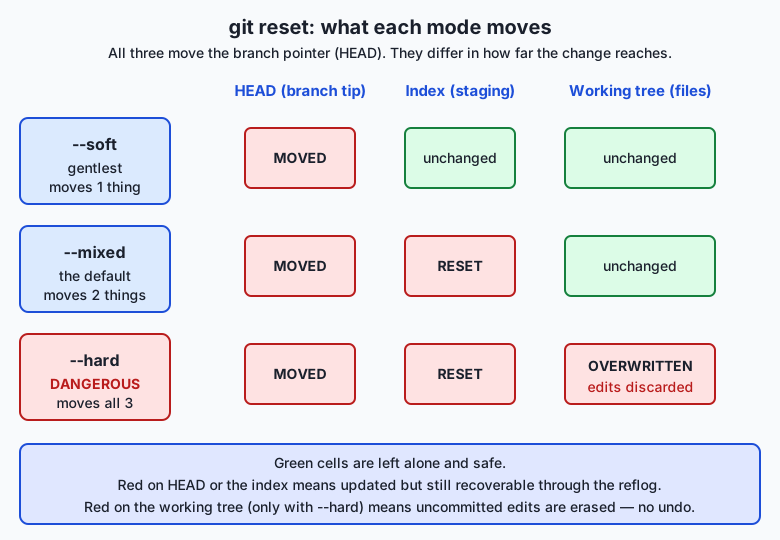
Read the diagram as three rows of increasing reach. The most common everyday use is git reset --soft HEAD~1, which means “move the branch back by one commit but keep all its changes staged” — the standard way to redo a commit you are not happy with. HEAD~1 is Git’s notation for “one commit before HEAD”; HEAD~2 means two before, and so on.
| Reset mode | Moves HEAD | Resets the index | Resets the working tree | Typical use |
|---|---|---|---|---|
--soft | yes | no | no | Redo or combine the last commit while keeping every change staged |
--mixed (default) | yes | yes | no | Un-commit and un-stage, to re-stage the changes differently |
--hard | yes | yes | yes | Discard commits and uncommitted work to return cleanly to a known state |
Undoing a shared commit with revert
Reset rewrites history — it makes the branch look as though the rewound commits never existed. That is fine on a branch only you have, and a disaster on a branch other people have already pulled, because your history and theirs now disagree about what happened. When a commit is already shared, you undo it additively instead:
git revert a1b2c3dGit computes the exact inverse of commit a1b2c3d — every line it added becomes a line removed, and vice versa — and records that inverse as a brand-new commit on top of your branch. The original commit stays in history, and a new commit cancels its effect. Because you only added a commit and rewrote nothing, everyone else can pull your revert and stay perfectly in sync.
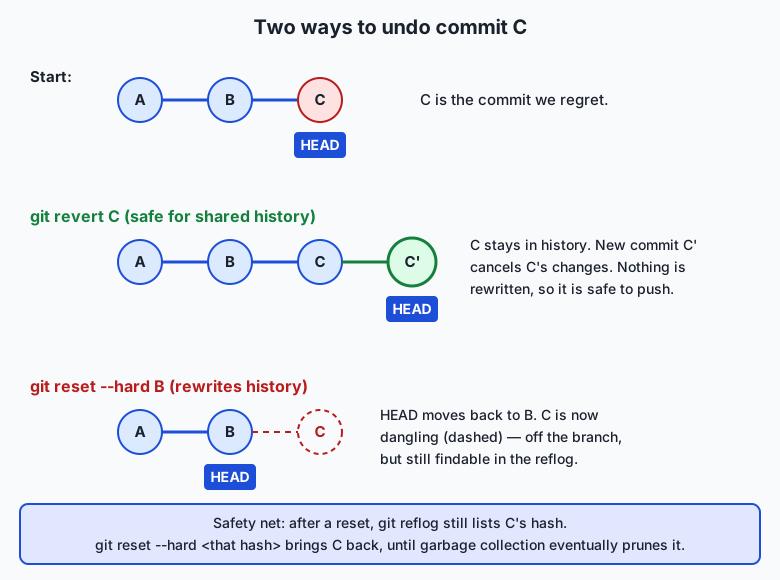
The flowchart shows the fork in the road. Down the revert path, commit C remains and a new commit C' undoes it — history grows. Down the reset path, HEAD slides back to B and C falls off the branch into a dangling state — history shrinks (or rather, is rewritten). The rule to memorise: reset for private history, revert for shared history.
The safety net: reflog
Every time HEAD moves — a commit, a checkout, a reset, a rebase, an amend, a merge — Git appends a line to a log of where HEAD has been. That log is the reflog, and you read it with:
git reflogYou get a list like a1b2c3d HEAD@{0}: commit: add feature, 9f8e7d6 HEAD@{1}: reset: moving to HEAD~2, and so on. Each entry names a commit hash and describes the action that put HEAD there. This is the recovery mechanism: after a reset drops a commit, that commit’s hash is still sitting in the reflog, and you can move your branch back onto it with git reset --hard <hash> (or safely inspect it first with git checkout <hash>). The commit was never gone; it was only unreferenced.
The reflog is local and private — it lives in your own repository, never travels to a remote, and records only your actions. It is also not eternal: by default Git keeps reflog entries for reachable commits about 90 days and for unreachable ones at least 30 days, after which the garbage collector becomes eligible to prune the truly orphaned commits. That window is enormous compared to how fast you will usually notice a mistake, which is why “just check the reflog” resolves the great majority of Git panics.
An everyday analogy
Think of your project as a single-player video game with save points. Every commit is a save you deliberately make and can name — a snapshot of the whole world at that moment. Your working tree is the live game you are playing right now, with progress since your last save not yet written to any slot. The index is the little “ready to save” buffer where you gather exactly what the next save will contain.
Now the undo moves map cleanly. Amend is realising your last save had a bad name or missed an item, and overwriting that same save slot with a corrected one. Reset is loading an earlier save. --soft and --mixed are gentle loads that put your character back at the earlier point but keep the items and progress you had gathered since; --hard is loading an old save without saving your current game first — everything you had done since the last save is simply gone. That is why --hard deserves a moment’s pause every single time: unsaved progress does not come back.
Revert is the move for a co-op game where your teammates have already seen the current state. You do not yank everyone back to an earlier save — that would desync the whole party. Instead you play forward a corrective sequence that undoes the damage the last chapter did, so the story now contains both the mistake and its cancellation, and everyone stays on the same timeline. And the reflog is the game’s automatic log of every position your character has ever stood in. Even a save you overwrote or a checkpoint you abandoned leaves a footprint here, so as long as the log has not been swept, you can teleport back to any spot you were ever standing. The analogy holds all the way down: committed saves are safe, unsaved progress is not, and the autolog is the reason a “lost” save almost never really is.
Examples in practice
Here is a real sequence of the kind you will run constantly, shown as terminal transcripts. First, the just-made-mistake fix:
$ git commit -m "Add data celaner"
[main 4d9a1c2] Add data celaner
$ git commit --amend -m "Add data cleaner"
[main 7b2f8e0] Add data cleaner
The hash changed from 4d9a1c2 to 7b2f8e0 — proof that amend produced a new commit rather than editing the old one. The typo is fixed and no extra commit clutters the log.
Next, un-committing to reshape a commit that bundled two unrelated changes. Suppose your last commit accidentally mixed a bug fix and an unrelated rename:
$ git reset --soft HEAD~1
$ git status
On branch main
Changes to be committed:
  modified:   loader.py
  renamed:    old_name.py -> new_name.py
--soft rewound one commit but kept everything staged, so now you can un-stage the rename with git restore --staged new_name.py, commit the bug fix alone, then stage and commit the rename separately — two clean commits out of one messy one.
Now a revert, the safe undo for a commit you have already pushed:
$ git revert 7b2f8e0
[main c3d4e5f] Revert "Add data cleaner"
$ git log --oneline
c3d4e5f Revert "Add data cleaner"
7b2f8e0 Add data cleaner
Both commits are in the log: the original and its inverse. Anyone who pulls this sees a clean, additive history.
Finally, the disaster-and-recovery that makes the whole lesson click. You run a --hard reset that drops two commits, realise your error, and get them back:
$ git reset --hard HEAD~2
HEAD is now at 7b2f8e0 Add data cleaner
$ git reflog
7b2f8e0 HEAD@{0}: reset: moving to HEAD~2
a1b2c3d HEAD@{1}: commit: add model config
9f8e7d6 HEAD@{2}: commit: add training loop
7b2f8e0 HEAD@{3}: commit: add data cleaner
$ git reset --hard a1b2c3d
HEAD is now at a1b2c3d add model config
The two “lost” commits, 9f8e7d6 and a1b2c3d, were in the reflog the entire time. Pointing the branch back at a1b2c3d restores both, because a1b2c3d still points back to 9f8e7d6, which points back to the rest. Nothing was ever truly lost — the branch pointer had simply moved. Run this recovery once yourself in the lab and the fear drains out of Git permanently.
Implications: security, privacy, performance, scalability, and cost
Security
Rewriting history has a security dimension the moment secrets are involved. A common panic is committing an API key or password by accident. Deleting it in a later commit is not enough — the secret is still sitting in the earlier snapshot, visible to anyone who checks out that commit or reads the history. Genuinely removing it means rewriting every commit that contained it (with history-rewriting tools) and, because the value has been exposed to your own machine’s storage and possibly a remote, rotating the secret so the leaked one no longer works. History rewriting also underpins a subtler point: because commits are content-addressed by hash, you cannot silently alter a shared commit without its hash changing and the tampering becoming visible — an integrity guarantee that undo operations respect rather than break.
Privacy
The reflog is a private, local record of everything you did in your repository, including references to commits you thought you had discarded. That is a feature when you need to recover, and a consideration when you hand a repository to someone else: your reflog does not travel when you push or when someone clones, so your local fumbling stays yours. But a full copy of your .git directory — for example a repository folder you zip up and email — carries the reflog and every “deleted” commit with it. If a discarded commit held something sensitive, treat “removed from the branch” and “removed from the repository” as different claims.
Performance
The undo operations here are cheap and local. Reset, restore, amend, and reflog all operate on your own repository with no network round-trip, which is why they feel instant even on large projects — moving a pointer is trivial work regardless of how much history hangs behind it. The one operation with a cost is git revert on a commit that conflicts with later changes: Git must compute and possibly let you resolve a merge, which is proportional to the size of the conflict, not the history. And garbage collection, the process that eventually prunes unreachable commits, runs occasionally in the background and is what reclaims disk space from the snapshots your resets left behind.
Scalability
These commands scale to enormous histories without slowing down, because none of them traverse the whole history — they manipulate a pointer and, at most, compare two snapshots. What does not scale is coordination: history rewriting on a shared branch scales terribly with team size, because every person who has pulled the old history must now reconcile their copy. This is the entire reason the “reset for private, revert for shared” rule exists. On a solo branch, reset freely; on a branch a hundred people track, a single force-push of rewritten history can cost a hundred people an afternoon.
Cost
The direct monetary cost of these commands is zero — Git is free and open source, and every operation here runs locally. The real cost is measured in avoided rework. An engineer who can recover a “lost” branch in ten seconds instead of reconstructing a day’s work has turned a potential catastrophe into a non-event, and across a career that difference is measured in weeks. The counter-cost to respect is the destructive edge of --hard and force-push: the cheapest command in the toolbox is also the one most able to erase uncommitted work or overwrite a colleague’s commits, so its price is paid only when used carelessly.
Alternatives: free, open source, and commercial
The commands themselves are the free, open-source foundation, but you do not have to drive them all from raw terminal syntax. Several tools wrap the same operations in a friendlier interface, and knowing when to reach for each is part of the skill.
| Tool | Type | What it offers for undo | Cost |
|---|---|---|---|
| Git command line | Free, open source | The complete, authoritative set: amend, restore, reset, revert, reflog. Every other tool calls these underneath. | Free |
| VS Code (built-in Git) | Free | Right-click a file to “Discard Changes,” un-stage with a click, and use the Timeline view to see and restore earlier versions of a file. | Free |
| GitHub Desktop | Free | Buttons for “Undo” the last commit and “Revert” a commit, with a visual diff; hides hashes for beginners. | Free |
| lazygit / tig | Free, open source | Fast terminal UIs that make reset, revert, and reflog navigation interactive without memorising flags. | Free |
| JetBrains IDEs / commercial GUIs | Commercial | Polished visual history, one-click revert, and a “Local History” feature that even tracks uncommitted edits. | Paid (often free tiers) |
The honest guidance: learn the command line first, because it is what every graphical button ultimately runs, and because when something goes truly wrong the recovery path — git reflog followed by git reset --hard <hash> — is fastest and clearest as typed commands. Reach for a GUI for the routine, low-stakes moves: VS Code’s Git panel makes un-staging and discarding individual files pleasant, and its Timeline view is a genuinely useful extra safety net because it can restore a file version you never even committed. Use git reflog when a GUI’s undo button is not enough — no graphical tool exposes the full recovery power of the reflog as directly as the command does.
Comparison with related concepts
| Concept A | Concept B | Key difference |
|---|---|---|
git reset | git revert | Reset rewrites history by moving the branch pointer; revert preserves history by adding a new inverse commit |
git restore | git reset | Restore targets files (un-stage or discard changes); reset targets the branch pointer and, depending on mode, the index and working tree |
git commit --amend | git commit | Amend replaces the previous commit with a new one; a plain commit adds a new commit after it |
--soft reset | --hard reset | Soft keeps your index and working tree intact; hard overwrites both, destroying uncommitted changes |
git reflog | git log | Reflog is a local record of everywhere HEAD has moved, including abandoned commits; log shows only the commits currently reachable from your branch |
| Reachable commit | Unreachable commit | A reachable commit is pointed to by a branch or tag; an unreachable one is off every branch but survives in the object store until garbage collection |
When to use it — and when not to
The governing decision is almost always private versus shared history, so make that your first question. If the commits you want to undo exist only on your own machine — a local branch you have never pushed — you are free to rewrite: git commit --amend to fix the very last commit, git reset --soft to redo a commit while keeping its changes, and git reset --hard to wipe a failed experiment back to a known-good commit. Rewriting private history harms no one, and the reflog protects you if you overshoot. Reach for git restore any time the change you regret was never committed at all — an over-eager staging, or edits to a file you would rather abandon.
The moment history is shared, the rules invert. If the bad commit is already on a remote and teammates may have pulled it, do not reset-and-force-push; use git revert to add an inverse commit that everyone can absorb cleanly. Force-pushing rewritten history to a shared branch is the classic way to ruin a colleague’s afternoon, and git push --force is a command to treat with real suspicion; when you genuinely must force-push your own feature branch, prefer git push --force-with-lease, which refuses to overwrite work you have not seen. And know the one hard limit of the whole safety net: none of it protects uncommitted work. Before any git reset --hard, and before any command that rewrites the working tree, commit or git stash your changes first — that single habit closes the only real hole in Git’s promise that nothing is ever lost.
Knowledge check
Try these from memory before looking back:
- Name the three “trees” Git shuffles work between, and say in one sentence what each one holds.
- A teammate says “
git resetdeleted my two commits and they’re gone forever.” Explain why they are almost certainly wrong and the exact command sequence that recovers the commits. - You committed a change that is already pushed and pulled by three colleagues, and you now need to undo it. Which command do you use, and why is
git resetthe wrong choice here? - Explain the difference between
git reset --soft HEAD~1andgit reset --hard HEAD~1in terms of what happens to your staged changes and your edited files. - You just ran
git commitand immediately noticed a typo in the message. Give the one command that fixes it, and explain why the commit’s hash changes afterward.
Hands-on exercise
Time to make Git break and then bring it back. In this exercise — worked through in full in the Day 34 lab directory — you will create a small throwaway repository with a few commits, then practise every undo move on it, ending with a deliberate “disaster” you recover from. Because you build a fresh repository just for this, there is nothing of value to lose, so you can be fearless.
Open your terminal and create a scratch repository (the lab script does this for you, but doing it by hand once cements it):
mkdir /tmp/undo-practice && cd /tmp/undo-practice
git init
git config user.email "you@example.com"
git config user.name "Undo Practice"
echo "line 1" > notes.txt
git add notes.txt
git commit -m "Frist commit"
Now fix that misspelled message with an amend, and confirm the hash changed:
git commit --amend -m "First commit"
git log --oneline
Make and commit two more changes so you have a history to play with, then simulate the disaster — drop two commits with a hard reset — and recover them from the reflog:
git reset --hard HEAD~2
git reflog
git reset --hard <the hash from the reflog for the newest lost commit>
git log --oneline
Expected output
A representative run (your hashes will differ — that is expected):
$ git commit --amend -m "First commit"
[main 8c1d2e3] First commit

$ git reset --hard HEAD~2
HEAD is now at 8c1d2e3 First commit

$ git reflog
5a6b7c8 HEAD@{0}: reset: moving to HEAD~2
2f3e4d5 HEAD@{1}: commit: Third commit
9a8b7c6 HEAD@{2}: commit: Second commit
8c1d2e3 HEAD@{3}: commit (amend): First commit

$ git reset --hard 2f3e4d5
HEAD is now at 2f3e4d5 Third commit

$ git log --oneline
2f3e4d5 Third commit
9a8b7c6 Second commit
8c1d2e3 First commit
The final git log shows all three commits back in place. The two commits the hard reset “removed” were listed in the reflog the whole time, and pointing the branch back at the newest one (2f3e4d5) restored the entire chain, because each commit points to its parent.
Validate your work
You are done when you can check every box:
- You amended a commit and confirmed its hash changed in
git log --oneline. - You un-staged a file with
git restore --stagedand saw it move from “staged” to “not staged” ingit status. - You discarded a working change with
git restoreand saw the file revert to the committed version. - You dropped two commits with
git reset --hard HEAD~2and confirmedgit logwas shorter. - You found the lost commits in
git reflogand restored them withgit reset --hard <hash>, confirminggit logwas full again.
Troubleshooting
git reflogshows nothing but the initial commit. The reflog only records moves ofHEADsince the repository was created; if you just rangit initand made one commit, there is little to show. Make several commits and a reset first, then look.fatal: not a git repository. You are not inside the repository folder.cdinto/tmp/undo-practice(or wherever you created it) before running Git commands.Please tell me who you areon your first commit. Git needs an identity. Run the twogit config user.emailandgit config user.namelines shown above; setting them locally in this scratch repo keeps your real global config untouched.- You recovered to the wrong commit. No harm done — run
git reflogagain (the reflog even records this reset) andgit reset --hardto the correct hash. The reflog remembers every move, including your recovery attempts.
Common mistakes
- Running
git reset --hardwith uncommitted edits you wanted. Hard reset overwrites the working tree; any change you had not committed is gone and not in the reflog. Commit or stash before every hard reset. - Copying the wrong hash from the reflog. The newest lost commit is the one whose chain includes all the others; restoring to it brings the whole chain back. Read the reflog descriptions (
commit: Third commit) to identify the right one. - Reaching for
reseton shared history. In this scratch repo there is no remote, so reset is safe. On a real pushed branch, undoing with reset and force-pushing breaks teammates’ copies — usegit revertthere instead.
Practice assignment
Open the undo worksheet in the starter directory of the Day 34 lab and complete it as you run through the lab’s five exercises on a throwaway repository. Record, in your own words: (1) what changed between the commit before and the commit after your git commit --amend — specifically the message and the hash; (2) the difference you observed between git reset --soft HEAD~1 and git reset --hard HEAD~1, noting what happened to your staged changes and your working files in each case; and (3) the exact reflog hash you used to recover your commits after the deliberate hard reset, with a one-sentence explanation of why that particular commit restored the whole chain. Keep the worksheet — the Week 5 project (a versioned notes repository) expects you to demonstrate a clean recovery, and this is your rehearsal.
Extension challenge
Go one level deeper into the safety net. First, deliberately create a commit, note its hash with git log --oneline, then git reset --hard HEAD~1 to drop it and confirm git log no longer lists it. Now find it without the reflog: run git fsck --lost-found, which scans the object store for “dangling” commits that no branch points to, and confirm your dropped commit’s hash appears among them. This proves the commit is a real object still sitting in .git, independent of the reflog. Restore it by creating a branch that points to it: git branch recovered <hash>, then git log recovered --oneline. Finally, write three or four sentences explaining the relationship you have just demonstrated between three ideas: a commit being unreachable (off every branch), a commit being recoverable (still in the object store, findable by reflog or fsck), and a commit being pruned (eventually removed by garbage collection once the reflog window expires). You now understand not just how to undo, but why undo in Git is so hard to make permanent — which is the deepest reason experienced developers work without fear.
Quiz
Q1. You just ran git commit and immediately noticed a typo in the commit message. Which command fixes it most directly?
- git revert HEAD
- git reset --hard HEAD~1
- git commit --amend -m "corrected message"
- git restore --staged .
Show answer
Answer: C. git commit --amend -m "corrected message"
git commit --amend replaces the most recent commit with a new one carrying the corrected message. The commit's hash changes because amend creates a new commit object rather than editing the old one in place.
Q2. What does git reset --soft HEAD~1 do to your staged changes and your working files?
- It moves HEAD back one commit but leaves the index and working tree untouched, so the rewound changes stay staged
- It moves HEAD back one commit and deletes all uncommitted changes in the working tree
- It creates a new commit that reverses the last commit
- It only un-stages files without moving HEAD
Show answer
Answer: A. It moves HEAD back one commit but leaves the index and working tree untouched, so the rewound changes stay staged
A --soft reset moves only the branch pointer (HEAD). The index and working tree are left exactly as they were, so every change from the rewound commit remains staged and ready to be re-committed.
Q3. Which git reset mode also overwrites your working-tree files, permanently discarding uncommitted changes?
- --soft
- --mixed
- --hard
- All three affect the working tree equally
Show answer
Answer: C. --hard
Only --hard moves all three: HEAD, the index, and the working tree. It forcibly rewrites your files to match the target commit, and any uncommitted changes are destroyed with no undo — which is why it is the one genuinely dangerous mode.
Q4. A bad commit is already pushed and three teammates have pulled it. What is the correct way to undo it?
- git reset --hard HEAD~1, then git push --force
- git revert <hash>, which adds a new inverse commit everyone can pull
- git commit --amend, then push again
- Delete the .git folder and re-clone
Show answer
Answer: B. git revert <hash>, which adds a new inverse commit everyone can pull
Once history is shared, rewriting it with reset and force-push breaks teammates' copies. git revert undoes the commit additively by recording a new inverse commit, so everyone can pull the change and stay in sync.
Q5. How does git revert differ from git reset?
- Revert deletes commits while reset keeps them
- They are identical; revert is just an alias for reset
- Revert rewrites history by moving the pointer; reset adds a new commit
- Revert preserves history by adding a new inverse commit; reset rewrites history by moving the branch pointer
Show answer
Answer: D. Revert preserves history by adding a new inverse commit; reset rewrites history by moving the branch pointer
Revert is additive and safe for shared branches: it leaves the original commit in place and records a new commit that cancels it. Reset is subtractive: it moves the branch pointer, rewriting what the history looks like.
Q6. After git reset --hard HEAD~2 drops two commits, how do you get them back?
- You cannot; a hard reset permanently deletes commits
- Run git reflog to find the dropped commit's hash, then git reset --hard <hash>
- Run git pull to re-download them from the remote
- Run git commit --amend to rebuild them
Show answer
Answer: B. Run git reflog to find the dropped commit's hash, then git reset --hard <hash>
The dropped commits become unreachable but still exist in the object store, and their hashes remain listed in git reflog. Pointing the branch back at the newest lost commit with git reset --hard restores the whole chain, since each commit points to its parent.
Q7. What is the git reflog?
- A shared log on the remote server showing everyone's commits
- A local, private record of every position HEAD has occupied, including commits no branch points to anymore
- The same thing as git log, showing only reachable commits
- A list of files currently staged for commit
Show answer
Answer: B. A local, private record of every position HEAD has occupied, including commits no branch points to anymore
The reflog (reference log) records every movement of HEAD in your own repository. It is local and never pushed, and because it references commits even after they fall off a branch, it is the primary recovery mechanism after a mistaken reset.
Q8. Which statement about Git's safety net is accurate?
- Both committed and uncommitted work are always recoverable
- Nothing in Git can ever be recovered once a command runs
- Committed work is almost impossible to lose, but uncommitted work has no protection and is not in the reflog
- Only work pushed to a remote is safe
Show answer
Answer: C. Committed work is almost impossible to lose, but uncommitted work has no protection and is not in the reflog
Commits are content-addressed objects that linger in the object store and are tracked by the reflog, so committed work is nearly always recoverable. Uncommitted edits in the working tree are not snapshots and not in the reflog, so git reset --hard erases them with no undo — hence the habit of committing or stashing first.
Glossary
- amend
- Replacing the most recent commit with a new one — used to fix its message or add a forgotten file. Because it builds a new commit object, the commit's hash changes.
- reset
- A command that moves the current branch pointer to a specified commit, optionally also updating the index and working tree depending on its mode (soft, mixed, or hard).
- soft reset
- git reset --soft: moves only HEAD to the target commit, leaving the index and working tree untouched, so the rewound changes remain staged.
- hard reset
- git reset --hard: moves HEAD, the index, and the working tree to the target commit, permanently discarding any uncommitted changes. The one genuinely destructive undo mode.
- revert
- A command that undoes a commit by creating a new commit which applies its exact inverse, preserving history. The safe way to undo commits that have already been shared.
- restore
- A command (added in Git 2.23) for undoing changes to files: git restore --staged un-stages a file, while git restore discards a file's uncommitted edits to match the last commit.
- reflog
- Short for "reference log": a local, private record of every position HEAD has occupied, including commits that no branch points to anymore, making it Git's primary recovery mechanism.
- HEAD
- A pointer to the commit you currently have checked out — normally the tip of the current branch, and the snapshot you would return to if you discarded everything else.
- detached HEAD
- The state where HEAD points directly at a specific commit instead of a branch, so new commits belong to no branch and can be lost if you switch away without saving them to one.
- force push
- git push --force: overwriting the remote branch with your local history, used after rewriting history. It can destroy teammates' commits; git push --force-with-lease is a safer variant that refuses to overwrite work you have not seen.
- index
- Also called the staging area: a holding area for the changes marked as ready to go into the next commit. git add copies changes into it; a commit freezes its contents into a new snapshot.
Sources and further reading
- Git Basics — Undoing Things (Pro Git) — Chacon & Straub / Pro Git (accessed 2026-07-12)
- git-reset Documentation — Git (accessed 2026-07-12)
- git-revert Documentation — Git (accessed 2026-07-12)
- git-reflog Documentation — Git (accessed 2026-07-12)
- Reset Demystified (Pro Git) — Chacon & Straub / Pro Git (accessed 2026-07-12)
Kept in this browser, no account needed. Your progress page turns the whole record into one link you can bookmark or open on another device.