Computing Foundations › The Command Line › Day 9
Day 9: Navigating the Filesystem: Paths, Files, and Permissions
After this lesson you will be able to move confidently through the filesystem tree, describe any location as an absolute or relative path, create and reshape files and directories from the command line, and read and set the read/write/execute permissions that decide who may do what.
Hands-on lab for this lesson
Lab files on GitHub: https://github.com/ai-roadmap-365/ai-roadmap-365.github.io/tree/main/labs/sections/computing-foundations/day-009-navigating-the-filesystem-paths-files-and
- Get the hands-on files. Clone the labs repository once (you can reuse this clone for every lesson). This works on macOS, Linux, and Windows (PowerShell or WSL):
git clone https://github.com/ai-roadmap-365/ai-roadmap-365.github.io.git cd ai-roadmap-365.github.io - Open this lesson's lab. Move into the directory for this specific day. Every lab lives at the same predictable path — section / subsection / week / day:
cd labs/sections/computing-foundations/day-009-navigating-the-filesystem-paths-files-and - Read the lab guide. Open `README.md` in that directory. It lists the exact commands, what each does, the expected output, and how to check your work — read it before running anything.
- Run it and check your work. Follow the README's "How to run" section: run the example first to see the finished result, then complete the numbered exercises in `starter/`, then run the tests. The tests pass (exit 0) only when your work is correct.
bash tests/run_tests.sh # or the test command named in the lab README
You can also open the lab as a local page (works offline, shows the file tree and expected output).
Learning objectives
By the end of this lesson you will be able to:
- Describe the filesystem as a single tree rooted at / and explain the meaning of the special path symbols /, ., .., and ~
- Write both an absolute path and a relative path to the same file, and explain how each depends (or does not depend) on the working directory
- Navigate and inspect the tree with pwd, cd, and ls (including the -l, -a, and -la flags) and read every field of an ls -l listing
- Create, copy, move, and remove files and directories with mkdir, touch, cp, mv, and rm, and explain why rm -rf is dangerous and how to use it safely
- Decode a permission string such as -rwxr-xr-- into user/group/other read/write/execute, and translate between the rwx form and octal notation like 754
- Use chmod to make a file executable and explain, with chown and the execute bit, why permissions matter for security and for turning a data file into a runnable script
Prerequisites
- A computer running macOS or Linux (or Windows with WSL) and the ability to open a terminal
- Days 1 to 8 of this course, including first contact with the command line
Why this matters
Almost everything you will do on the path to a career in AI passes through the filesystem. A dataset is a folder of files. A trained model is a file — sometimes one enormous file, sometimes a directory of them. Your code, your notebooks, your configuration, your logs, the virtual environment that pins your library versions: all files, arranged in a tree of directories. The command line you met in the last lessons is powerful precisely because it lets you move through that tree and act on it with a few keystrokes. If you cannot navigate the filesystem fluently, every other skill in this course runs uphill.
The consequences of not knowing this are concrete and daily. A script fails with No such file or directory because you ran it from the wrong place and its relative path pointed at nothing. A download lands in a folder you cannot find, so you re-download it three times and fill your disk. A tutorial says “run chmod +x train.sh” and, without today’s lesson, that instruction is a magic spell rather than a precise change you understand. Worst of all, someone in a hurry pastes a rm -rf command they did not read and erases hours of work with no undo. Permission errors, in particular, are not an occasional nuisance — they are a part of daily practice, and the practitioners who resolve them in seconds rather than hours are simply the ones who know what the permission bits mean.
Today you build that fluency. You will learn how the filesystem is shaped, how to describe any location two different ways, how to move around and reshape the tree from the keyboard, and how the small grid of read/write/execute permissions decides who may do what. By the end, /, ~, .., and a string like -rwxr-xr-- will read as plainly as street signs.
The idea in plain language
A filesystem is how a computer organizes files so that both you and the operating system can find them again. Rather than dumping every file into one giant pile, the system arranges them into a tree of directories (the same thing Windows and graphical tools call “folders”). A directory can hold files and can hold other directories, which hold more files and directories, and so on — a branching structure with no fixed depth.
Every tree needs a starting point, and on macOS and Linux there is exactly one: the root directory, written as a single forward slash, /. Everything on the machine lives somewhere underneath /. To point at any specific file, you write a path — a sequence of directory names separated by slashes that spells out the route from some starting point down to the file, like /home/alice/projects/data/notes.txt.
There are two ways to write that route. An absolute path always starts at the root / and gives the full route from the top, so it means the same thing no matter where you are standing. A relative path starts from wherever you currently are — your working directory — and gives directions from there. Both can name the same file; they are two ways of describing one location, exactly as “1600 Pennsylvania Avenue” and “three doors down on the left” can point at the same house.
Finally, files and directories carry permissions: a small set of rules recording who is allowed to read them, change them, or run them. Those rules are why you can share a computer safely, why some files run as programs and others do not, and why so many first-day errors say Permission denied. Paths tell you where something is; permissions tell you what you are allowed to do with it. Master both and the filesystem stops being a place you get lost in.
Historical background
The tree-of-directories idea feels obvious now, but it had to be invented. Early computers stored files in flat lists or rigid, shallow schemes with no real nesting. The breakthrough came with Unix, developed at Bell Labs starting in 1969 by Ken Thompson, Dennis Ritchie, and colleagues. Unix introduced a hierarchical filesystem: a single tree, one root, directories that could nest arbitrarily, and — crucially — the principle that everything is a file. Not just documents, but devices, and even directories themselves, were things you could name with a path and operate on with the same handful of commands. That uniformity is why the tools you learn today are so few and so general.
Unix also brought the multi-user permission model you will meet later in this lesson. Because a single Unix machine was shared by many people at once, the system needed to keep one user from reading or clobbering another’s files. The answer — an owner, a group, and three permissions (read, write, execute) for each — was in place by the 1970s and has survived, almost unchanged, into every Mac and Linux server running today. When you type chmod, you are using a command whose name and behavior are roughly fifty years old.
As Unix spread and fragmented into many variants, the details of which directories should exist and what belongs in them began to drift. To bring order, the Linux community published the Filesystem Hierarchy Standard (first released in 1994, evolving since), which specifies the conventional meaning of top-level directories: /bin for essential programs, /etc for configuration, /home for users’ personal directories, /usr for most installed software, and so on. This is why a Linux server you have never touched still feels familiar — the map is standardized. macOS, built on a Unix foundation (via BSD and the Mach kernel), follows the same core model with its own conventions layered on top, such as /Users in place of /home. The commands and concepts in this lesson work on both.
What it is — and what it is not
A filesystem is the operating system’s scheme for naming, organizing, and controlling access to stored data. Three verbs, three things to keep straight. Naming: every file and directory has a name, and a path is a chain of those names. Organizing: the names are arranged in a single tree so that any item has exactly one place and one route to it from the root. Controlling access: each item records who owns it and who may do what, so the same tree can be shared safely by many users and programs.
It helps to be equally clear about what the filesystem is not. It is not the physical disk. The disk stores raw blocks of bytes; the filesystem is the organizing layer the operating system lays over those blocks so that “the file at /home/alice/notes.txt” means something. It is not the same as memory — files live in storage and survive a reboot, which is exactly why you save your work to a file rather than trusting it to RAM. A directory is not a container that physically holds its files the way a box holds objects; it is really a list that maps names to the files’ actual locations, which is why moving a file can be near-instant even when the file is huge. And a path is not the file — it is a name for the file. Two different paths can even point at the very same underlying file, an idea we return to when we meet symbolic links.
| Common misconception | The reality |
|---|---|
| ”Folders physically contain their files.” | A directory is a list mapping names to file locations; the file’s data lives elsewhere on the disk. |
| ”The path is the file.” | A path is a name for a file; the same file can have more than one path (see symbolic links). |
| ”Uppercase and lowercase names are the same.” | On Linux, Data and data are different files; macOS is usually case-insensitive but case-preserving — assume case matters. |
| ”Deleting a file at the command line sends it to the Trash.” | rm unlinks the file immediately with no Trash and no undo — this is why it must be used carefully. |
| ”I need to be an administrator to change my own files.” | Your own files are yours; sudo is for system-wide changes, not for editing files you already own. |
Why it was created and what problems it solves
The hierarchical filesystem solves a scaling problem. A computer with ten files could keep them in a single flat list; a computer with ten million cannot. Nesting turns an unmanageable pile into a searchable structure: related files sit together in a directory, directories group into larger themes, and any item is reachable by a short, human-readable route. The same structure that lets you find a file lets programs find each other’s data reliably, which is what makes a large software system possible at all.
The permission model solves a different problem: sharing without chaos. The moment more than one person — or more than one program — uses a machine, you need a way to say “this file is mine to change; you may only look,” or “this configuration is off-limits to ordinary users.” Permissions encode exactly that, at the level of every individual file and directory. They are the reason a stray program running as you cannot quietly rewrite the operating system, and the reason a shared server can host many users’ projects side by side. They also solve a smaller but constant problem: distinguishing a plain data file from a file that is meant to be run as a program. That distinction is the execute permission, and it is why making a script runnable is a permission change rather than a rename.
Put together, paths and permissions answer the two questions the operating system asks about every access, thousands of times a second: where is this thing, and is this user allowed to do this to it. Everything in the rest of this lesson is a tool for answering those two questions deliberately instead of by trial and error.
How it works
Let’s walk the tree from the root down, then learn the commands that move through it, reshape it, and set its permissions.
The shape of the tree
At the very top sits the root, /. Directly under it are the conventional top-level directories described in the history section — /bin, /etc, /home (or /Users on macOS), /usr, and a handful of others. Under /home sits one directory per user; yours is your home directory, the place you start when you open a terminal and the place all your personal work lives. Because typing /home/alice (or /Users/alice) constantly would be tedious, the shell gives it a shorthand: the tilde, ~, always means “my home directory.” So ~/projects/data and /home/alice/projects/data are the same place for user alice.
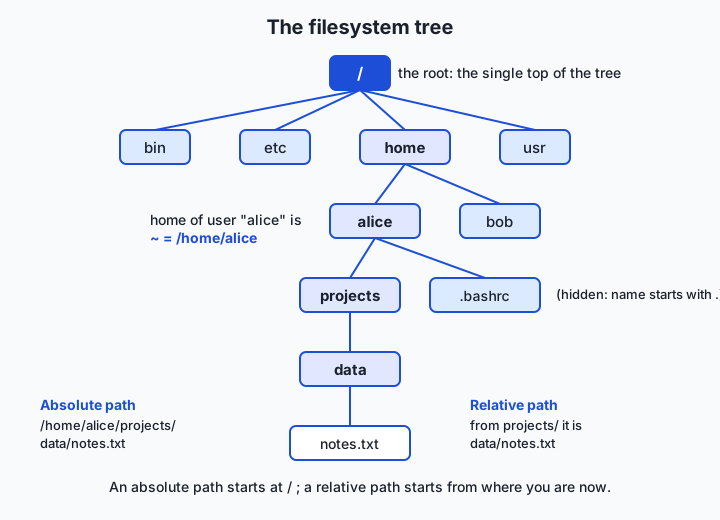
Read the diagram from the top. The single root / branches into bin, etc, home, and usr. Inside home are the users alice and bob; alice’s directory is what ~ expands to. Descending through projects and data reaches the file notes.txt. Notice the two routes drawn to that one file: the absolute path /home/alice/projects/data/notes.txt, which starts at the root and is valid from anywhere, and the relative path data/notes.txt, which is only meaningful when your working directory is projects. Same file, two names.
Four special path symbols do most of the navigational work, and they are worth memorizing:
| Symbol | Meaning |
|---|---|
/ | The root directory (at the start of a path) or the separator between names (in the middle) |
. | ”Here” — the current working directory |
.. | ”One level up” — the parent of the current directory |
~ | Your home directory |
So from inside projects, the path .. means alice, ../.. means home, and ./data means the same as data — the leading ./ just says “starting from here,” which becomes important when you run a script by name.
Finding out where you are, and moving around
Three commands cover all ordinary navigation. pwd (“print working directory”) answers “where am I right now?” by printing the absolute path of your current location — your anchor whenever you feel lost. cd (“change directory”) moves you: cd projects steps down into a subdirectory, cd .. steps up to the parent, cd ~ (or plain cd) jumps home, cd / goes to the root, and cd - returns to the previous directory you were in. ls (“list”) shows what a directory contains.
ls earns its keep through its flags — the single-letter options that change what it shows. Bare ls prints names in columns. Add flags to see more:
| Command | What it does |
|---|---|
pwd | Print the absolute path of the current working directory |
cd DIR | Change the working directory to DIR (absolute or relative path) |
cd .. | Move up to the parent directory |
cd ~ or cd | Return to your home directory |
ls | List the names in the current directory |
ls -l | Long listing: permissions, owner, size, and modification date for each item |
ls -a | Show all entries, including hidden ones whose names start with a dot |
ls -la | Combine both: a long listing that includes hidden files |
ls -lh | Long listing with human-readable sizes (4.0K, 2.3M) instead of raw bytes |
Flags combine, so ls -la is ls -l -a merged. You will type ls -la more than almost any other command in this course; make it a reflex.
Creating, copying, moving, and removing
Navigating is only half the job; you also reshape the tree. mkdir (“make directory”) creates a new directory: mkdir data makes one here, and mkdir -p a/b/c creates a whole chain of nested directories in one step (the -p means “make parents as needed and do not complain if they already exist”). touch creates an empty file if it does not exist, and updates a file’s timestamp if it does — a quick way to make a placeholder. cp (“copy”) duplicates a file: cp notes.txt backup.txt leaves both; copying a whole directory needs cp -r (the -r means “recursive,” reaching into subdirectories). mv (“move”) relocates or renames: mv notes.txt data/ moves the file into data, while mv old.txt new.txt renames it — moving and renaming are the same operation to the filesystem, because both just change the name-to-location entry.
Then there is rm (“remove”), which deletes. rm notes.txt unlinks a file immediately: no Trash, no confirmation, no undo. Deleting a directory and everything inside it uses rm -r, and you will often see it written rm -rf, where -f (“force”) suppresses the prompts that would otherwise ask you to confirm. This combination is the single most dangerous command a beginner runs. rm -rf walks a directory tree deleting everything without pause, and if you point it at the wrong place — a stray space, a mistyped variable, a path that begins with / — it will erase far more than you meant, permanently. The professional habits are simple and worth adopting today: read any rm -rf command fully before pressing Return, prefer deleting by moving into a temporary “trash” directory when you can, never run rm -rf with a path you have not double-checked, and be especially wary of it in scripts where a path comes from a variable. Respect for rm is not timidity; it is the mark of someone who has, or has watched someone, lose real work.
Hidden files
Any file or directory whose name begins with a dot — like .bashrc or .git — is hidden: ordinary ls does not show it, and neither do most graphical file browsers by default. This is a convention, not a security feature; ls -a reveals everything. Hidden files exist to keep configuration out of the way. Your shell’s settings, a project’s .gitignore, a tool’s cache directory — all are dotfiles so that a normal listing of your home directory shows your work rather than a clutter of machinery. When a tutorial tells you to edit a config file you cannot see, ls -a is almost always the reason it was hidden.
Permissions: who may do what
Every file and directory records three things about access: an owner (a single user), a group (a named set of users), and, for each of those plus “everyone else,” which of three actions is allowed. The three actions are read (r), write (w), and execute (x). For a file, read means you may view its contents, write means you may change or delete its contents, and execute means you may run it as a program. For a directory the meanings shift slightly: read lets you list the names inside, write lets you add or remove entries, and execute lets you enter the directory and reach items through it.
The three actions are recorded for three classes of people — the user (owner), the group, and other (everyone else) — giving nine bits in all. The first column of ls -l displays them as a ten-character string: one character for the type (- for a file, d for a directory) followed by three groups of rwx.
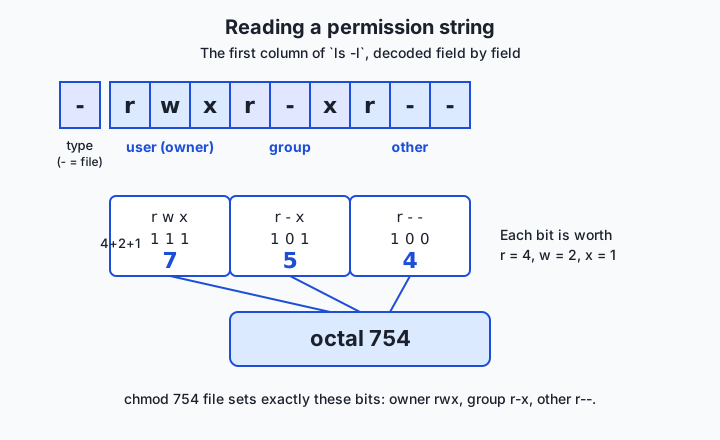
Read the string in the diagram, -rwxr-xr--, left to right. The leading - says it is an ordinary file. The next three characters, rwx, are the user (owner): full read, write, and execute. The next three, r-x, are the group: read and execute, but not write (a dash means the permission is absent). The last three, r--, are other: read only. So the owner can do anything, group members can read and run but not change it, and everyone else can only read it.
The same nine bits have a compact numeric spelling, octal notation, which you will see constantly. Within each group of three, read is worth 4, write is worth 2, and execute is worth 1; you add up the ones that are present. So rwx = 4 + 2 + 1 = 7, r-x = 4 + 0 + 1 = 5, and r-- = 4 + 0 + 0 = 4. Written together, -rwxr-xr-- is 754. Three digits, one per class, each the sum of its permissions.
Two commands change these settings. chmod (“change mode”) sets permissions. You can use octal — chmod 754 script.sh sets exactly the bits above — or symbolic form — chmod +x script.sh adds execute for everyone, chmod u+w notes.txt adds write for the user, chmod go-r secret.txt removes read for group and other. chown (“change owner”) reassigns a file’s owner or group, as in chown alice notes.txt; because handing your file to another user is a system-level act, chown usually requires administrator rights (sudo), whereas changing the permissions on files you already own does not. This is the mechanism behind “make the script executable”: a freshly written train.sh is just data until chmod +x train.sh turns on its execute bit, after which ./train.sh runs it.
An everyday analogy
Think of the filesystem as a vast office building, and you will rarely be confused again.
The building has exactly one main entrance at street level — that is the root, /. From the lobby, hallways lead to wings, wings to floors, floors to rooms, rooms to filing cabinets, cabinets to drawers, and drawers to individual folders and documents. Each directory is one of these nested spaces; each file is a document inside one. There is always a route from the front door to any document, and writing that route out — lobby, third floor, east wing, room 312, cabinet B, the blue folder — is an absolute path: it works no matter where in the building you happen to be standing.
But you are rarely standing at the front door. You are in some room, and from there you would give directions relative to here: “the next drawer down” or “back out to the hallway and two doors left.” That is a relative path, and it depends entirely on your current room — your working directory. When you feel disoriented, you check the number on the door you are standing in front of; that is pwd. Walking to another room is cd; stepping back into the hallway you came from is cd ..; and looking around the room to see what is in it is ls.
Your home directory is your own office — the room that is yours, where your things live, and the place the building’s shorthand ~ always points. And permissions are the locks and access badges. Your office door recognizes your badge (you are the owner: read, write, execute). Colleagues on your team have badges that let them into the shared reading rooms but not to alter the master files (the group: read and execute, not write). Visitors can sit in the public lobby but open nothing private (other: read only). chmod is the facilities office reprogramming which badges open which doors; chown is reassigning whose office a room is — a bigger decision that needs building management’s sign-off. And rm -rf on the wrong path is the demolition crew who were handed the wrong room number: fast, thorough, and impossible to take back. Hold the building in your mind and paths, homes, and permissions all fall into place.
Examples in practice
Here is a short session that exercises the whole lesson. Read it as a story; you will run the real thing in the lab.
$ pwd
/home/alice
$ mkdir -p project/data
$ cd project
$ pwd
/home/alice/project
$ touch data/notes.txt report.md
$ ls
data  report.md
$ ls -la
total 8
drwxr-xr-x  4 alice alice 4096 Jul 12 09:00 .
drwxr-xr-x 12 alice alice 4096 Jul 12 09:00 ..
drwxr-xr-x  2 alice alice 4096 Jul 12 09:00 data
-rw-r--r--  1 alice alice    0 Jul 12 09:00 report.md
Every part of that ls -la output is now readable. The . and .. entries are “here” and “the parent.” The d at the start of the data line marks it a directory; the - on report.md marks it a plain file. The string -rw-r--r-- says the owner may read and write, and group and other may only read — octal 644, the ordinary default for a new file. Notice the file has no x anywhere: it is data, not a program.
Now let us turn a file into a runnable script and watch the permission change, which is the heart of the lab:
$ touch hello.sh
$ ls -l hello.sh
-rw-r--r-- 1 alice alice 0 Jul 12 09:01 hello.sh
$ chmod 754 hello.sh
$ ls -l hello.sh
-rwxr-xr-- 1 alice alice 0 Jul 12 09:01 hello.sh
The single chmod 754 flipped the permission string from -rw-r--r-- (644) to -rwxr-xr-- (754), because chmod 754 sets owner rwx = 7, group r-x = 5, and other r-- = 4. Change the octal digits and the string follows exactly: chmod 755 would give -rwxr-xr-x, chmod 700 would give -rwx------. Getting this octal-to-string translation right, in your head, on a file you made, is the concrete skill this lesson exists to give you.
Finally, moving and copying reshape the tree without changing any file’s contents:
$ cp report.md report-backup.md
$ mv report.md data/
$ ls
data  hello.sh  report-backup.md
$ ls data
notes.txt  report.md
cp left two copies; mv relocated the original into data, changing only the name-to-location entry, not the bytes. From here, cd data and pwd would print /home/alice/project/data, and ../report-backup.md would be the relative path back up to the backup — the whole vocabulary of the lesson, working together.
Implications: security, privacy, performance, scalability, and cost
Security
Permissions are a first line of defense, not a decoration. The reason a random program running under your account cannot rewrite the operating system is that the system’s files are owned by an administrative account and marked unwritable by ordinary users. The habit that follows is least privilege: give a file the fewest permissions that let it do its job. A private key or credentials file should be 600 (owner read/write, nobody else anything); a shared script might be 755; almost nothing should be 777 (everyone can do everything), which is a common, dangerous shortcut that effectively removes protection. And because execute is what turns data into a running program, be deliberate about which files you make executable and where they came from — running an unread, freshly-chmod +x’d script from the internet is a classic way to get compromised.
Privacy
The filesystem is where sensitive data rests, so it is where privacy is won or lost. On a shared machine or server, another user with the right group membership — or an overly generous “other” bit — can read files you assumed were private. Deleting is subtler than it looks: rm removes the name-to-location entry, but the underlying bytes often linger on the disk until overwritten, which is why truly erasing sensitive data is a deliberate act, not a casual rm. When your project holds personal data, the permission bits on those files are a privacy control you are actively setting, whether you think about them or not.
Performance
The tree’s shape has performance consequences. Directories with tens of thousands of files in a single level are slow to list and slow to search, because the directory is one long list the system must scan; grouping files into subdirectories keeps each listing small and fast. Operations that only touch the name-to-location entries — mv within the same disk, or renaming — are near-instant regardless of file size, because no bytes move. Copying, by contrast, actually reads and writes every byte, so cp of a large directory is as slow as the data is big. Knowing which operations move bytes and which only move names lets you predict what will be fast.
Scalability
The same hierarchy that organizes ten files organizes ten million, which is exactly why it underpins large data work. A serious dataset is not one file but a deliberate directory layout — splits, shards, and metadata arranged so that both humans and programs can find any piece by path. A reproducible project keeps code, data, configuration, and outputs in separate, predictable directories so it can grow without turning into a swamp. The conventions you are learning today are the ones that let a project scale from a laptop experiment to a directory tree spanning many machines.
Cost
Storage and the movement of data cost real money, and the filesystem is where those costs are counted. Duplicated files — the copies you made “just in case” and forgot — quietly consume paid disk. Cloud storage bills by the byte stored and often by the byte transferred, so an unthinking recursive copy of a large tree can be a line item. The discipline of a clean directory layout, deleting what you no longer need (carefully), and knowing when an operation duplicates data versus merely relinks it, is the same discipline that keeps a storage bill from surprising you.
Alternatives: free, open source, and commercial
“Alternatives” here means other ways to work with, and other ways to learn, the filesystem — differing in interface, depth, and cost.
| Resource | Type | What it offers | Cost |
|---|---|---|---|
The command-line tools in this lesson (cd, ls, chmod, …) | Free, preinstalled | The universal, scriptable interface every server and lab in this course assumes | Free |
| Your OS graphical file manager (Finder, GNOME Files) | Free, preinstalled | Point-and-click navigation and drag-to-move; friendly, but not scriptable and it hides permissions | Free |
The Linux Command Line (William Shotts) | Free online book | A thorough, beginner-friendly walk through the shell and filesystem | Free to read online |
| The Missing Semester of Your CS Education — The Shell (MIT) | Free course materials | Short, practical lectures and exercises on the shell and files | Free |
| GNU Coreutils manual | Free reference | The authoritative description of ls, cp, mv, chmod, and the rest | Free |
| Cross-platform file managers (for example, midnight-commander-style tools) | Open source | A two-pane keyboard-driven middle ground between the raw shell and a GUI | Free |
| Cloud storage clients and object-store browsers | Commercial (often free tier) | Graphical browsing of remote storage that mirrors the same tree-and-permissions ideas | Free tier to paid |
For this course, the command line is the one to master; the graphical tools are fine for casual browsing, but everything you automate later assumes the commands. Read one thing beyond this lesson? The relevant chapters of The Linux Command Line.
Comparison with related concepts
| Concept A | Concept B | Key difference |
|---|---|---|
| Absolute path | Relative path | An absolute path starts at / and is valid from anywhere; a relative path starts from your current directory and depends on it |
| Directory | File | A directory is a list mapping names to items; a file holds actual data |
mv (move/rename) | cp (copy) | mv changes only the name-to-location entry and moves no bytes; cp duplicates the data |
| Symbolic link | Copy | A symbolic link is a small pointer to another path — one file, two names; a copy is independent data |
Permission (chmod) | Ownership (chown) | chmod sets which actions are allowed; chown sets who the owner and group are |
| Hidden file (dotfile) | Ordinary file | A hidden file’s name begins with a dot so ls skips it by default; it is otherwise a normal file |
A word on the symbolic link (or “symlink”), which the table introduces: it is a special file that simply points at another path, so following it lands you at the target. Symlinks let one file appear in several places, or give a stable short name to something whose real location may change — for instance, pointing current at whichever versioned directory is active. They are the clearest proof that a path is a name for a file rather than the file itself.
When to use it — and when not to
Reach for the command line whenever you need to be precise, repeatable, or fast with files: setting up a project’s directory structure, moving or renaming many files at once, fixing a Permission denied error, making a script executable, or doing anything you will later want to automate in a script. Any time you find yourself clicking through a graphical file browser doing the same action over and over, that is the signal to drop to the shell, where the same work is one command. And absolutely reach for these skills the moment a tool reports it cannot find a file or cannot access it — nine times out of ten the fix is a path you can now read or a permission bit you can now set.
Know equally when the graphical file manager is the better tool. For casual, one-off browsing — glancing at photos, dragging a single download into a folder, previewing a document — clicking is perfectly reasonable and often faster than typing. When you are unsure what you are about to delete, the graphical Trash, which is reversible, is safer than rm, which is not. And there is one command to treat with permanent caution regardless of convenience: never reach for rm -rf as a routine cleanup habit. Use it rarely, read it fully, and check the path twice, because the whole point of the command is that it does not stop to ask. The professional posture is to live in the shell for anything precise or repeatable, keep a graphical option for casual browsing, and hold a healthy, specific respect for the few commands that cannot be undone.
Knowledge check
Try these from memory before looking back:
- Explain the difference between an absolute path and a relative path, and give an example of each pointing at the same file.
- What do
.,..,~, and/each mean in a path? For a file, what do the three permission lettersr,w, andxallow? - Translate the permission string
-rwxr-xr--into its octal number, showing the arithmetic for each of the three groups. - A tutorial says to run
chmod +x deploy.sh, then./deploy.sh. Explain what the first command changes and why the second one would fail without it. - Why is
rm -rfconsidered dangerous, and name two habits that reduce the risk of using it.
Hands-on exercise
Time to work the real filesystem. In this exercise — completed in full in the Day 9 lab directory — you will build a small directory tree inside a temporary workspace, navigate it, create and move files, and make a file executable while watching its permission string change. Everything happens inside a folder the lab creates and later deletes, so you cannot harm anything else on your machine.
Open your terminal and run each command, reading its output before moving on:
pwdPrints where you are now — your anchor. Then create and enter a scratch tree:
mkdir -p demo/data
cd demo
mkdir -p makes demo and demo/data in one step; cd moves you into demo. Now create two files and list everything, including the details:
touch data/notes.txt report.md
ls -la
touch makes two empty files; ls -la shows a long listing with hidden entries, so you can see ., .., the data directory (marked d), and report.md (marked -). Read the permission string on report.md. Now make a script and change its permissions:
touch run.sh
ls -l run.sh
chmod 754 run.sh
ls -l run.sh
Compare the two ls -l run.sh lines: the string changes from -rw-r--r-- to -rwxr-xr-- as the execute and other bits are set to match octal 754. Finally, practice moving:
mv report.md data/
ls
ls data
mv relocates report.md into data; the two ls commands confirm it left the current directory and arrived in data.
Expected output
A representative run (dates and the owner name will differ on your machine):
$ pwd
/home/alice
$ mkdir -p demo/data
$ cd demo
$ touch data/notes.txt report.md
$ ls -la
total 8
drwxr-xr-x  4 alice alice 4096 Jul 12 09:10 .
drwxr-xr-x 20 alice alice 4096 Jul 12 09:10 ..
drwxr-xr-x  2 alice alice 4096 Jul 12 09:10 data
-rw-r--r--  1 alice alice    0 Jul 12 09:10 report.md
$ touch run.sh
$ ls -l run.sh
-rw-r--r-- 1 alice alice 0 Jul 12 09:10 run.sh
$ chmod 754 run.sh
$ ls -l run.sh
-rwxr-xr-- 1 alice alice 0 Jul 12 09:10 run.sh
$ mv report.md data/
$ ls
data  run.sh
Line by line: pwd confirms the starting point; ls -la shows the new tree with data as a directory and report.md as a 644 file; the two run.sh listings bracket the chmod, showing -rw-r--r-- become -rwxr-xr-- (octal 754); and the final ls proves report.md has moved out of the current directory into data.
Validate your work
You are done when you can check every box:
- You can print your current location with
pwdand explain what the path means. - You created a nested directory with a single
mkdir -pcommand. - You listed a directory with
ls -laand can name whatd,-,., and..mean in the output. - You changed a file’s permissions with
chmod 754and can read the before/after permission strings. - You can state the octal number for a permission string and the string for an octal number.
- You moved a file with
mvand confirmed its new location withls.
Troubleshooting
No such file or directory. You are running a relative path from the wrong place. Runpwdto see where you are, then adjust — eithercdto the right directory or use an absolute path.Permission deniedwhen running./run.sh. The execute bit is not set. Runchmod +x run.sh(orchmod 754 run.sh) and check withls -lthat anxnow appears.lsdoes not show your dotfile. Hidden files whose names start with a dot are skipped by plainls; usels -aorls -lato reveal them.mkdir: cannot create directory … File exists. The directory already exists; add-p, which makes parents as needed and does not complain if the target is already there.cd: not a directory. You tried tocdinto a file.ls -lshows adin the first column for directories and a-for files; you can only enter the ones markedd.
Common mistakes
- Confusing absolute and relative paths. A path starting with
/is absolute and ignores where you are; a path without a leading/is relative to your current directory. When a script “cannot find” a file that is clearly there, this is usually why — checkpwd. - Misreading octal. Each digit is a sum within one group of three: read 4, write 2, execute 1.
7isrwx,5isr-x,4isr--.755is not “seven hundred fifty-five” but three independent groups. Practice translating both directions until it is automatic. - Running
rmorrm -rfwithout reading it. Deletion at the command line is immediate and permanent. Read the whole command, confirm the path withpwdorlsfirst, and never run a recursive delete on a path you have not verified.
Practice assignment
Open the worksheet in the starter directory of the Day 9 lab (filesystem-worksheet.md) and complete it for your own machine. Using the commands from this lesson, record: (1) your home directory’s absolute path (from pwd after cd ~); (2) one file you create, written both as an absolute path and as a relative path from a directory one level above it, confirming both point at the same file; and (3) the full permission string of a file you make executable with chmod, together with its octal number, showing the arithmetic for each of the three groups. Then write two or three sentences explaining, in your own words, why the execute bit is what separates a data file from a runnable script. Keep the worksheet; later lessons on shell scripting build directly on these skills.
Extension challenge
Go one step deeper into permissions and links. First, create a file and give it three different permission settings in turn — chmod 644, chmod 600, and chmod 755 — running ls -l after each and writing down how the permission string changes and who can now do what. Predict each string before you run ls -l, then check yourself; you are training the octal-to-string translation until it is instant. Second, explore the symbolic link: run ln -s data/notes.txt shortcut.txt to create a link, then ls -l shortcut.txt and notice the l at the start of the line and the -> data/notes.txt arrow showing where it points. Confirm that reading shortcut.txt reaches the same file as data/notes.txt, then delete the link with rm shortcut.txt and verify the original file is untouched. Write two or three sentences on the difference between a symbolic link and a copy, and why a link is proof that a path is a name for a file rather than the file itself. You have now touched every idea in the lesson with your own hands.
Quiz
Q1. What does the single forward slash / mean at the very start of a path?
- The current working directory
- The root directory — the single top of the filesystem tree
- The user's home directory
- A hidden file
Show answer
Answer: B. The root directory — the single top of the filesystem tree
A leading / is the root directory, the one point from which every file and directory on a macOS or Linux system descends. In the middle of a path, / instead separates one name from the next.
Q2. Which statement about absolute and relative paths is correct?
- An absolute path starts from your current directory; a relative path starts from /
- Absolute and relative paths can never point at the same file
- An absolute path starts at / and means the same thing from anywhere; a relative path starts from your current working directory
- Relative paths only work for directories, never for files
Show answer
Answer: C. An absolute path starts at / and means the same thing from anywhere; a relative path starts from your current working directory
An absolute path begins at the root / and is valid no matter where you are standing, while a relative path begins from your current working directory and depends on it. Both can name the same file.
Q3. In a path, what does .. mean?
- The current directory
- The parent directory, one level up
- Your home directory
- A hidden file
Show answer
Answer: B. The parent directory, one level up
A single dot (.) means the current directory, while two dots (..) mean its parent — the directory one level up. The tilde (~) means your home directory.
Q4. Which command shows a long listing that also includes hidden files whose names start with a dot?
- ls
- ls -h
- ls -la
- pwd -a
Show answer
Answer: C. ls -la
The -l flag gives the long listing (permissions, owner, size, date) and the -a flag includes hidden dot-files; combined as ls -la they show a detailed listing of everything in the directory.
Q5. The permission string -rwxr-xr-- corresponds to which octal number?
- 644
- 755
- 754
- 777
Show answer
Answer: C. 754
Within each group of three, read is 4, write is 2, execute is 1. So rwx = 4+2+1 = 7, r-x = 4+0+1 = 5, and r-- = 4+0+0 = 4, giving 754.
Q6. For a plain file, what does the execute (x) permission allow?
- Viewing the file's contents
- Changing or deleting the file's contents
- Running the file as a program
- Renaming the file
Show answer
Answer: C. Running the file as a program
For a file, read (r) allows viewing its contents, write (w) allows changing them, and execute (x) allows running it as a program — which is why making a script runnable means adding the execute bit.
Q7. Why is the command rm -rf considered especially dangerous?
- It only works if you are an administrator
- It recursively deletes everything under a path immediately, with no confirmation and no undo
- It permanently changes a file's owner
- It sends files to the Trash, which then fills up
Show answer
Answer: B. It recursively deletes everything under a path immediately, with no confirmation and no undo
The -r flag makes rm recurse into directories and -f suppresses confirmation prompts, so rm -rf erases an entire tree at once with no Trash and no undo — a mistyped or wrong path can destroy far more than intended.
Q8. What is the difference between chmod and chown?
- chmod sets which actions are allowed; chown sets who the owner and group are
- chmod deletes a file; chown copies it
- chmod works only on directories; chown works only on files
- They are two names for the same command
Show answer
Answer: A. chmod sets which actions are allowed; chown sets who the owner and group are
chmod ("change mode") sets the read/write/execute permissions on a file, while chown ("change owner") reassigns which user and group own it. Changing owners is a system-level act that usually needs administrator rights; changing permissions on your own files does not.
Glossary
- path
- A sequence of directory names separated by slashes that spells out the route to a file or directory in the filesystem tree.
- absolute path
- A path that starts at the root directory (/) and gives the full route from the top, so it means the same thing no matter what the current directory is.
- relative path
- A path that starts from the current working directory rather than from the root, so its meaning depends on where you currently are.
- working directory
- The directory a shell is currently "in," from which relative paths are interpreted; printed by the pwd command.
- home directory
- The personal directory where a user's own files live and where a terminal usually starts; abbreviated by the shell as the tilde (~).
- root directory
- The single directory at the top of the filesystem tree, written as a lone forward slash (/), under which everything else lives.
- directory
- A named list that maps names to files and to other directories, forming the branches of the filesystem tree (called a "folder" in graphical tools).
- hidden file
- A file or directory whose name begins with a dot, which plain ls and most file browsers skip by default; revealed with ls -a.
- permission
- A rule recording whether a class of user (owner, group, or other) may read, write, or execute a given file or directory.
- chmod
- The command that changes a file or directory's permissions, using either symbolic form (such as +x) or octal form (such as 754).
- octal notation
- A three-digit way of writing permissions in which each digit is the sum, within one class, of read (4), write (2), and execute (1) — for example, 754.
- symbolic link
- A small special file that points at another path, so following it reaches the target; proof that a path is a name for a file rather than the file itself.
- execute permission
- The permission (x) that, for a file, allows it to be run as a program, and for a directory, allows entering it and reaching items through it.
Sources and further reading
- The Linux Command Line — William Shotts (accessed 2026-07-12) — A thorough, beginner-friendly guide to the shell, navigation, files, and permissions.
- The Missing Semester of Your CS Education — The Shell — MIT (accessed 2026-07-12) — Practical lecture and exercises on the shell and working with files.
- Filesystem Hierarchy Standard — Wikipedia (accessed 2026-07-12) — The conventional meaning of top-level directories such as /bin, /etc, /home, and /usr.
- File-system permissions — Wikipedia (accessed 2026-07-12) — The read/write/execute model for user, group, and other, and octal notation.
- GNU Coreutils Manual — GNU (accessed 2026-07-12) — The authoritative reference for ls, cp, mv, rm, mkdir, chmod, and chown.
Kept in this browser, no account needed. Your progress page turns the whole record into one link you can bookmark or open on another device.