Computing Foundations › Git and GitHub › Day 30
Day 30: Git Fundamentals: Repositories, Staging, and Commits
After this lesson you will be able to turn any folder into a Git repository and move your work deliberately through the three areas — working directory, staging area, and repository — with git add and git commit, read state with git status and history with git log, keep secrets out with .gitignore, and explain exactly what a commit is and why its hash makes history trustworthy.
Hands-on lab for this lesson
Lab files on GitHub: https://github.com/ai-roadmap-365/ai-roadmap-365.github.io/tree/main/labs/sections/computing-foundations/day-030-git-fundamentals-repositories-staging-and-commits
- Get the hands-on files. Clone the labs repository once (you can reuse this clone for every lesson). This works on macOS, Linux, and Windows (PowerShell or WSL):
git clone https://github.com/ai-roadmap-365/ai-roadmap-365.github.io.git cd ai-roadmap-365.github.io - Open this lesson's lab. Move into the directory for this specific day. Every lab lives at the same predictable path — section / subsection / week / day:
cd labs/sections/computing-foundations/day-030-git-fundamentals-repositories-staging-and-commits - Read the lab guide. Open `README.md` in that directory. It lists the exact commands, what each does, the expected output, and how to check your work — read it before running anything.
- Run it and check your work. Follow the README's "How to run" section: run the example first to see the finished result, then complete the numbered exercises in `starter/`, then run the tests. The tests pass (exit 0) only when your work is correct.
bash tests/run_tests.sh # or the test command named in the lab README
You can also open the lab as a local page (works offline, shows the file tree and expected output).
Learning objectives
By the end of this lesson you will be able to:
- Initialise a repository with git init and describe the role of the hidden .git directory
- Explain Git's three areas — working directory, staging area (index), and repository — and the git add / git commit flow between them
- Read git status output (including the ??, A, and M short codes) to say which area holds a file's current content
- Describe what a commit really is: a snapshot plus author, message, and parent, identified by a content-derived hash, and how commits link into a chain that HEAD points into
- Use .gitignore to keep files (especially secrets) untracked, and use git diff and git log to inspect changes and history
- Connect clean commits to reproducible, reviewable experiments when versioning code, notebooks, prompts, and configuration
Prerequisites
- Day 29: why version control exists
- A terminal and Git installed (git --version prints a 2.x version)
- Comfort creating and editing text files from the command line (Days 1 and 8-12)
Why this matters
Every serious project you will ever build — a script, a website, a machine-learning experiment — changes constantly, and most of those changes are you fixing something you broke ten minutes ago. Without a way to record where you were, you work in fear: fear of deleting the one line that mattered, fear of an edit that “worked yesterday,” fear of overwriting a colleague’s file. Git removes that fear. It lets you save a labelled snapshot of your whole project at any moment, compare any two moments, and walk back to a known-good state in seconds. Yesterday’s lesson argued why version control exists; today you learn the tool that runs the world’s software, and you build the mental model that makes every later Git command obvious instead of magical.
The stakes are concrete. An experiment that produced a good result last Tuesday is worthless if you cannot say exactly which code, which settings, and which data produced it — Git is how you pin that down. A change that quietly broke your program is hard to find unless you can see precisely what changed and when — git diff and git log are how you see it. And a secret key pasted into a file and shared with the world is a real, expensive accident — .gitignore is your first line of defence. These are not abstractions; they are the difference between a project you can trust and a pile of files you are afraid to touch.
This is the foundational Git lesson, so we go slowly and build the model precisely. Get the three areas and the anatomy of a commit right today, and branching, merging, remotes, and pull requests — the next several days — will click into place, because every one of them is a variation on the ideas you learn now.
The idea in plain language
A repository (or “repo”) is a project folder that Git is watching. When you turn an ordinary folder into a repository, Git creates one hidden sub-folder inside it called .git, and that folder is the repository’s memory: it stores the complete history of every saved version of your project. Delete .git and you are left with just the current files and no history; keep it, and you can travel through time.
The heart of Git is a flow between three places. Your working directory is the set of files you see and edit on disk right now — the live, messy, in-progress version. The staging area (also called the index) is a holding area where you assemble exactly the changes you want to save next. The repository is the permanent, ordered history of snapshots you have chosen to keep. You move work along this line with two commands: git add copies changes from the working directory into the staging area, and git commit records everything staged as a new permanent snapshot in the repository.
Why the middle step? Because it lets you be deliberate. You might edit five files while chasing a bug but only want to save the two that represent one clean fix. The staging area is where you compose that clean snapshot before committing it. A commit, then, is not a diff and not just “a save” — it is a full snapshot of your tracked files at one instant, wrapped with who made it, when, a message saying why, and a link to the commit that came before. Git gives each commit a unique fingerprint called a hash, and a special pointer called HEAD always marks the commit you are currently standing on.
Historical background
Git is young for something so ubiquitous. It was created in April 2005 by Linus Torvalds, the same engineer who started the Linux kernel in 1991. For years the kernel project had used a commercial distributed version-control system called BitKeeper under a free-of-charge licence. In April 2005 that arrangement broke down — the free licence was withdrawn after a dispute over efforts to reverse-engineer BitKeeper’s protocols — and the kernel, one of the largest collaborative software projects in the world, suddenly had no version-control tool that met its needs.
Torvalds wanted something with three properties existing free tools lacked at the scale he needed: speed, a fully distributed design (every developer holds the complete history, with no single central server that everyone depends on), and strong protection against accidental or malicious corruption of history. He began writing Git on 3 April 2005; within days it was hosting its own source code, and by June 2005 the kernel’s 2.6.12 release was managed with it. On 26 July 2005 Torvalds handed maintenance to Junio Hamano, who has led the project ever since.
Two design choices from those first weeks still define Git. First, it is content-addressed: every object — every file version, every snapshot, every commit — is named by a cryptographic hash of its contents (historically the SHA-1 algorithm, with newer Git also supporting SHA-256). Change one byte anywhere and the name changes, which is what makes Git history tamper-evident. Second, it is distributed: your clone is a full repository, not a thin view of a server’s, so you can commit, branch, and inspect history entirely offline. The name? Torvalds, with characteristic humour, called it “git” — British slang for an unpleasant person — and joked that he names his projects after himself. Within a few years, hosting services built around Git turned it into the default way the software world collaborates.
What it is — and what it is not
Git is a distributed version-control system: a program that records the history of a set of files as a sequence of snapshots and lets any number of people work on copies of that history independently. Every word matters. Version-control: its job is remembering versions, not editing files. Distributed: each copy is complete and self-sufficient. Snapshots: Git conceptually stores the whole state of your project at each commit, not a list of edits — an important difference from some older tools.
It helps just as much to be clear about what Git is not. Git is not a backup service, though it feels like one — it lives inside your project and, until you copy it elsewhere, a disk failure takes your history with it. Git is not the same thing as a hosting website; the tool runs entirely on your own machine, and the popular sites that host repositories are a separate layer you will meet in a few days. Git is not automatic — it saves a snapshot only when you tell it to commit, so a commit is a decision, not a background process. And a commit is not a diff: although Git can show you the difference between two commits, each commit records a complete snapshot, and the differences are computed on demand.
| Common misconception | The reality |
|---|---|
| ”Editing a file changes its history.” | Editing changes only your working directory; history changes only when you git commit. |
| ”A commit saves the files I have open.” | A commit saves exactly what is staged; unstaged edits are left out. |
| ”Git and the hosting website are the same thing.” | Git is a local tool; hosting sites are an optional, separate layer added later. |
| ”A commit stores just what changed.” | A commit records a full snapshot of tracked files, plus author, message, and parent. |
| ”Deleting a file removes it from history.” | Past commits still contain it; history must be rewritten to truly erase it. |
Why it was created and what problems it solves
Before distributed version control, teams typically shared one central server that held the authoritative history, and developers checked files out and back in. That model has real weaknesses: you often need a network connection to do anything meaningful, the central server is a single point of failure, and operations like branching can be slow and heavyweight enough that people avoid them. For a globally distributed project the size of the Linux kernel, with thousands of contributors sending changes, those frictions were fatal.
Git solves a stack of concrete problems at once. It answers “what did this project look like last Tuesday?” by keeping every committed snapshot. It answers “what exactly changed, and who changed it?” by recording an author, a timestamp, and a message on every commit, and by computing precise differences on demand. It answers “can I try something risky without losing my safe version?” by making commits cheap and history immutable, so there is always a known-good point to return to. It answers “how do many people work on the same code without overwriting each other?” by giving everyone a full copy they reconcile deliberately. And because each snapshot is named by a hash of its contents, it answers “has this history been tampered with?” for free. Today’s slice of that — repositories, staging, and commits — is the part you use dozens of times a day; the rest of the week builds on it.
How it works
Let’s assemble the model piece by piece, then watch a file travel through it.
The three areas
A Git project has three areas, and almost everything you do is moving content between them. This is the single most important picture in the lesson.
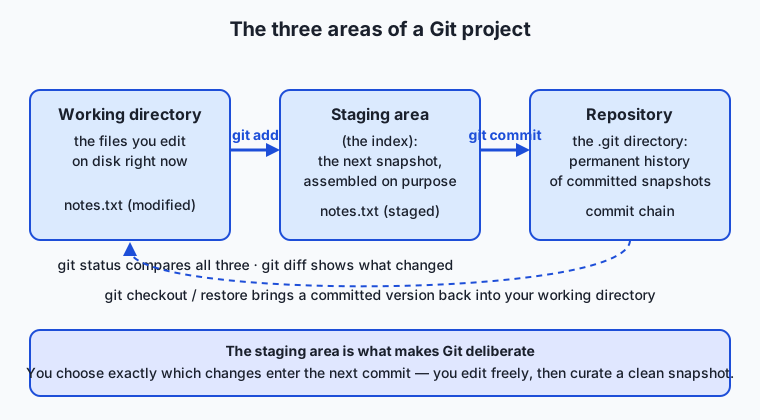
| Area | What lives there | How content arrives |
|---|---|---|
| Working directory | The real files on disk you edit right now | You create or edit files with any editor |
| Staging area (index) | The exact set of changes to include in the next commit | git add <file> copies changes here |
Repository (.git) | The permanent, ordered history of committed snapshots | git commit records what is staged |
Read the flow left to right. You edit files in the working directory. When a change is ready to save, git add promotes it to the staging area, where you assemble precisely the snapshot you intend. When the staged snapshot is what you want, git commit writes it permanently into the repository and clears the staging area for the next round. Two commands, three areas — that is the entire engine.
Reading state with git status
Because content sits in different areas, you need a way to see where everything is. git status is that window; run it constantly. Its short form, git status --short (or -s), prints a two-column code before each file name. The left column describes the staging area; the right column describes the working directory:
??— untracked: Git sees the file but is not yet recording it.A— a new file that is staged (in the index), ready to commit.M— a tracked file modified in the working directory but not yet staged.M— a tracked file whose modification is already staged.
A file can even be modified in both columns at once (MM) if you staged one change and then edited it again — proof that the staging area and the working directory are genuinely separate.
What a commit really is
When you commit, Git stores a snapshot of every tracked file (internally as a “tree” of the project’s contents) and wraps it in a small record called a commit object. That object contains a reference to the snapshot, the author and the time, your message, and — crucially — the hash of the parent commit, the one that came just before. Git then hashes all of that together to produce the commit’s own identifier: a 40-character hexadecimal hash (you usually see the first 7, like 712412c).
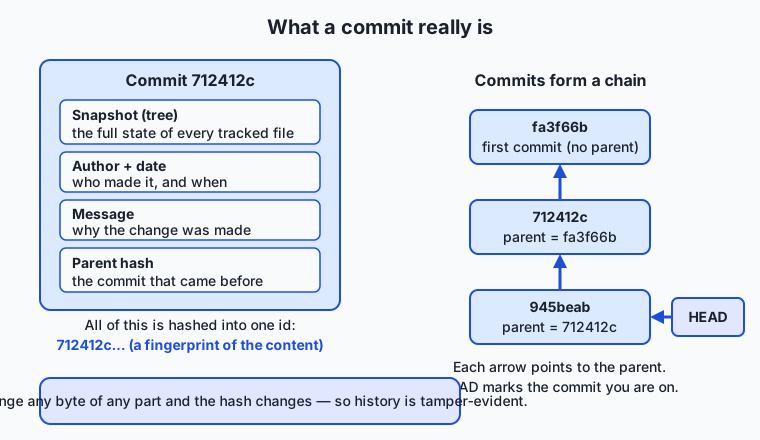
Because each commit names its parent, commits form a chain reaching back to the first one (which has no parent). And because the hash is computed from the snapshot plus the parent’s hash plus the metadata, you cannot alter any past commit without changing its hash — and every commit after it — so the history is tamper-evident by construction. HEAD is a pointer to the commit you are currently on, normally the newest one on your branch; when you make a new commit, HEAD advances to it. That is why two people committing identical file contents still get different hashes: the author, the timestamp, and the parent all feed the fingerprint.
Ignoring files with .gitignore
Not everything in a project folder belongs in history: build outputs, downloaded dependencies, editor temp files, and — most importantly — secrets like API keys. A file named .gitignore at the root of the repository lists patterns of paths Git should not track. A line reading secret.key tells Git to leave that file untracked forever; a line reading *.log ignores every file ending in .log. Ignored files simply never show up in git status as candidates to add, so you cannot commit them by accident. One caveat that trips up beginners: .gitignore only affects files Git is not already tracking. If you committed a secret first and added the ignore rule after, the file stays tracked until you explicitly remove it.
Seeing changes and history
Two commands let you inspect what the areas hold. git diff shows differences line by line: with no arguments it compares your working directory against the staging area (the edits you have not staged yet); git diff --staged compares the staging area against the last commit (what you are about to commit). git log walks the commit chain from HEAD backward, printing each commit’s hash, author, date, and message; git log --oneline condenses each to a single line — the fastest way to read history. Together, status, diff, and log answer “where is everything, what changed, and how did we get here?”
An everyday analogy
Think of Git as a photographer building a bound photo album of a project as it grows.
Your working directory is the room you are photographing: furniture gets moved, props come and go, and at any instant it is simply however you last left it. The staging area is the shot you are composing in the viewfinder — you arrange exactly what you want in frame, leaving the clutter off to the side, before you press the button. git add is placing an item into the frame; git commit is pressing the shutter, which produces one permanent photograph and adds it to the album. The album itself is the repository: an ordered sequence of photographs you can flip back through forever.
Each photograph carries a caption on its back: who took it, when, a note on why this shot was worth keeping (the commit message), and a reference to the photo taken just before it (the parent). Flip to any page and you can see the whole scene at that moment — a photo is a snapshot, not a list of what moved since the last one. A sticky bookmark marks the page you are looking at now; that is HEAD. git status is glancing between the room, the viewfinder, and the last photo to see what differs. git diff is holding the current room up against the last photograph to spot exactly what moved. And .gitignore is your standing rule that certain things — the messy cables, your private notes — never appear in any photograph, no matter how the room is arranged.
The analogy holds all the way down, and it explains the discipline: a good album is not a burst of random photos but a deliberate series of meaningful, captioned moments. That is exactly what a good commit history is, and the staging area is the viewfinder that makes the deliberation possible.
Examples in practice
Here is the full flow as you would type it, with the state after each step. Start by turning a folder into a repository:
git initGit creates the hidden .git directory; the folder is now a repository with an empty history. Create a file and check the state:
echo "notes for day 30" > notes.txt
git status --short
?? notes.txtThe ?? says notes.txt is untracked — it exists in the working directory, but Git is not recording it. Stage it, then look again:
git add notes.txt
git status --short
A notes.txtThe A in the left column means the file is now staged in the index, ready to be committed. Record the snapshot with a message:
git commit -m "Add notes.txt with initial notes"Git writes a commit object and prints its short hash (for example fa3f66b). Now edit the file and inspect the unstaged change:
echo "a second line, added later" >> notes.txt
git diff
diff --git a/notes.txt b/notes.txt
index 841d9f2..47a4a5f 100644
--- a/notes.txt
+++ b/notes.txt
@@ -1 +1,2 @@
notes for day 30
+a second line, added laterThe line beginning with + is what you added; the unmarked line is unchanged context. Stage and commit again, and you have two snapshots. Now protect a secret:
echo "secret.key" > .gitignore
echo "PRETEND-API-KEY-do-not-commit" > secret.key
git add .gitignore
git commit -m "Add .gitignore to exclude secret.key"
git status --short
git status prints nothing for secret.key — it is ignored, so it can never be staged by accident, even though it sits right there in the folder. Finally, read the history:
git log --oneline945beab Add .gitignore to exclude secret.key
712412c Append a second line to notes.txt
fa3f66b Add notes.txt with initial notesThree commits, newest first, each a captioned photograph in the album. A word on messages, because they are the captions your future self reads: write them in the imperative mood (“Add”, “Fix”, “Remove”), summarise why in the first line (kept under about 50 characters), and add detail in a following paragraph when the change deserves it. git commit with no -m opens your editor for exactly this fuller message. The AI connection is direct: when you version an experiment, a message like “Lower learning rate to 3e-4 to stop loss spiking” is the note that lets you — or a reviewer — understand a result three weeks later. This lesson’s lab walks the whole sequence above in a throwaway repository so you can watch each state change yourself.
Implications: security, privacy, performance, scalability, and cost
Security
Git’s content-addressing gives you tamper-evidence for free: because every commit’s hash depends on its full contents and its parent’s hash, silently rewriting old history is impossible without every later hash changing visibly. But that same permanence is a double-edged sword for secrets. Anything you commit lives in history even after you delete the file in a later commit, so a leaked credential is not fixed by removing it going forward — it must be scrubbed by rewriting history and, in practice, rotated (revoked and reissued) because it may already be exposed. The lesson: keep secrets out of commits in the first place, which is exactly what .gitignore is for.
Privacy
Every commit records an author name and email and a timestamp, so a repository’s history is also a detailed record of who did what and when. That is invaluable for accountability and useless-to-harmful when you would rather not broadcast a personal email address or your daily working hours. It is worth deciding deliberately what identity you commit under, especially before a repository becomes visible to others.
Performance
Git is fast because it is local: committing, diffing, and reading history touch only files on your own disk, with no network round-trip. Snapshots are stored efficiently — identical file contents are stored once and referenced by hash, and Git compresses its objects — so a long history of a normal codebase stays compact. The performance caveat is large binary files: because Git snapshots whole files, a big file that changes often bloats history, since each version is stored in full. Source code, notebooks, configuration, and prompts version beautifully; multi-gigabyte model weights and datasets usually do not, and are better handled by tools built for large files or by storing them outside the repository and versioning a pointer.
Scalability
The distributed design scales to enormous teams precisely because there is no mandatory central bottleneck: everyone commits locally and reconciles when they choose. Git comfortably handles projects with hundreds of thousands of commits and thousands of contributors. Where it strains is repositories stuffed with large binaries or millions of files; those are solvable with additional tooling, but plain Git is happiest with text.
Cost
Git itself is free and open-source, and running it locally costs nothing. The costs that appear later are about hosting shared copies and storing large artifacts — but the core skill you are learning today has no price attached and runs on any machine.
Alternatives: free, open source, and commercial
Two kinds of “alternatives” are worth separating: other version-control systems, and other ways to drive Git. For version control itself, Git so dominates modern practice that learning it is the right default, but it has relatives.
| Tool | Type | What it offers | Cost |
|---|---|---|---|
| Git (command line) | Free, open source | The tool itself; every feature, scriptable, universal | Free |
| VS Code Git integration | Free | A visual view of status, staging, diffs, and commits inside your editor | Free |
| lazygit / tig | Free, open source | Fast terminal UIs (TUIs) over Git — stage, commit, and browse history with keystrokes | Free |
| gitk / git gui | Free, ships with Git | A basic graphical history browser and commit tool built into Git | Free |
| Mercurial | Free, open source | Another distributed version-control system, similar model, different commands | Free |
| Subversion (SVN) | Free, open source | An older centralized system; a single server holds history | Free |
For driving Git, the command line is the ground truth — every graphical tool is ultimately issuing the same commands, and knowing the CLI means no interface can confuse you. VS Code’s built-in Source Control panel is excellent for beginners: it lists changed files, lets you stage them by clicking a +, shows a side-by-side diff, and takes a commit message in a box — a gentle way to see the three areas while you learn. lazygit and tig are terminal UIs for people who live in the shell and want to stage individual chunks and scroll history faster than typing each command; both are free and open source. gitk and git gui ship with Git itself for a quick visual history browse. A sound approach: learn the CLI first so the model is solid, then adopt a graphical or TUI helper for speed. All of these are free; none is required to do anything Git can do.
Comparison with related concepts
| Concept A | Concept B | Key difference |
|---|---|---|
| Working directory | Staging area | The working directory is your live files; the staging area is the curated snapshot for the next commit |
git add | git commit | add moves changes into staging; commit records staged changes permanently into history |
| Commit | Snapshot | A snapshot is the file contents at an instant; a commit is that snapshot plus author, message, and parent |
| Git | A hosting website | Git is a local tool that manages history; a hosting site is a separate place to share copies of it |
| Git (distributed) | Subversion (centralized) | In Git every clone is a full repository; in Subversion the authoritative history lives on one server |
git diff | git log | diff shows line-by-line changes between areas or commits; log lists the sequence of commits |
When to use it — and when not to
Reach for Git essentially always: for any project with more than a throwaway file, initialise a repository on day one, before there is history worth losing. Use it the moment you are about to try something risky — a commit is a safety net you can return to. Use it whenever you want to answer “what changed?”, “when did this break?”, or “what produced this result?”, and use it the instant more than one person touches the same files. For versioning code, notebooks, configuration files, small datasets, documentation, and the text of experiments, Git is the right tool with essentially no downside.
Know the edges too. Git is a poor fit for large binary blobs that change often — multi-gigabyte model checkpoints, video, huge datasets — because it stores each version in full; for those, version a small pointer or manifest in Git and keep the heavy files in storage designed for them. Do not commit secrets, ever; .gitignore them before the first add. Do not treat a repository as your only backup, since it is not offsite until you copy it elsewhere. And do not let perfect commit discipline paralyse you — messy early commits are fine while you learn; the habit that matters is committing often, with honest messages. The AI thread ties it together: as you begin training and evaluating models, your code, your configuration, your prompts, and your notebooks are exactly the text Git was built to version. A clean commit history is what makes an experiment reproducible — “this commit, this config, this data” — and reviewable, so that a good result is a record you can defend rather than a lucky run you cannot recreate. Master these three areas today and that discipline is already within reach.
Knowledge check
Try these from memory before looking back:
- Name Git’s three areas in order, and the command that moves content from each one to the next.
- You edit two files but only want to save one in your next commit. Which area lets you do that, and what command puts just that file there?
- Explain, in your own words, why two people who commit files with identical contents still end up with different commit hashes.
- A teammate committed a real API key last week and has since deleted the file in a newer commit. Are they safe? Explain what history retains and what they must actually do.
- What does
git statusshow as the code for a brand-new, never-added file, and what does that code mean about which area holds it?
Hands-on exercise
Time to drive the model yourself. In this exercise — worked through fully in the Day 30 lab directory — you create a throwaway repository, walk a file through all three areas, and watch each state change. Every command is local; nothing touches the network or your global Git settings. Open a terminal and, in a scratch folder you do not mind deleting, run each command and read its output before moving on:
git init
echo "notes for day 30" > notes.txt
git status --shortYou should see ?? notes.txt — untracked, living only in the working directory. Stage and confirm:
git add notes.txt
git status --shortNow A notes.txt — staged in the index. Commit it, then edit and inspect the change:
git commit -m "Add notes.txt with initial notes"
echo "a second line, added later" >> notes.txt
git diffThe diff shows one added line marked +. Stage, commit again, then add a .gitignore and prove it works:
git add notes.txt
git commit -m "Append a second line to notes.txt"
echo "secret.key" > .gitignore
echo "PRETEND-API-KEY" > secret.key
git add .gitignore
git commit -m "Add .gitignore to exclude secret.key"
git status --short
git log --onelineIf you configured Git for the first time, it may ask for your identity; set it once with git config --global user.name "Your Name" and git config --global user.email "you@example.com".
Expected output
A typical git log --oneline at the end (your hashes will differ — that is the whole point):
945beab Add .gitignore to exclude secret.key
712412c Append a second line to notes.txt
fa3f66b Add notes.txt with initial notes
Three commits, newest first. The final git status --short prints nothing for secret.key: it is ignored, so it never even appears as a candidate to stage. Each hash is a fingerprint of that commit’s snapshot, author, time, and parent, so no two runs — and no two learners — produce the same hashes.
Validate your work
You are done when you can check every box:
-
git initcreated a.gitdirectory (confirm withls -a). - A new file showed as
??(untracked) before you added it. - After
git add, the same file showed asA(staged). -
git diffshowed your second edit as an added (+) line before you staged it. -
git log --onelinelists three commits, newest first. -
secret.keynever appeared ingit statusafter you ignored it.
Troubleshooting
- “Please tell me who you are” on commit. Git needs an identity for the author field. Set it once:
git config --global user.name "Your Name"andgit config --global user.email "you@example.com", then commit again. nothing to commit, working tree clean. You did not stage anything —git commitonly records what is in the staging area. Rungit status,git addthe change, then commit. This is the most common beginner surprise.secret.keystill shows ingit status. It was tracked before you ignored it, or the pattern does not match. Rungit check-ignore -v secret.keyto see which rule applies (or that none does); untrack an already-tracked file withgit rm --cached secret.key.git diffprints nothing. Either there is no unstaged change (you already staged it — trygit diff --staged) or you edited a file Git is not tracking.
Common mistakes
- Committing without staging. Editing a file does not schedule it for the next commit; you must
git addit first. Expectinggit committo save open files is the classic error. - Committing everything blindly. Reaching for
git add .(which stages all changes) without readinggit statusfirst sweeps in temp files, debug scraps, and sometimes secrets. Look before you add. - No
.gitignore. Without one, junk and credentials get committed by accident. Add a.gitignorefor secrets and build artifacts before your firstgit add.
Practice assignment
Open starter/git-worksheet.md in the Day 30 lab and complete it for a real run of the lab’s script. Record, for notes.txt, the git status code at each of the five moments the worksheet lists and which area held the newest content; copy your two commit short hashes and note which commit HEAD points at after the run; and write down what .gitignore excluded and whether that file ever appeared in git status. Then write one paragraph (4–6 sentences) explaining, in your own words, why the staging area exists — what you can do with it that you could not do if git commit simply saved every changed file automatically. Keep the worksheet; the branching lesson builds on this same repository model.
Extension challenge
Look inside a commit. In a throwaway repository with at least two commits, run:
git cat-file -p HEADThis prints the raw commit object HEAD points to. Find its four parts: the tree line (the snapshot of your files), the parent line (the previous commit’s hash — the first commit has none), the author line (name, email, timestamp), and, after a blank line, your commit message. You are seeing the exact anatomy this lesson described, in Git’s own storage. Then run git cat-file -p HEAD~1 to inspect the parent and confirm its hash matches the parent line of HEAD — the chain, verified with your own eyes. Finally, in two or three sentences, explain why changing the message of an old commit would change not only that commit’s hash but every hash after it, and why that property is what makes a Git history trustworthy.
Quiz
Q1. What does running git init do to an ordinary folder?
- It uploads the folder to a hosting website automatically
- It creates a hidden .git directory, turning the folder into a repository that can record history
- It commits every file in the folder immediately
- It deletes any files Git does not recognise
Show answer
Answer: B. It creates a hidden .git directory, turning the folder into a repository that can record history
git init creates the hidden .git directory, which is the repository's memory. The folder is now a repository with an empty history; nothing is committed or uploaded until you tell Git to do so.
Q2. Which command moves a change from the working directory into the staging area?
- git commit
- git log
- git add
- git status
Show answer
Answer: C. git add
git add copies changes from the working directory into the staging area (the index), where you assemble the exact snapshot for the next commit. git commit then records what is staged.
Q3. In git status --short, what does the code ?? in front of a file name mean?
- The file is staged and ready to commit
- The file is tracked and modified but not staged
- The file is untracked — Git sees it but is not recording it yet
- The file has a merge conflict
Show answer
Answer: C. The file is untracked — Git sees it but is not recording it yet
?? marks an untracked file: it exists in the working directory, but Git is not yet recording its history. Running git add on it stages it, after which status shows A instead.
Q4. What is a Git commit, precisely?
- A list of only the lines that changed since the last save
- A snapshot of the tracked files plus author, timestamp, message, and the parent commit's hash, identified by its own hash
- A backup copy stored on a remote server
- A temporary draft that disappears when you close the terminal
Show answer
Answer: B. A snapshot of the tracked files plus author, timestamp, message, and the parent commit's hash, identified by its own hash
A commit records a full snapshot of the tracked files, wrapped with the author, time, message, and the parent commit's hash, and Git hashes all of that into the commit's own identifier. It is not merely a diff, a backup, or a draft.
Q5. Why do two people who commit files with identical contents still get different commit hashes?
- Git assigns hashes at random
- The hash is computed from the snapshot plus the author, timestamp, and parent, which differ between the two commits
- Hashes depend on the operating system, not the commit
- They do not — identical contents always produce identical hashes
Show answer
Answer: B. The hash is computed from the snapshot plus the author, timestamp, and parent, which differ between the two commits
A commit's hash is a fingerprint of its full contents: the snapshot AND the author, timestamp, and parent hash. Since at least those metadata differ, the hashes differ even when the file bytes match.
Q6. A teammate committed a secret API key last week, then deleted the file in a newer commit. Are they safe?
- Yes — deleting the file removes it from the whole repository
- Yes — commits older than a day are automatically purged
- No — the key still lives in the earlier commit; history must be rewritten and the key rotated
- No — but only if the repository was shared online
Show answer
Answer: C. No — the key still lives in the earlier commit; history must be rewritten and the key rotated
Deleting a file in a new commit does not erase it from earlier commits; the key remains in history. Truly removing it requires rewriting history, and because it may already be exposed, the key should be rotated (revoked and reissued).
Q7. What is the purpose of a .gitignore file?
- To list the files Git should commit automatically
- To store your commit messages
- To list patterns of paths Git should not track, so they never get staged or committed by accident
- To encrypt sensitive files inside the repository
Show answer
Answer: C. To list patterns of paths Git should not track, so they never get staged or committed by accident
.gitignore lists path patterns Git should leave untracked — build outputs, temp files, and especially secrets. Ignored files never appear as candidates to add, so they cannot be committed by accident. Note it only affects files not already tracked.
Q8. With no arguments, what does git diff compare?
- The working directory against the staging area (your unstaged changes)
- The staging area against the last commit
- Two different branches
- Your repository against a remote server
Show answer
Answer: A. The working directory against the staging area (your unstaged changes)
Plain git diff shows what is changed in the working directory but not yet staged. To see what is staged and about to be committed, use git diff --staged, which compares the staging area against the last commit.
Glossary
- repository
- A project folder that Git is tracking, together with the hidden .git directory that stores its complete history of committed snapshots.
- working directory
- The live files on disk that you see and edit right now — the in-progress version of the project, before anything is staged or committed.
- staging area
- A holding area where you assemble exactly the changes to include in the next commit; git add puts changes here. Also called the index.
- index
- Git's internal name for the staging area — the list of changes prepared for the next commit.
- commit
- A permanent, recorded snapshot of the tracked files at one instant, wrapped with an author, timestamp, message, and the parent commit's hash, and identified by its own hash.
- snapshot
- The complete state of every tracked file at the moment of a commit; Git stores snapshots rather than lists of edits, and computes differences on demand.
- hash
- A commit's unique identifier — a long hexadecimal fingerprint computed from the commit's full contents (snapshot, author, time, message, and parent); usually shown as the first seven characters.
- HEAD
- A pointer to the commit you are currently on, normally the newest commit on your branch; it advances to each new commit you make.
- parent
- The commit that came just before a given commit; the parent reference is what links commits into a chain reaching back to the first commit.
- .gitignore
- A file listing path patterns Git should not track, so build outputs, temp files, and secrets never get staged or committed by accident.
- git add
- The command that copies changes from the working directory into the staging area, marking them for inclusion in the next commit.
- git commit
- The command that records everything currently staged as a new permanent snapshot in the repository, with a message describing the change.
- git status
- The command that reports which files are untracked, staged, or modified — the window that tells you which area holds each file's current content.
- distributed version control
- A model, used by Git, in which every clone is a full copy of the repository and its history, so you can commit and inspect history without a central server.
Sources and further reading
- Git Basics — Recording Changes to the Repository (Pro Git) — Chacon & Straub / Pro Git (accessed 2026-07-12) — The canonical walkthrough of the working directory, staging area, and committing.
- git-commit Documentation — Git (accessed 2026-07-12) — Official reference for what git commit records and its options.
- git-add Documentation — Git (accessed 2026-07-12) — Official reference for staging changes into the index.
- Git — Wikipedia (accessed 2026-07-12) — History of Git's creation in 2005 and its distributed, content-addressed design.
- The Missing Semester — Version Control (Git) — MIT (accessed 2026-07-12) — A concise, model-first treatment of Git's internals and everyday use.
Kept in this browser, no account needed. Your progress page turns the whole record into one link you can bookmark or open on another device.