Computing Foundations › Inside the Machine › Day 6
Day 6: Operating Systems: What They Do and Why
After this lesson you will be able to explain what an operating system does — kernel vs user space, system calls, processes, virtual memory, filesystems, drivers, and permissions — and use that model to explain why AI and server work runs on Linux and to interrogate your own OS from the terminal.
Hands-on lab for this lesson
Lab files on GitHub: https://github.com/ai-roadmap-365/ai-roadmap-365.github.io/tree/main/labs/sections/computing-foundations/day-006-operating-systems-what-they-do-and
- Get the hands-on files. Clone the labs repository once (you can reuse this clone for every lesson). This works on macOS, Linux, and Windows (PowerShell or WSL):
git clone https://github.com/ai-roadmap-365/ai-roadmap-365.github.io.git cd ai-roadmap-365.github.io - Open this lesson's lab. Move into the directory for this specific day. Every lab lives at the same predictable path — section / subsection / week / day:
cd labs/sections/computing-foundations/day-006-operating-systems-what-they-do-and - Read the lab guide. Open `README.md` in that directory. It lists the exact commands, what each does, the expected output, and how to check your work — read it before running anything.
- Run it and check your work. Follow the README's "How to run" section: run the example first to see the finished result, then complete the numbered exercises in `starter/`, then run the tests. The tests pass (exit 0) only when your work is correct.
bash tests/run_tests.sh # or the test command named in the lab README
You can also open the lab as a local page (works offline, shows the file tree and expected output).
Learning objectives
By the end of this lesson you will be able to:
- Explain why bare hardware is unusable without an operating system, using the manager/illusionist/guard framing
- Distinguish kernel space from user space and describe how the CPU's privilege modes enforce the boundary in hardware
- Trace a system call end to end — what happens when a program opens a file, including the permission check and the file descriptor
- Name the operating system's five core jobs (processes, memory, filesystems, drivers, security) and match each to a real-world symptom or tool
- Recount the honest lineage of today's OS families: Unix 1969 at Bell Labs, BSD and System V, Linux 1991, macOS via NeXT/Darwin, and Windows NT — and place WSL as the bridge
- Explain why server and GPU/AI infrastructure runs overwhelmingly on Linux, and what containers add as OS-level isolation
- Interrogate your own OS from the terminal: kernel version, uptime, user, shell, mounted filesystems, and the top memory-consuming processes
Prerequisites
- Days 1–5 of this course (the layered stack, the CPU, the memory hierarchy, binary, and data representation)
- A terminal on macOS, Linux, or Windows with WSL
Why this matters
For five days you have been building the machine from the bottom: transistors into gates, gates into a CPU, the memory hierarchy, binary, and data. Today you meet the software that makes all of that usable — the operating system — and it matters to your AI career more directly than almost any other single topic this week.
Here is the blunt fact: essentially all serious AI work runs on Linux. The cloud machines you will rent, the GPU clusters that train large models, the servers that host every model API you will ever call — Linux, almost without exception. When you install GPU drivers, you are installing kernel components. When you run a model inside Docker, you are using operating-system isolation features. When a script that worked perfectly on your laptop fails on a server, you are almost always debugging an operating-system difference — the famous “works on my machine” problem is, at heart, an OS-environment problem.
And there is a deeper payoff. Every mysterious behavior you will meet later — why a process gets killed when memory runs out, why file permissions block your script, why two programs cannot bind the same network port, why a container starts in a second while a virtual machine takes a minute — becomes explainable once you know what an operating system actually does. Today’s lesson is the map. The next lesson (processes and threads) and the whole of Week 2 (the command line) walk the territory.
The idea in plain language
Bare hardware is nearly unusable. The CPU you met on Day 2 will happily fetch, decode, and execute instructions forever, but it has no idea what a file is, no concept of “two programs at once,” and no opinion about whether the bytes it just wrote to disk belonged to you or to someone else. If you were handed a computer with no operating system, you would face a blank machine that boots into nothing: to run even one program you would have to load its bits into memory yourself, drive the disk hardware directly with device-specific commands, and hope no bug scribbled over your own code — because nothing would stop it.
The operating system (OS) is the program that solves this. It is the first real program the machine loads at boot, and it never stops running while the computer is on. Its job is to sit between the hardware and every other program, playing three roles at once: a manager that decides which programs run, when, and with how much memory; an illusionist that gives every program the comfortable fiction of a private CPU, private memory, and tidy named files, when the physical truth is one shared machine and raw disk blocks; and a guard that stops programs from reading each other’s data or wrecking the hardware.
To do this safely, the OS splits the machine into two worlds. The kernel — the core of the OS — runs in a privileged mode where it can touch any memory and any device. Everything else, from your browser to your Python scripts, runs in user space, an unprivileged mode where a program can only compute on its own memory. The moment a user-space program needs anything real — open a file, send a network packet, get more memory — it must ask the kernel, through a controlled doorway called a system call. That single boundary is the deepest idea in today’s lesson.
Historical background
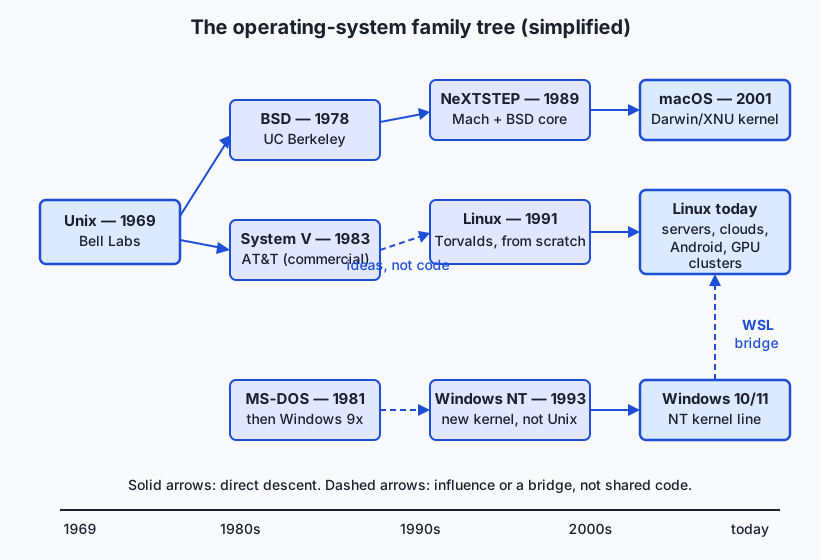
Operating systems were born from an economic problem: computers in the 1950s cost millions and sat idle between jobs while humans shuffled punch cards. The first “monitors” simply ran jobs back to back. The 1960s brought time-sharing — many users at terminals, the machine switching between them so fast that each felt alone — culminating in Multics, an ambitious joint project of MIT, General Electric, and Bell Labs that pioneered many ideas but grew heavy and late.
Bell Labs pulled out of Multics in 1969, and two of its researchers, Ken Thompson and Dennis Ritchie, built a smaller, simpler system on a spare PDP-7 minicomputer — a pun-named “Unix” where Multics had been plural and complex. Two decisions made Unix immortal. First, in 1973 it was rewritten in Ritchie’s new language C, making it the first major OS that was portable — it could move to new hardware by recompiling rather than rewriting. Second, because a 1956 antitrust decree barred AT&T from selling software commercially, Bell Labs licensed Unix to universities cheaply, source code included. A generation of computer scientists learned OS design by reading it.
The family then split. The University of California, Berkeley extended Unix into the Berkeley Software Distribution (BSD, from 1978), which added, among much else, the TCP/IP networking that the internet still runs on. AT&T, freed to sell software after 1983, commercialized its own line as System V. Through the 1980s, “Unix wars” raged between these camps while the systems themselves spread across servers and workstations.
Two descendants dominate your world today. In 1991, Linus Torvalds, a 21-year-old student in Helsinki, wrote a Unix-like kernel from scratch as a hobby and released it under an open-source license, inviting anyone to improve it. Combined with the GNU project’s free Unix-style tools (begun by Richard Stallman in 1983), Linux grew from a hobby into the operating system of the internet: it now runs the overwhelming majority of servers, every Android phone, all of the world’s top supercomputers, and virtually every GPU cluster used for AI. Note the honest wording: Linux shares Unix’s design, not its code — it is “Unix-like,” written independently.
The second descendant arrived by acquisition. Steve Jobs, after leaving Apple in 1985, founded NeXT, whose NeXTSTEP system wrapped an elegant interface around a Unix core (the Mach kernel plus BSD code). Apple bought NeXT in 1996, and NeXTSTEP evolved into Mac OS X, released in 2001 — today’s macOS. Its open-source core is called Darwin, its kernel XNU, and since 2007 macOS has been formally certified against the Single UNIX Specification. This is why your Mac’s Terminal speaks the same language as a Linux server: underneath the polish, macOS genuinely is a Unix.
Windows took a separate road entirely. Microsoft’s MS-DOS (1981) and the Windows 9x line that grew over it were single-user systems with little protection. The modern line began with Windows NT (1993), a new kernel built by a team under Dave Cutler, a veteran of DEC’s VMS operating system — a professional, secure design, but not a Unix in code or in conventions. The consumer and NT lines merged with Windows XP in 2001, and today’s Windows 10 and 11 still run on NT’s descendants. Recognizing where developers actually work, Microsoft added the Windows Subsystem for Linux (WSL) in 2016; its current version runs a real Linux kernel inside a lightweight virtual machine, giving Windows users a genuine Linux environment one command away.
What it is — and what it is not
An operating system is the software layer that manages a computer’s hardware and provides common services to programs. The kernel is its heart, but a full OS also ships user-space furniture: the shell you type into, system libraries, background services, and usually a graphical interface. When you say “Ubuntu” or “macOS Sequoia,” you mean the whole bundle; when an engineer says “the kernel,” they mean only the privileged core.
It is worth being precise about what an OS is not:
- It is not the hardware. The same laptop can boot Linux today and Windows tomorrow; the OS is software installed on top.
- It is not the applications. Your browser, editor, and Python interpreter are guests; the OS is the host that loads, schedules, and polices them.
- It is not the user interface. The desktop, dock, and windows are the most visible part and the least essential: most Linux servers run no graphical interface at all, administered entirely through a text shell. The kernel neither knows nor cares whether a human is watching.
- It is not “the computer being smart.” Like everything from Day 1, the OS is ordinary machine code running on the same CPU — just machine code granted a privilege level that other programs are denied.
One more distinction the AI world will force on you: Linux is a kernel; a Linux distribution is a product. Ubuntu, Debian, Fedora, and Arch all wrap the same Linux kernel in different installers, package managers, default tools, and update policies. When a cloud provider offers “Ubuntu 24.04 LTS,” it is offering the Linux kernel plus Canonical’s curated bundle around it.
Why it was created and what problems it solves
Each OS job exists because of a concrete failure that early computing suffered without it.
Sharing the machine. A CPU is idle most of the time — even a busy program spends much of its life waiting on memory, disk, or network (remember the Day 3 latency ladder). Without an OS, one program monopolizes the machine while it waits. The OS’s process manager multiplexes the CPU: it runs one program until it blocks or its time slice ends, then instantly switches to another, giving every program the illusion of continuous progress and the machine’s owner the reality of full utilization.
Protecting programs from each other. On early systems, any program could overwrite any memory — one bug could crash everything. Virtual memory (Day 3, revisited properly below) gives each process its own private address space, so a wild pointer in your script cannot touch the browser next door.
Taming the hardware zoo. Every disk, keyboard, network card, and GPU speaks its own electrical dialect. Device drivers — hardware-specific modules loaded into the kernel — translate each dialect into a standard interface, so programs can say “read this file” without knowing or caring which manufacturer’s disk holds it.
Making storage human. Disks are just billions of numbered blocks. The filesystem invents files, names, folders, timestamps, and permissions on top of them — an organizational fiction so useful that we forget it is one.
Enforcing ownership. Multi-user machines needed a concept of who: user accounts, and permissions that say which users may read, write, or execute which files. Every login system, every “Permission denied,” every sudo traces to this.
| OS job | Problem it solves | You will meet it as |
|---|---|---|
| Process management | One CPU, many programs wanting it | Activity Monitor, ps, kill, a training job pegging all cores |
| Memory management (virtual memory) | Programs colliding in RAM; RAM running out | Out-of-memory errors, swapping, “does the model fit?” |
| Filesystems | Raw disk blocks are unusable by humans | Files, folders, paths, mount points, df -h |
| Device drivers | Every device speaks a different dialect | GPU driver installs, printer setup, nvidia-smi working (or not) |
| Security & permissions | Users and programs must not trample each other | Logins, file permissions, sudo, “Permission denied” |
How it works
Kernel space and user space
The CPU itself enforces the two-world split: modern processors run in at least two hardware modes. In privileged (kernel) mode, all instructions and all memory are available. In user mode, instructions that touch hardware or remap memory are forbidden — executing one triggers a trap straight into the kernel. This is not a convention that polite programs follow; it is physics-level enforcement by the same transistor logic you met on Day 1. A user-space program cannot touch the disk directly any more than a hotel guest can rewire the elevator.
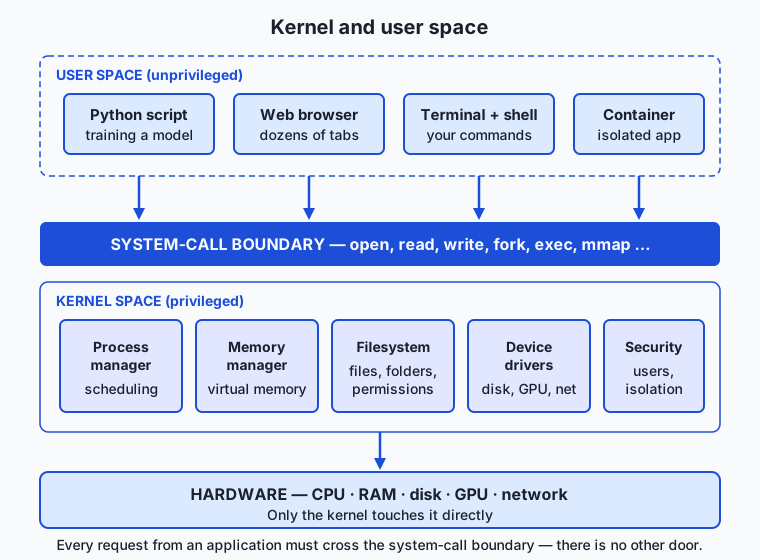
Everything above the boundary in the diagram — your Python scripts, the shell, the browser, even most of what you think of as “the OS,” like the desktop — runs unprivileged. Below it, the kernel’s subsystems do the real work: the scheduler dividing CPU time, the memory manager maintaining each process’s virtual address space, the filesystem code, the drivers, and the security machinery checking every request against ownership rules.
System calls: the only door
A system call is how a user-space program asks the kernel for service. There are a few hundred of them on Linux — open, read, write, close for files; fork and exec to create and run programs; mmap to request memory; socket and friends for networking. Every language you will ever use — Python, C, Rust, JavaScript — bottoms out in these same calls; high-level functions like Python’s open() are wrappers that eventually execute a special CPU instruction that switches the processor into kernel mode at a kernel-chosen entry point.
Walk through the canonical example — a program opens a file:
- Your Python line
f = open("data.csv")calls into the C library, which places the system-call number foropenand the arguments (the path, the mode) where the kernel expects them and executes the syscall instruction. - The CPU switches to kernel mode and jumps to the kernel’s system-call handler — the program cannot choose where it lands; the kernel controls its own entrances.
- The kernel’s filesystem code resolves the path
data.csvstep by step through directory structures on disk, using the appropriate driver to read the actual blocks. - The security check: the kernel compares the file’s owner and permission bits against the identity of the calling process. Wrong answer, and the call returns an error — the origin of every “Permission denied” you will ever see.
- If all is well, the kernel builds internal bookkeeping for the open file and returns a small integer to your program — a file descriptor, your ticket for later
readandwritecalls — and the CPU drops back to user mode.
Notice what your program never got: the disk’s location of the data, the right to touch the disk, or any access to the kernel’s bookkeeping. It got a number. Every subsequent read hands that number back across the boundary and receives bytes copied into its own memory. The kernel stays in control at every step.
Virtual memory, revisited
Day 3 introduced virtual memory from the hardware side; here is the OS side. The memory manager gives every process the illusion of a huge, private, contiguous address space, and maintains per-process page tables that map those virtual addresses onto whatever physical RAM pages happen to be free — with the CPU’s memory-management hardware translating on every access. The consequences you will actually feel: two processes can both believe they own “address 4096” without conflict; a process touching memory outside its map gets terminated (the segmentation fault); and when physical RAM runs short, the OS quietly evicts less-used pages to disk (swapping), which is why a machine that has run out of memory does not stop — it slows to a crawl at disk latency, exactly as the Day 3 numbers predict. When a training job dies with an out-of-memory error, it is the OS’s memory manager (on Linux, bluntly named the OOM killer) choosing a process to sacrifice.
Booting: how the OS gets there
At power-on, firmware in the machine (on modern systems, UEFI) initializes the hardware just enough to find a bootloader on disk, which loads the kernel into memory and jumps to it. The kernel then initializes its subsystems, mounts the root filesystem, and starts the first user-space process, which starts everything else — services, login screens, your shell. From that moment on, the kernel is a permanent resident: every program you launch for the rest of the session is loaded, scheduled, and supervised by it.
An everyday analogy
An operating system is the management of a grand hotel. The guests are the applications: each believes their room is private, their key opens their door only, and room service simply appears. The hotel’s manager and staff are the kernel — and crucially, guests never enter the service corridors. Everything a guest needs, they request at the front desk: that desk is the system-call interface, the single controlled doorway between guest world and staff world.
Ask for dinner (open a file) and the desk checks you are actually a registered guest entitled to bill to that room (permissions), relays the order to the kitchen (filesystem and driver), and delivers the plate to your door (bytes copied into your memory). You never see the kitchen, and you certainly never operate the stove — a guest with a blowtorch in the kitchen is how hotels burn down, and direct hardware access from user space is how computers did, in effect, burn down before protected operating systems.
The manager also schedules scarce staff among many guests (process scheduling), assigns rooms so that guests never collide (virtual memory — and note every guest can be in “Room 1” of their own imagined floor), keeps the register of who is who (user accounts), and evicts a guest who trashes the room (killing a misbehaving process). The one place the analogy needs honesty: a real hotel serves guests at human speed, while the OS switches attention thousands of times per second — fast enough that every guest believes they have the whole staff to themselves.
Examples in practice
The same task, three operating systems. Save a file in an editor and the ritual differs only in costume: on Windows the program ultimately calls the NT kernel; on macOS the XNU kernel; on Linux the Linux kernel. Same idea, different lineages — which is exactly why software must be built for each OS, and why the “Comparison” table below matters practically and not just historically.
Where AI actually runs. Rent a GPU machine from any cloud provider and you will almost certainly be handed a Linux distribution, usually Ubuntu. The GPU vendor’s driver is a Linux kernel module; the container images that package model code are Linux images; the orchestration tools that manage training across dozens of machines assume Linux conventions. This is not fashion. Linux is free (no per-server license across a ten-thousand-node cluster), open (cloud vendors and chip vendors can modify the kernel for their hardware), scriptable end to end, and administrable over a bare text connection — the exact requirements of datacenter computing.
Containers: OS-level isolation. A theme you will meet properly later in the course, in one paragraph now. The Linux kernel can partition user space into isolated compartments — separate process lists, separate filesystem views, separate network stacks, with resource limits — using kernel features called namespaces and control groups. A container (Docker, released 2013, made this usable for everyone) is exactly such a compartment plus a packaged filesystem image: your application ships with the precise libraries and tools it needs, and runs isolated on any Linux kernel. It feels like a lightweight virtual machine but shares the host’s kernel, which is why containers start in about a second. Nearly every AI model you will deploy in this course ships as a container.
“Works on my machine.” Your script runs on your Mac and crashes on the Linux server. The usual suspects are all OS-environment facts: a different filesystem layout (paths that exist on one machine and not the other), case-sensitivity differences between filesystems, different versions of system libraries, permissions that differ, environment variables set in your shell but not on the server. Containers were invented, in large part, to end this class of bug: ship the environment with the app.
WSL as the bridge. If your machine runs Windows, WSL gives you a genuine Ubuntu (or other distribution) running on a real Linux kernel alongside Windows — you get Windows for daily life and Linux for development, on one laptop. For this course, Windows users should treat WSL as home base: every lab from Week 2 onward assumes a Unix-style shell, and WSL is the honest way to have one.
Implications: security, privacy, performance, scalability, and cost
Security
The kernel/user-space boundary is the foundation of all computer security: every access-control decision on the machine is ultimately enforced at the system-call door. This has a sharp corollary — a bug in user-space software can cost you a program, but a bug in the kernel can cost you the machine, since kernel code has no guard above it. That is why kernel vulnerabilities are the most prized category of exploit, why device drivers (kernel-resident, often vendor-written) are a notorious weak point, and why the industry pushes drivers and services out of the kernel where possible. It is also why you should hesitate before running anything with sudo: those three letters ask the OS to suspend the very protections this lesson describes.
Privacy
On a multi-user OS, the kernel is what stands between your files and other users — permissions are real enforcement, not etiquette. But note who they do not restrain: the OS itself sees everything, and so does anyone with administrator rights. On a corporate laptop, the administrator is your employer; on a rented cloud machine, you are usually the administrator, but the provider controls the layers beneath. Meanwhile, process listings are visible machine-wide by default — the ps command you will run in today’s lab can show other users’ processes and their command lines, which is why secrets passed as command-line arguments are a classic privacy leak.
Performance
The OS’s conveniences have prices, and later course topics are largely about managing them. Every system call is a mode switch with real overhead — cheap individually, expensive a million times a second, which is why fast programs read files in large chunks rather than byte by byte. Context switches between processes cost more still, flushing warm data from CPU caches. Swapping is the heaviest tax: when RAM is exhausted and the OS pages memory to disk, performance falls off the latency cliff from Day 3. GPU work adds its own OS story: data must move from disk through kernel buffers into process memory and across the driver to the GPU — keeping expensive accelerators fed is substantially an operating-systems problem.
Scalability
One machine scales up until it doesn’t; after that, you run fleets — and nobody administers a thousand machines by clicking. Linux’s remote, scriptable administration is why it owns the datacenter, and containers are why fleets are manageable at all: the same image runs identically on every node, and an orchestrator schedules containers across machines much as a kernel schedules processes across cores. The mental model you built today — one manager multiplexing many workloads over shared hardware — recurs one level up in every cloud system you will meet.
Cost
Operating systems shape budgets directly. Linux costs nothing per machine, which at cluster scale is decisive — and it is also why “free” cloud images are Linux images while Windows Server instances bill a license surcharge. Engineer time cuts the other way: a team fluent in one OS pays a real price switching. And the deepest cost lesson: OS-environment drift between development and production burns engineering hours invisibly, which is why the industry standardized on containers — paying a small, fixed complexity cost to avoid an unbounded debugging one.
Alternatives: free, open source, and commercial
For a desktop or development machine, the realistic menu is short, and honesty about trade-offs matters more than advocacy.
| OS | License/cost | Unix heritage | Best at | Watch out for |
|---|---|---|---|---|
| Windows 10/11 | Commercial, usually bundled with the PC | None (NT lineage) — WSL bridges the gap | Hardware/game compatibility, corporate desktops | Native environment differs from the Linux servers you will deploy to; use WSL for this course |
| macOS | Bundled with Apple hardware | Genuine Unix (Darwin/XNU, certified since 2007) | Polished desktop over a real Unix shell; strong for development | Apple hardware only; server/GPU world still differs in places (package managers, drivers) |
| Linux (Ubuntu, Debian, Fedora, …) | Free, open source | Unix-like by design, independent code | Servers, clouds, GPU clusters, full control, zero license cost | Desktop polish and commercial-app support vary; more self-reliance expected |
| WSL (Ubuntu on Windows) | Free feature of Windows | Real Linux kernel in a lightweight VM | Best of both on one machine; the recommended path for Windows learners | Slightly slower filesystem crossing between Windows and Linux sides; GPU setup takes extra steps |
| BSD family (FreeBSD, OpenBSD) | Free, open source | Direct BSD descent | Servers, firewalls, appliances; famously clean engineering | Smaller ecosystem; rarely used for AI tooling |
Practical guidance for this course: whatever you run today is fine for Week 1. From Week 2 (command line) onward, you need a Unix-style environment — macOS and Linux have one natively; Windows users should install WSL now rather than translating every lab. There is no need to abandon your daily OS; professionals routinely develop on macOS or Windows-plus-WSL and deploy to Linux.
Comparison with related concepts
| Concept A | Concept B | Key difference |
|---|---|---|
| Kernel | Operating system | The kernel is the privileged core; the OS is the kernel plus shells, libraries, services, and (optionally) a graphical interface |
| Operating system | Firmware (UEFI) | Firmware is fixed code that wakes the hardware and finds the bootloader; the OS is what it hands control to |
| Program | Process | A program is a file of instructions on disk; a process is that program running, with its own memory and identity (Day 7’s whole subject) |
| System call | Library/function call | A function call stays in user space; a system call crosses into kernel mode with hardware-enforced entry points |
| Container | Virtual machine | A container is kernel-enforced isolation sharing the host’s kernel (starts in ~a second); a VM emulates a whole machine running its own kernel (heavier, stronger isolation) |
| Linux | A Linux distribution | Linux is the kernel; a distribution (Ubuntu, Fedora) is the kernel packaged with tools, installers, and update policy |
When to use it — and when not to
You do not choose whether to use an operating system, so the real decisions are which one, and when to think at the OS layer.
Reach for OS-level thinking whenever software misbehaves in ways your code cannot explain: “Permission denied” (ownership and permission bits), a killed process (the memory manager ran out of RAM), a port already in use (another process holds it), a script that works here and fails there (environment drift), a GPU that Python cannot see (driver and kernel-module layer). In each case, the productive move is to stop staring at your code and interrogate the OS — with exactly the commands today’s lab teaches. Reach for it too when choosing infrastructure: deployment targets, container images, and cloud machine types are all OS decisions.
Know also when not to descend to this layer. Do not fight your desktop OS for ideological reasons mid-course — switching your laptop to Linux the week you are learning the shell doubles your problems; WSL or macOS is a perfectly professional base. Do not reach for sudo when a permission error probably means you are in the wrong directory or editing a file you should copy instead. And do not optimize around system-call overhead or scheduler behavior before you have measured; like Day 1’s premature-optimization warning, OS-level tuning is a scalpel for after the diagnosis, not before.
Knowledge check
Try these from memory before looking back:
- Explain kernel mode versus user mode, and name the mechanism that lets a user-space program get kernel services. Why can’t a program simply jump into kernel code at an address of its choosing?
- List the five core jobs of an operating system and give one everyday symptom of each (an error message, a tool, or a behavior).
- Trace what happens, step by step, when a Python program calls
open("data.csv")— including where permissions are checked and what the program actually receives. - A friend says “Linux is a version of Unix, and macOS is basically Linux.” Correct both halves of that sentence accurately.
- Why does server and AI infrastructure run overwhelmingly on Linux? Give at least three concrete reasons, not slogans.
Hands-on exercise
Time to meet your own operating system from the terminal. Each command below interrogates a different OS subsystem from today’s lesson; the Day 6 lab packages them into a script with tests. Open your terminal (macOS: Terminal.app; Linux: any terminal; Windows: a WSL shell) and run these one at a time.
uname -aPrints the kernel’s name, version, and hardware architecture in one line — your machine’s deepest software identity. On a Mac the kernel is named Darwin; on Linux and WSL it is Linux.
uptimeShows how long the kernel has been running since boot, plus load averages — a first glimpse of the scheduler’s workload.
whoamiPrints the user account you are logged in as — the identity the kernel checks on every system call you make.
echo "$SHELL"Prints your login shell — the user-space program that reads your commands and asks the kernel to run them. Modern macOS defaults to /bin/zsh; most Linux systems to /bin/bash.
df -hLists mounted filesystems with sizes and free space — the filesystem subsystem’s public face. The row mounted on / is your root filesystem.
ps aux | head -6Shows the first few of all running processes with their owners, CPU, and memory shares — the process manager’s ledger. Note how many processes exist that you never started: that is the OS’s own user-space staff at work.
To see who is really eating your memory, sort the ledger (works on macOS and Linux):
ps aux | sort -k4 -nr | head -5Column 4 is memory percentage; sort -k4 -nr orders by it, descending; head -5 keeps the top five.
Expected output
A real run on a Mac, lightly trimmed for width (your values will differ — that is the point):
$ uname -a
Darwin <host> 25.5.0 Darwin Kernel Version 25.5.0 [...] RELEASE_ARM64_T6041 arm64

$ uptime
 8:55  up 1 day, 11:35, 1 user, load averages: 2.86 2.40 2.70

$ whoami
you

$ echo "$SHELL"
/bin/zsh

$ df -h | head -2
Filesystem        Size    Used   Avail Capacity  iused ifree %iused  Mounted on
/dev/disk3s1s1   926Gi    13Gi   436Gi     3%     459k  4.3G    0%   /

$ ps aux | sort -k4 -nr | head -2
you  7792  0.1  2.8 [...] Google Chrome Helper (Renderer) [...]
you 53508 10.7  2.1 [...] (a terminal program)
Read it as a tour of the lesson: uname spoke to the kernel (Darwin, version 25.5.0, on 64-bit Arm hardware); uptime says the kernel has run uninterrupted for a day and a half; whoami echoed the security identity the kernel checks on every call; $SHELL named the user-space front door; df reported the filesystem subsystem (a 926 GiB root volume with 436 GiB free); and ps opened the process manager’s books — on this machine, browser renderer processes top the memory table, each one a separate isolated process by deliberate OS-level design. On Linux the shape is identical — kernel name Linux, distribution details from cat /etc/os-release.
Validate your work
You are done when you can check every box:
- You can state your kernel’s name and version from
uname -a. - You can state your username and your login shell.
- You can say how long your machine has been up.
- You can name the filesystem row mounted on
/and its free space. - You can name the top memory-consuming process on your machine right now — and say whether you started it or the OS did.
Troubleshooting
ps: illegal optionor odd column output. Theauxoptions work on macOS and Linux; if you are in PowerShell on Windows, you are not in a Unix shell — open a WSL terminal instead.$SHELLprints nothing. Use the exact formecho "$SHELL"— the dollar sign asks the shell to expand the variable; without it you would print the literal word.df -hshows a confusing forest of rows. macOS splits the system across several volumes and Linux mounts many virtual filesystems; for today, read only the row whose last column is/.- The memory percentages don’t add to 100. They never will: shared memory is counted in multiple processes, and the OS itself uses RAM that no process row owns. Treat
%MEMas a ranking, not an audit.
Common mistakes
- Confusing the shell with the terminal with the OS. The terminal is the window; the shell (
zsh,bash) is the user-space program reading your keystrokes; the OS kernel is what the shell asks to do the actual work. Three layers, three different things to debug. - Thinking a busy process list means something is wrong. A healthy idle machine runs dozens to hundreds of processes — services, helpers, per-app workers. The skill is spotting the unexpected entry, which requires knowing the normal baseline (today’s worksheet builds yours).
- Reaching for
sudoto “fix” every permission message. Most permission errors during learning mean you are touching a file you should not need to touch. Escalating to administrator by reflex is how learners damage systems; diagnose first.
Practice assignment
Open the OS-profile worksheet in the starter directory of the Day 6 lab: it extends the Day 1 machine profile you already made with an OS layer. Fill in every field from your own machine: kernel name and version (uname -a), distribution or OS version, uptime, username, login shell, total number of processes (ps aux | wc -l, minus one for the header), and the top memory consumer. Then pick one process from ps aux whose name you do not recognize, find out what it is (search the web for the process name plus your OS), and write two or three sentences on what it does and which of the OS’s five jobs it serves. Keep the worksheet with your Day 1 profile; the Week 1 project assembles both.
Extension challenge
Go one level deeper and locate your kernel as a real file, then watch the boundary in action. On Linux (or WSL), list the kernel image(s) with ls -lh /boot/vmlinuz* and note the file size — the core of the OS is a file of machine code a few tens of megabytes large. On macOS, the kernel lives at /System/Library/Kernels/kernel; inspect it with ls -lh /System/Library/Kernels/kernel. Then, on Linux, run strace -c ls if strace is available (install it with your package manager if not): it counts every system call the humble ls command makes — typically dozens, across files, memory, and process management — turning today’s diagram into live data. macOS restricts the equivalent tracing tools on stock systems, so Mac users can instead run sysctl kern.ostype kern.osrelease kern.bootargs 2>/dev/null | head -2 to query the kernel’s own registry directly. Write three sentences: where your kernel lives, how big it is, and one thing that surprised you about how many system calls a trivial command makes.
Quiz
Q1. What is the fundamental difference between kernel space and user space?
- Kernel space is stored on disk while user space lives in RAM
- Kernel space runs in a privileged CPU mode that can touch any memory and device; user space runs unprivileged and must request services through system calls
- Kernel space is for system administrators and user space is for ordinary user accounts
- Kernel space runs faster because it uses a separate, faster processor
Show answer
Answer: B. Kernel space runs in a privileged CPU mode that can touch any memory and device; user space runs unprivileged and must request services through system calls
The split is enforced by the CPU's hardware privilege modes: kernel-mode code may execute any instruction and access any memory, while user-mode programs are confined to their own memory and must cross the system-call boundary for anything more.
Q2. What is a system call?
- A phone-home request an operating system makes to its vendor
- Any function call between two functions in the same program
- The controlled mechanism by which a user-space program requests a service (like opening a file) from the kernel
- A message one application sends to another application
Show answer
Answer: C. The controlled mechanism by which a user-space program requests a service (like opening a file) from the kernel
A system call is the single doorway between user space and the kernel: the program executes a special instruction that switches the CPU into kernel mode at a kernel-chosen entry point, where the request is checked and serviced.
Q3. When a program successfully opens a file, what does the operating system actually hand back to it?
- The physical disk address where the file's data begins
- A complete copy of the file loaded into the kernel's memory
- Direct read/write access to the disk hardware for that file
- A small integer called a file descriptor, used as a ticket for later read and write calls
Show answer
Answer: D. A small integer called a file descriptor, used as a ticket for later read and write calls
The kernel keeps all the real bookkeeping and hardware access to itself; the program receives only a file descriptor — a number it hands back across the system-call boundary on every subsequent read or write.
Q4. Which statement about the Unix family history is accurate?
- Unix began at Bell Labs in 1969, and Linux (1991) is a Unix-like kernel written independently from scratch, sharing Unix's design but not its code
- Linux was created by AT&T in 1983 as the commercial successor to Unix
- Unix was derived from Windows NT in the early 1990s
- macOS abandoned its Unix heritage when Apple bought NeXT in 1996
Show answer
Answer: A. Unix began at Bell Labs in 1969, and Linux (1991) is a Unix-like kernel written independently from scratch, sharing Unix's design but not its code
Ken Thompson and Dennis Ritchie started Unix at Bell Labs in 1969; the family branched into BSD and System V; and in 1991 Linus Torvalds wrote the Linux kernel independently — Unix-like in design, but new code. macOS, via NeXT and Darwin, genuinely descends from the Unix/BSD line.
Q5. Why does virtually all server and GPU/AI infrastructure run on Linux?
- Linux is the only operating system that can run Python programs
- Linux is license-free at any scale, open for vendors to adapt, fully scriptable, and administrable over a bare text connection — the requirements of datacenter computing
- Linux is the only operating system with a graphical desktop
- Laws in most countries require servers to run open-source software
Show answer
Answer: B. Linux is license-free at any scale, open for vendors to adapt, fully scriptable, and administrable over a bare text connection — the requirements of datacenter computing
Zero per-machine license cost across huge fleets, an open kernel that cloud and GPU vendors can modify, end-to-end scriptability, and remote text-based administration made Linux the default for servers, clouds, and GPU clusters — not fashion or legal mandate.
Q6. What is a container, in operating-system terms?
- A complete emulated computer running its own separate kernel
- A compressed archive format for shipping source code
- A kernel-enforced isolated compartment of user space (own process list, filesystem view, and network stack) that shares the host's kernel
- A physical case that holds multiple servers in a datacenter rack
Show answer
Answer: C. A kernel-enforced isolated compartment of user space (own process list, filesystem view, and network stack) that shares the host's kernel
Containers use kernel features (namespaces and control groups on Linux) to isolate processes while sharing the host kernel — lighter and faster to start than a virtual machine, which emulates a whole machine with its own kernel.
Q7. A script works on your laptop but fails on a server with "Permission denied". Which OS subsystem produced that message, and at what moment?
- The compiler, when the script was first written
- The security/permissions machinery in the kernel, when a system call's identity check against the file's ownership and permission bits failed
- The bootloader, when the server last restarted
- The CPU cache, when it ran out of space
Show answer
Answer: B. The security/permissions machinery in the kernel, when a system call's identity check against the file's ownership and permission bits failed
Permission checks happen inside the kernel during system calls such as open: the caller's user identity is compared against the file's owner and permission bits, and a mismatch returns the error the program reports as "Permission denied".
Q8. What is the relationship between Linux and a Linux distribution such as Ubuntu?
- They are the same thing under two names
- Ubuntu is a rival kernel that competes with Linux
- Linux is a graphical desktop that runs on top of Ubuntu
- Linux is the kernel; Ubuntu packages that kernel with installers, tools, a package manager, and update policy into a complete product
Show answer
Answer: D. Linux is the kernel; Ubuntu packages that kernel with installers, tools, a package manager, and update policy into a complete product
Linux proper is only the kernel. Distributions like Ubuntu, Debian, and Fedora bundle it with user-space tools and policies — which is why cloud providers offer "Ubuntu" images rather than "Linux" ones.
Glossary
- operating system
- The software layer that manages a computer's hardware and provides common services to programs — a manager of resources, an illusionist providing private-machine fictions, and a guard enforcing protection.
- kernel
- The privileged core of an operating system, running in a special CPU mode with unrestricted access to memory and devices; it contains the scheduler, memory manager, filesystems, drivers, and security machinery.
- user space
- The unprivileged world where all ordinary programs run, confined to their own memory and required to request every hardware service from the kernel through system calls.
- system call
- The controlled doorway through which a user-space program asks the kernel for a service such as opening a file, allocating memory, or sending a network packet.
- file descriptor
- The small integer the kernel returns when a program opens a file — a ticket the program hands back on every subsequent read or write, while the kernel keeps the real bookkeeping.
- device driver
- A hardware-specific module, usually loaded into the kernel, that translates one device's particular dialect into the standard interface the rest of the system expects.
- filesystem
- The OS subsystem that organizes raw disk blocks into named files, folders, timestamps, and permissions — the human-usable fiction layered over storage hardware.
- permission
- A rule attached to a file or resource stating which users may read, write, or execute it; the kernel checks permissions during system calls, producing "Permission denied" on failure.
- virtual memory
- The memory-management scheme that gives each process a private, contiguous-looking address space mapped by page tables onto physical RAM, with less-used pages evicted to disk when memory runs short.
- process
- A program in execution: the running instance of a program file, with its own virtual address space, identity, and entry in the scheduler's ledger.
- shell
- The user-space program (such as zsh or bash) that reads typed commands and asks the kernel to run them — distinct from both the terminal window and the operating system itself.
- Unix
- The operating system begun at Bell Labs in 1969 by Ken Thompson and Dennis Ritchie, whose portable C implementation and licensed source code made its design the ancestor or model for macOS, Linux, and most server systems.
- Linux distribution
- A complete product (Ubuntu, Debian, Fedora, Arch) that packages the Linux kernel with installers, a package manager, default tools, and an update policy.
- WSL
- The Windows Subsystem for Linux — a Windows feature whose current version runs a real Linux kernel in a lightweight virtual machine, giving Windows users a genuine Linux environment alongside Windows.
- container
- A kernel-enforced isolated compartment of user space — separate process list, filesystem view, and network stack — that shares the host's kernel, packaged with an application's exact environment so it runs identically anywhere.
Sources and further reading
- Operating system — Wikipedia (accessed 2026-07-12)
- Kernel (operating system) — Wikipedia (accessed 2026-07-12)
- Operating Systems: Three Easy Pieces — Remzi H. Arpaci-Dusseau and Andrea C. Arpaci-Dusseau (accessed 2026-07-12) — Free, complete university-level OS textbook — the recommended deep dive after this lesson.
- History of Unix — Wikipedia (accessed 2026-07-12)
- Crash Course Computer Science — PBS Digital Studios (accessed 2026-07-12) — Free video series; the operating-systems episode complements this lesson.
Kept in this browser, no account needed. Your progress page turns the whole record into one link you can bookmark or open on another device.