Computing Foundations › How the Internet Works › Day 20
Day 20: How Browsers Render: HTML, CSS, and JavaScript
After this lesson you will be able to explain what a browser does after it receives a page — parsing HTML into the DOM and CSS into the CSSOM, building the render tree, laying out and painting — and use that pipeline to reason about page speed, client-side versus server-side rendering, and how interactive front-ends update the page.
Hands-on lab for this lesson
Lab files on GitHub: https://github.com/ai-roadmap-365/ai-roadmap-365.github.io/tree/main/labs/sections/computing-foundations/day-020-how-browsers-render-html-css-and
- Get the hands-on files. Clone the labs repository once (you can reuse this clone for every lesson). This works on macOS, Linux, and Windows (PowerShell or WSL):
git clone https://github.com/ai-roadmap-365/ai-roadmap-365.github.io.git cd ai-roadmap-365.github.io - Open this lesson's lab. Move into the directory for this specific day. Every lab lives at the same predictable path — section / subsection / week / day:
cd labs/sections/computing-foundations/day-020-how-browsers-render-html-css-and - Read the lab guide. Open `README.md` in that directory. It lists the exact commands, what each does, the expected output, and how to check your work — read it before running anything.
- Run it and check your work. Follow the README's "How to run" section: run the example first to see the finished result, then complete the numbered exercises in `starter/`, then run the tests. The tests pass (exit 0) only when your work is correct.
bash tests/run_tests.sh # or the test command named in the lab README
You can also open the lab as a local page (works offline, shows the file tree and expected output).
Learning objectives
By the end of this lesson you will be able to:
- Name the three web languages and state the single role of each: HTML for structure, CSS for presentation, JavaScript for behavior
- Describe how the browser parses HTML into the DOM tree and CSS into the CSSOM, and explain why the DOM differs from the HTML source
- Order the steps of the critical rendering path — parse, render tree, layout (reflow), paint — and say what each step produces
- Explain render-blocking resources and how the single-threaded event loop makes a heavy script freeze a page
- Contrast client-side and server-side rendering and explain why the choice affects load speed, discoverability, and cost
- Use free built-in tools — DevTools Elements, Console, Network, and Performance panels, View Source, and Lighthouse — to inspect a real page's rendering
- Connect rendering to model front-ends: explain how a streaming interface repeatedly edits the DOM and why a short critical path keeps it feeling instant
Prerequisites
- A computer running macOS, Linux, or Windows with any modern web browser installed
- Days 15–19: how a page travels from URL to your browser (DNS, TCP, HTTP, HTTPS) — today picks up where the bytes arrive
Why this matters
Yesterday’s lessons carried a web page across the internet: a name resolved through DNS, a connection opened over TCP, a request sent with HTTP, the whole thing wrapped in TLS. At the end of that journey your browser holds a lump of text — the page’s HTML — and does something almost magical with it: in a few hundred milliseconds it turns those characters into a laid-out, styled, clickable interface. Today you learn exactly what happens in those milliseconds, because that transformation is where every web interface you will ever build or debug actually comes to life.
This matters directly for the work ahead. Almost every interface people use to talk to a model — a chat box, a document summarizer, an image generator — is a web page: HTML for structure, CSS for how it looks, JavaScript for what it does. When such an interface streams a response word by word, what you are watching is JavaScript repeatedly editing the page’s structure and the browser re-drawing it, dozens of times a second. When a page feels slow, freezes while “thinking,” or shows a blank screen before its content appears, the cause almost always lives in the pipeline you will study today. Later in this course you will build a chat front-end of your own, and the difference between one that feels instant and one that stutters is a difference in how well you understand rendering.
There is a money-and-time consequence too. Search engines and social-media link previews read your page the way a browser does; if the important content only appears after JavaScript runs, some readers — and some crawlers — never see it. Choosing where a page is assembled (on the server before it is sent, or in the browser after) changes load speed, discoverability, and cost. By the end of today you will be able to open any web page, watch it being built step by step in tools you already have installed, and reason about why it behaves the way it does — so the browser stops being a black box and becomes a machine you can inspect.
The idea in plain language
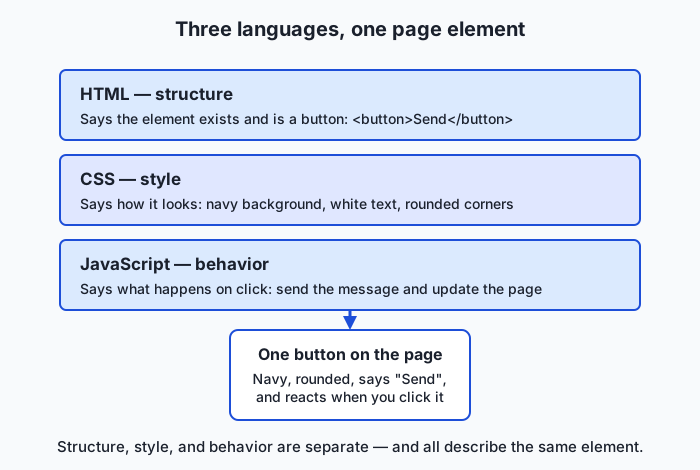
A web page is written in three languages, and each has one job. HTML (HyperText Markup Language) describes structure and content: this is a heading, that is a paragraph, here is a button, and this list sits inside that section. CSS (Cascading Style Sheets) describes presentation: the heading is dark blue and 32 pixels tall, the button has rounded corners, the page has a wide margin. JavaScript describes behavior: when someone clicks the button, change the text; when a message arrives, add it to the list. Structure, style, behavior — three separable concerns, three languages, one page.
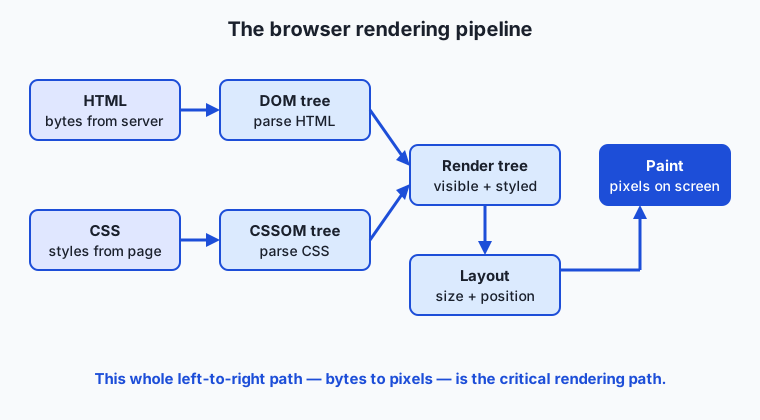
When the browser receives the HTML, it cannot simply “show” the text. It first has to build a model of the page it can work with. It reads the HTML character by character and constructs a tree in memory called the DOM (Document Object Model), where every element becomes a node and nesting becomes parent-and-child relationships. In parallel it reads all the CSS and builds a second tree, the CSSOM (CSS Object Model), that records which style rules apply to which elements. The browser then combines these two trees into a render tree containing only the things that will actually be shown, works out the exact size and position of each one — a step called layout — and finally fills in the pixels, a step called paint. That sequence, from bytes to pixels, is the critical rendering path, and how fast a page feels is largely a story about how quickly it can travel that path.
JavaScript threads through all of this. It can read and change the DOM at any time, which is how pages become interactive rather than static documents. But JavaScript in a browser runs on a single main thread that also handles rendering, and it processes work one item at a time from a queue using a mechanism called the event loop. That single-threaded, one-thing-at-a-time nature explains a great deal — including why a heavy piece of JavaScript can freeze a page’s scrolling and clicking until it finishes.
Historical background
The web began as documents, not applications. In 1989 at CERN, the physicist Tim Berners-Lee proposed a system for linking documents across computers; by late 1990 he had written the first web browser and server and defined HTML, HTTP, and the URL. Early HTML was tiny — a handful of tags for headings, paragraphs, lists, and links — and pages were static: the browser’s job was simply to display marked-up text with clickable links. There was no styling to speak of and no scripting; presentation was whatever the browser chose.
Two additions in the mid-1990s created the web as we know it. In 1994, Håkon Wium Lie proposed Cascading Style Sheets to separate how a page looks from what it contains, and the first CSS specification was published by the World Wide Web Consortium (W3C) in 1996; this let authors control layout and typography without tangling style into the structure. In 1995, Brendan Eich, then at Netscape, created a scripting language in a famously short development sprint; it shipped in Netscape Navigator and was soon named JavaScript. For the first time a page could respond to the user without a round trip to the server. The trio — HTML, CSS, JavaScript — was complete, and it has remained the foundation of the web ever since.
The Document Object Model was standardized to give scripts a consistent, tree-shaped way to reach into a page; the W3C published DOM Level 1 in 1998. Through the 2000s, browsers grew far faster JavaScript engines and the technique of updating a page in place — editing the DOM after load rather than fetching a whole new page — matured into the single-page application. Today’s browsers are among the most complex software most people run daily: they parse three languages, enforce security boundaries, and repaint interactive interfaces sixty times a second. Yet under all of it the original division of labor still holds. Structure, presentation, behavior — laid down between 1990 and 1996, and still the shape of every page you will build.
What it is — and what it is not
Rendering is the process a browser follows to turn the HTML, CSS, and JavaScript it has received into the interactive, pixel-by-pixel page you see and can click. Each word is load-bearing. Process: it is a defined sequence of steps, not a single instant. Turn into pixels: the end product is a lit grid of colored dots, produced from structured text by a chain of transformations. Interactive: rendering does not stop when the page first appears — the browser keeps the DOM live so that scripts and user actions can change it and trigger the pipeline again.
It helps just as much to be clear about what rendering is not. It is not the same as the HTML source you receive. The source is a stream of characters; the DOM is a live tree the browser builds from that stream and then keeps modifying — so “View Source” (the original text) and the “Elements” panel (the current DOM) can and often do differ. Rendering is also not a synonym for “downloading.” The network delivered the files; rendering is the separate work of interpreting them. And rendering is not intelligence: the browser follows fixed rules to lay out boxes and fill pixels, with no understanding of what the page means, exactly as a printing press stamps ink without reading the words.
| Common misconception | The reality |
|---|---|
| ”The page I see is the HTML file.” | You see the DOM — a live tree the browser built from the HTML and may have changed with JavaScript; the original source can look quite different. |
| ”HTML controls how the page looks.” | HTML defines structure and content; how it looks is CSS’s job. Unstyled HTML still works, it just looks plain. |
| ”JavaScript is needed to show a web page.” | Many pages render fully with only HTML and CSS. JavaScript adds behavior; it is not required to display content. |
| ”A blank page means the network failed.” | Often the files arrived fine but a render-blocking resource, or JavaScript that builds the content, hasn’t finished — a rendering issue, not a network one. |
| ”Faster internet always means a faster page.” | Beyond a point, perceived speed is set by the critical rendering path — parsing, layout, and script execution — not by raw download speed. |
Why it was created and what problems it solves
The rendering pipeline exists to solve a hard problem cleanly: take three different languages written by an author who cannot know the reader’s screen size, font settings, or device, and produce a correct, consistent visual result on all of them. A browser cannot simply print the HTML as typed, because the same page must lay itself out on a phone and a widescreen monitor, honor the user’s chosen text size, and reflow when the window changes. To do that it needs an internal, queryable model of the page — the DOM and CSSOM — rather than raw text, and a repeatable process for turning that model into a picture.
The separation into three languages solves a different problem: maintainability. Keeping structure (HTML), presentation (CSS), and behavior (JavaScript) apart means you can restyle an entire site without touching its content, or change a button’s behavior without disturbing its appearance. This is the same “separate the concerns” instinct behind the layered computing stack from Day 1: each layer has one job and hides its details from the others. The render tree and layout steps solve yet another problem — efficiency. By computing exactly which elements are visible and where, once, the browser avoids re-deriving that from scratch every time it draws a frame, and can update just the parts that changed when a script edits the page. Every stage of the pipeline earns its place by making a genuinely difficult job tractable and fast.
How it works
Let’s walk the pipeline from the bytes arriving to the pixels appearing, then see where JavaScript fits.
The three languages and their roles
Before the pipeline, fix the division of labor firmly in mind, because every later step refers back to it.
| Language | Its one job | A concrete example | What breaks without it |
|---|---|---|---|
| HTML | Structure and content | <h1>Hello</h1> marks “Hello” as a top-level heading | No content, no structure — nothing to show |
| CSS | Presentation | h1 { color: navy; } makes headings navy blue | The content still shows, but unstyled and plain |
| JavaScript | Behavior | On a click, change a paragraph’s text | The page is static — it cannot respond to the user |
A page can exist with only HTML. Add CSS and it looks designed. Add JavaScript and it responds. The three are independent enough that you can inspect and change each on its own, which is exactly what the browser’s developer tools let you do.
From bytes to a tree: parsing HTML into the DOM
The browser receives the HTML as a stream of bytes and reads it left to right, top to bottom. A component called the parser recognizes tags — <p>, </p>, <button> — and converts the text into tokens, then assembles those tokens into the DOM tree. Nesting in the source becomes parent-and-child links in the tree: a <p> written inside a <section> becomes a child node of that section’s node. The DOM is a live object, not a copy of the text — scripts can add, remove, or edit nodes, and every such change is a change to the page itself.
Crucially, the parser builds the DOM incrementally as bytes arrive, which is why long pages can begin showing before they have fully downloaded. The DOM is also where the difference between source and rendered page is born: if a script inserts a paragraph, that paragraph exists in the DOM (and on screen) but never appears in the original HTML text.
The second tree: parsing CSS into the CSSOM
While building the DOM, the browser also gathers every piece of CSS — from <style> blocks, from linked stylesheets, and from inline style attributes — and parses it into the CSSOM, a tree that records which rules apply and how they combine. CSS is cascading: several rules can target the same element, and the browser resolves conflicts by specificity (how narrowly a rule is targeted) and order, so the CSSOM stores the final, computed style for each element. Unlike HTML, CSS is generally treated as render-blocking: the browser wants the complete CSSOM before it paints, because a style rule near the end of the file could restyle an element near the top, and painting early would risk showing a flash of wrong-looking content.
Combining the trees: render tree, layout, and paint
With both trees in hand, the browser builds the render tree by walking the DOM and attaching each visible node’s computed style from the CSSOM. Only visible nodes are included: an element hidden with display: none is dropped entirely, and non-visual nodes (like the <head>) never appear. The render tree is therefore a filtered, style-annotated version of the DOM — the list of things that will actually be drawn.
Next comes layout (also called reflow): the browser computes the exact geometry of every render-tree node — its width, height, and x/y position on the page — resolving relative sizes (50%, 1em) against the viewport and each element’s parent. Layout is where “this heading is 32 pixels tall and starts 16 pixels from the top” is actually decided. Finally, paint fills in the pixels: text glyphs, colors, borders, shadows, and images are rasterized into the layers the browser then composites onto the screen. Bytes have become a picture.
| Step | Input | Output | What it decides |
|---|---|---|---|
| Parse HTML | HTML bytes | DOM tree | What elements exist and how they nest |
| Parse CSS | CSS from all sources | CSSOM tree | Which styles apply to which elements |
| Render tree | DOM + CSSOM | Render tree | Which elements are visible, with their styles |
| Layout (reflow) | Render tree | Box geometry | The exact size and position of every box |
| Paint | Positioned boxes | Pixels | The final colors, text, and images on screen |
This whole sequence is the critical rendering path. The reason it dominates perceived speed is that nothing appears until the path reaches paint, so anything that delays an early step — a huge stylesheet, a blocking script — delays the moment the user first sees content. And the path is not run only once: when a script changes a node’s size or a user resizes the window, the browser must redo layout and paint for the affected region, which is why unnecessary reflows are a classic cause of jank.
JavaScript, render-blocking, and the event loop
JavaScript can read and rewrite the DOM and CSSOM at any time, which is what makes pages interactive. But its placement matters. When the HTML parser reaches an ordinary <script> tag, it stops — it must run the script before continuing, because the script might change the very HTML being parsed. A large script in the page’s <head> therefore blocks the DOM from being built and delays first paint; this is what “render-blocking JavaScript” means, and it is why scripts are commonly placed at the end of the body or marked to load without blocking.
Once the page is interactive, JavaScript runs on a single main thread — the same thread that performs layout and paint — and it takes work one piece at a time from a queue. This is the event loop: the browser repeatedly takes the next task (a click handler, a timer callback, a network response), runs it to completion, then updates the screen if anything changed, then takes the next task. Because it is one-at-a-time, a single slow task blocks everything else — clicks pile up unhandled and the page appears frozen until the task finishes. Understanding this loop is the difference between a front-end that stays responsive while it works and one that locks up; you will meet it again the moment you write your first interactive page.
An everyday analogy
Think of building a house from a set of plans, with a single site foreman running the job.
The architect delivers three documents. The floor plan is the HTML: it says a kitchen goes here, a bedroom there, this room contains that closet — pure structure and content, no colors. The finish schedule is the CSS: walls painted navy, oak floors, this counter is granite — how everything looks, kept deliberately separate from the floor plan so you can repaint without moving walls. The smart-home wiring diagram is the JavaScript: when someone flips this switch, those lights dim; when the doorbell rings, that chime plays — behavior, the things that happen in response to actions.
Now watch the foreman work, one worker on site. He reads the floor plan and actually erects the frame — that built frame is the DOM, the real structure standing on the lot, which is not the same as the paper plan and can be modified later without redrawing it. He reads the finish schedule and works out every material and color: that’s the CSSOM. He then walks the built frame deciding what will actually be visible and finished — skipping any room the plan marked “do not build,” just as display: none drops an element from the render tree. He measures precisely where every wall, counter, and fixture sits (layout), and only then does the crew paint surfaces and lay the visible materials (paint). Deliver the plans, frame, finish, measure, paint — the critical rendering path.
Two features of the analogy carry real weight. First, the foreman won’t start painting until he has the complete finish schedule, because a note on the last page might change the color of the first room — that is render-blocking CSS. Second, there is only one foreman doing one task at a time: if the homeowner hands him an enormous, slow job (rewire the entire house before doing anything else), everything else waits — nobody can flip a switch or open a door until he’s done. That single-worker, one-job-at-a-time reality is the event loop, and it is why one heavy piece of JavaScript can make an entire page unresponsive.
Examples in practice
First, a tiny complete page, so you can see all three languages and the pipeline in one place:
<!doctype html>
<html lang="en">
  <head>
    <title>Tiny Page</title>
    <style>
      p { color: navy; font-size: 18px; }
    </style>
  </head>
  <body>
    <h1>Hello</h1>
    <p id="msg">Original text.</p>
    <button onclick="document.getElementById('msg').textContent = 'Changed!'">
      Change it
    </button>
  </body>
</html>
Trace the pipeline. The parser reads the bytes and builds the DOM: an <html> node with a <head> (holding <title> and <style>) and a <body> (holding an <h1>, a <p>, and a <button>). The <style> rule is parsed into the CSSOM as “every p is navy and 18px.” The browser builds the render tree — every visible element, the <p> now carrying its navy, 18px style; the <head> and its contents are excluded because they draw nothing. Layout gives each element a position and size; paint fills the pixels, and you see a black “Hello”, a navy “Original text.”, and a button. Nothing has run yet from the behavior layer.
Now the behavior. When you click the button, its onclick JavaScript runs on the main thread: it finds the <p> node whose id is msg and sets its text to “Changed!”. That is a direct edit to the DOM. Because the text changed, the browser redoes layout and paint for that paragraph, and the word on screen updates — without fetching anything new from the network. That single click is the whole story of interactivity in miniature: JavaScript edits the DOM, the pipeline re-runs for what changed, the pixels update. A streaming interface that appends a word to the page many times a second is doing exactly this, over and over.
One more real-world observation. Open a content-heavy site and choose View Source: you are looking at the original HTML the server sent. Now open the developer tools’ Elements panel: you are looking at the live DOM right now. On a page that builds content with JavaScript, the two will not match — View Source may show an almost-empty body while Elements shows a full page. That gap is not a bug; it is the difference between the text that arrived and the tree the browser built and then scripts rewrote. Recognizing it is the single most useful debugging habit on the web.
Implications: security, privacy, performance, scalability, and cost
Security
Because a browser will run whatever JavaScript a page contains, the central web-security question is: whose script is running, and what may it touch? The browser enforces boundaries — chiefly the same-origin policy, which stops scripts on one site from freely reading another site’s pages and data. The classic attack that defeats this, cross-site scripting (XSS), happens when a site accidentally lets attacker-controlled text be inserted into the DOM as real HTML or script; the browser, unable to tell it was not the author’s intent, runs it. This is why inserting untrusted text as content rather than as markup matters, a habit you will practice when you build interfaces that display text you did not write yourself.
Privacy
The rendering environment is rich with information about you, and pages can read much of it through JavaScript: your screen size, fonts, language, and timezone can be combined into a fingerprint that identifies your browser even without cookies. The browser is also where third-party scripts — analytics, ads, embedded widgets — execute inside the pages you visit, each able to observe your interaction with that page. Knowing that the page is a live, scriptable environment, not a static document, is the first step to reasoning about what it can learn about the person viewing it.
Performance
Perceived speed is a rendering story far more than a bandwidth story. The critical rendering path sets the floor: until the browser parses the HTML and CSS, runs any render-blocking script, lays out, and paints, the user sees nothing. Render-blocking CSS and JavaScript in the <head> push that first paint later; large or badly structured pages cause expensive layout work; and because JavaScript shares the main thread with rendering, one heavy function can drop frames and freeze interaction. The practical levers — smaller and deferred scripts, keeping the critical path short, avoiding needless reflows — all come straight from the pipeline you learned today.
Scalability
Where a page is assembled changes how a service scales. If the server builds the finished HTML for every request (server-side rendering), each visitor costs the server real work, but the browser’s job is light and content appears fast. If the server sends a nearly empty page plus JavaScript that builds the content in the browser (client-side rendering), the server does less per request and can serve more users cheaply from a simple file host, but each visitor’s device does more work and content appears later. Neither is universally right; the choice trades server cost against client experience, and large sites often blend the two.
Cost
Rendering choices have a bill attached. Client-side rendering can be hosted as static files almost for free but pays in slower first paint and in users whose older devices struggle to run the JavaScript. Server-side rendering pays in compute for every request. Heavy pages cost users too — in data, in battery, and in the frustration of a page that janks. And there is a discoverability cost: search engines and link-preview bots must spend effort to run your JavaScript, and content that only appears after scripts run may be indexed late or not at all, which is a real business cost dressed up as a technical detail.
Alternatives: free, open source, and commercial
For a concepts-and-tools lesson, “alternatives” means the tools you can use to see rendering happen, and the ways to learn it more deeply. Every browser ships professional-grade rendering tools for free.
| Resource | Type | What it offers | Cost |
|---|---|---|---|
| Chrome / Edge DevTools | Free, built-in | Elements, Console, Network, Performance panels; watch the pipeline live | Free |
| Firefox Developer Tools | Free, built-in | Equivalent inspector, console, and performance profiler | Free |
| Safari Web Inspector | Free, built-in | The same capabilities on macOS and iOS | Free (enable in Settings) |
| Lighthouse | Free, open source | Automated performance/SEO/accessibility audit, built into Chrome DevTools | Free |
| MDN Web Docs | Free reference | The definitive, well-maintained reference for HTML, CSS, JavaScript, and the DOM | Free |
| web.dev (Google) | Free articles | Clear guides on the critical rendering path and how browsers work | Free |
| WebPageTest | Freemium service | Detailed real-world load waterfalls and filmstrips of first paint | Free tier; paid plans |
The tools you most need cost nothing and are already installed. Reach for browser DevTools to inspect and experiment, and for MDN whenever you need the precise behavior of a tag, property, or DOM method.
Comparison with related concepts
| Concept A | Concept B | Key difference |
|---|---|---|
| HTML source | DOM | The source is the original text of the page; the DOM is the live tree the browser built from it and scripts may have changed |
| Layout (reflow) | Paint | Layout computes where boxes go and how big they are; paint fills in their pixels afterward |
| CSSOM | Render tree | The CSSOM holds all style rules; the render tree combines the DOM with those styles, keeping only visible elements |
| Client-side rendering | Server-side rendering | In CSR the browser builds the content with JavaScript; in SSR the server sends finished HTML, so content appears sooner |
| Render-blocking | Non-blocking | A render-blocking resource must finish before the browser paints; a non-blocking one lets painting proceed meanwhile |
| Main thread | Background work | The main thread runs JavaScript and rendering together, so heavy JS freezes the page; heavy work belongs off the main thread |
When to use it — and when not to
Reach for today’s mental model whenever a page misbehaves visually or feels slow. A page that shows a flash of unstyled content points at CSS arriving late; a page blank until it suddenly fills points at content built by JavaScript; a page that freezes when you click points at a long task hogging the main thread; a layout that jumps as it loads points at reflows. In each case the fix begins by opening DevTools and watching which stage of the pipeline is stalling — you are debugging the critical rendering path directly. Reach for it, too, when deciding how to build an interface: whether content should be server-rendered for speed and discoverability or client-rendered for cheap hosting is a rendering-and-scaling decision you are now equipped to reason about.
Know when the details can stay in the toolbox. For everyday page-building you should write clear, semantic HTML, keep style in CSS and behavior in JavaScript, and let the browser’s highly optimized pipeline do its work — you rarely need to think about individual reflows until a measurement tells you a page is slow. As on Day 1, the professional habit is to work at the highest useful layer and descend only when a real problem, measured rather than imagined, sends you down. The value of understanding rendering is not that you micromanage it, but that when something breaks you know exactly which layer to open and look at.
The connection to your goal is direct. Every interface you will build to work with a model lives inside this pipeline: it is HTML that structures the conversation, CSS that styles it, and JavaScript that sends your input, receives the streamed reply, and edits the DOM word by word as it arrives. When that interface feels instant, it is because the critical rendering path is short and the main thread stays free; when it stutters, it is because something is blocking the very loop you studied today. The chat front-end you build later in this course will be exactly this machinery, and today you learned how it runs.
Knowledge check
Try these from memory before looking back:
- Name the three web languages and state the single job of each in one phrase.
- Explain the difference between the HTML source and the DOM, and describe a situation where the two would not match.
- Put these pipeline steps in order and say what each produces: paint, parse HTML, layout, build the render tree, parse CSS.
- What does it mean for CSS or JavaScript to be “render-blocking,” and why does a large script in the
<head>delay first paint? - In two or three sentences, explain why a single slow JavaScript function can make an entire page freeze, using the idea of the event loop and the main thread.
Hands-on exercise
Time to watch the pipeline for real, using tools already on your machine. This exercise is worked through in full in the Day 20 lab directory, which ships a tiny web page you will open and inspect. You need only a web browser and, for the scripted part, a terminal.
First, open the lab’s page in your browser. From the lab directory, the file is examples/page/index.html; open it directly (on macOS you can run open examples/page/index.html, on Linux xdg-open examples/page/index.html, or drag the file onto a browser window). You will see a heading, a styled paragraph, and a button.
Now inspect it. Right-click the paragraph and choose Inspect (or press F12) to open DevTools on the Elements panel — this is the live DOM. Click the paragraph’s node and watch the styles panel show the CSS rule that colors it. Switch to the Console panel and type:
document.querySelectorAll('*').lengthPress Return; it prints how many elements are currently in the DOM. Then click the page’s button and watch the paragraph’s text change in the Elements panel in real time — you are seeing JavaScript edit the DOM.
Next, run the lab’s static inspector, which reads the same HTML file with plain command-line tools — no browser needed — and reports its structure:
bash examples/inspect_page.sh examples/page/index.htmlIt extracts the page’s <title>, counts the elements, lists the tags used, and confirms the page has a <style> block and a <script> block. Compare its element count with the number the Console printed: they describe the same page from two directions — one static (the file’s tags), one live (the built DOM).
Expected output
A real run of the inspector on the shipped page:
=== Static page inspection: examples/page/index.html ===
Title: Tiny Web Page: Structure, Style, and Behavior
HTML elements (opening and void tags): 10
Distinct element types used:
     1 body
     1 button
     1 h1
     1 head
     1 html
     1 meta
     1 p
     1 script
     1 style
     1 title
Has <style> block (CSS / presentation): yes
Has <script> block (JavaScript / behavior): yes
=== End of inspection ===
Your counts will match on the shipped page (it does not change); if you edit the page, the numbers move with your edits — which is the point. The Title line is pulled straight from between the <title> and </title> tags; the element count is the number of opening tags, which equals the ten element nodes the browser’s Console reported; and the list shows every distinct element name that appears.
Validate your work
You are done when you can check every box:
- You opened
examples/page/index.htmlin a browser and saw the heading, paragraph, and button. - You found the paragraph’s node in the Elements panel and saw the CSS rule styling it.
- You clicked the button and watched the paragraph’s text change in the live DOM.
- You ran
inspect_page.shand read off the title and the element count. - You can explain why the Console’s element count and the script’s tag count describe the same page differently (live DOM vs. static source).
Troubleshooting
- The button does nothing. Make sure you opened the actual file in a browser (its address bar should show a
file://path ending inindex.html), not a text editor. The behavior comes from the page’s<script>, which only runs in a browser. bash: examples/inspect_page.sh: No such file or directory. You are not in the lab directory.cdinto the Day 20 lab folder first, then rerun the command.- DevTools won’t open. Try the F12 key, or right-click any element and choose Inspect. On Safari, first enable the Develop menu in Settings, then use Develop → Show Web Inspector.
- The Console prints a different number than the script. That is expected if you have interacted with the page — clicking does not add elements here, but on many sites scripts add and remove nodes, so the live DOM count drifts from the static source. On this simple page the counts should line up.
Common mistakes
- Confusing the DOM with the source. The Elements panel is the live DOM now, not the file on disk. Editing there changes only the current page in memory; reload and your edits vanish. View Source shows the original file.
- Assuming a hidden element is “gone.” An element styled
display: noneis missing from the render tree and the screen, but it is still in the DOM and still counts. Visibility and existence are different things. - Expecting styling to change structure. Changing CSS never adds or removes DOM nodes; it only changes how existing nodes look. If you need different content, that is an HTML/DOM change, not a CSS one.
Practice assignment
Open the render worksheet in the starter directory of the Day 20 lab (starter/render-worksheet.md) and complete it for the shipped page. Using your browser and the static inspector, record: the page’s title; how many elements it contains; which single CSS rule the <style> block defines and what it changes; and what the button’s <script> does when clicked. Then, reading only the page’s source, predict in writing what will happen when you click the button before you actually click it — then click it and confirm. Finish with one short paragraph, in your own words, tracing the page through the five pipeline steps (parse HTML → parse CSS → render tree → layout → paint), naming what each step produces for this specific page. Keep the worksheet; a later front-end lesson builds on it.
Extension challenge
Go one layer deeper with a tool you already have: Lighthouse. In Chrome or Edge DevTools, open the Lighthouse panel, choose the Performance and SEO categories, and run an audit against any public page you like (or the lab page served locally). Read the report’s “First Contentful Paint” and “Largest Contentful Paint” figures — the moments the first and largest pieces of content are painted — and find one flagged opportunity, such as render-blocking resources or unused CSS. Write three or four sentences connecting what Lighthouse reports back to today’s pipeline: which stage of the critical rendering path is the bottleneck, and why the suggested fix would shorten the path to first paint. Then, in the Performance panel, record a page load and find the layout and paint events in the timeline — seeing the exact steps you studied today appear as real, measured work is the point of the exercise, and it is the same skill you will use to make your own model front-end feel fast.
Quiz
Q1. Which pairing of web language to job is correct?
- HTML styles the page, CSS adds behavior, JavaScript defines structure
- HTML defines structure and content, CSS defines presentation, JavaScript defines behavior
- HTML defines behavior, CSS defines structure, JavaScript defines presentation
- All three define presentation; only their syntax differs
Show answer
Answer: B. HTML defines structure and content, CSS defines presentation, JavaScript defines behavior
The three web languages divide the work cleanly: HTML marks up structure and content, CSS controls how it looks, and JavaScript makes it respond to the user.
Q2. What is the DOM?
- The original HTML text file exactly as the server sent it
- A compressed copy of the page kept for faster downloads
- A live tree of nodes the browser builds from the HTML, which scripts can change
- The list of CSS rules that apply to the page
Show answer
Answer: C. A live tree of nodes the browser builds from the HTML, which scripts can change
The Document Object Model is a live, in-memory tree the browser builds by parsing the HTML; because scripts can add, remove, and edit nodes, the DOM can differ from the original source text.
Q3. What does the browser build by parsing the page's CSS?
- The DOM tree
- The CSSOM, a tree recording which style rules apply to which elements
- The render tree
- The event loop
Show answer
Answer: B. The CSSOM, a tree recording which style rules apply to which elements
Parsing CSS produces the CSSOM (CSS Object Model), which stores the computed styles; the browser later combines it with the DOM to form the render tree.
Q4. Which sequence correctly orders the critical rendering path?
- Layout, paint, parse HTML, build render tree
- Parse HTML and CSS, build the render tree, layout, paint
- Paint, layout, build the render tree, parse HTML
- Build the render tree, parse HTML, paint, layout
Show answer
Answer: B. Parse HTML and CSS, build the render tree, layout, paint
The browser first parses HTML and CSS into the DOM and CSSOM, combines them into the render tree, computes geometry in the layout step, and finally paints the pixels.
Q5. An element is styled with display: none. What happens to it?
- It is removed from the DOM entirely
- It stays in the DOM but is excluded from the render tree, so it is not drawn
- It is painted but placed off-screen
- It causes a parsing error
Show answer
Answer: B. It stays in the DOM but is excluded from the render tree, so it is not drawn
display: none keeps the node in the DOM but drops it from the render tree, so it takes no space and is never painted — existence in the DOM and visibility on screen are different things.
Q6. Why can a large JavaScript file placed in the page's <head> delay when content first appears?
- JavaScript files are always larger than HTML files
- An ordinary script is render-blocking: the parser stops to run it before continuing to build the DOM
- The browser refuses to paint any page that contains JavaScript
- CSS cannot load until all JavaScript has finished
Show answer
Answer: B. An ordinary script is render-blocking: the parser stops to run it before continuing to build the DOM
When the parser reaches an ordinary <script> tag it must run it before continuing, because the script might change the HTML being parsed; a big script in the head therefore blocks DOM construction and delays first paint.
Q7. Why can a single slow JavaScript function make an entire page freeze?
- JavaScript runs on the main thread one task at a time, so a long task blocks rendering and input
- The browser deletes the DOM while a function runs
- Slow functions disconnect the page from the network
- The CSSOM must be rebuilt on every function call
Show answer
Answer: A. JavaScript runs on the main thread one task at a time, so a long task blocks rendering and input
The event loop processes work one task at a time on the same main thread that handles layout and paint, so one long-running task blocks everything until it finishes — clicks and scrolling pile up unhandled.
Q8. How do client-side and server-side rendering differ?
- Client-side rendering never uses JavaScript; server-side rendering never uses HTML
- They are two names for the same technique
- In client-side rendering the browser builds the content with JavaScript; in server-side rendering the server sends finished HTML, so content appears sooner
- Server-side rendering only works without CSS
Show answer
Answer: C. In client-side rendering the browser builds the content with JavaScript; in server-side rendering the server sends finished HTML, so content appears sooner
With server-side rendering the server sends ready-made HTML and content shows quickly (and is easy for crawlers to read); with client-side rendering the browser assembles the content from JavaScript, which is cheaper to host but appears later and can be harder to index.
Glossary
- HTML
- HyperText Markup Language, the language that describes a web page's structure and content by marking text as headings, paragraphs, lists, links, and other elements.
- CSS
- Cascading Style Sheets, the language that describes a page's presentation — colors, sizes, spacing, and layout — kept separate from its structure.
- JavaScript
- The programming language that runs in the browser to give a page behavior: responding to clicks, updating content, and talking to servers without reloading.
- DOM
- The Document Object Model, a live tree of nodes the browser builds from the HTML; every element is a node, and scripts can add, remove, or change nodes to update the page.
- CSSOM
- The CSS Object Model, the tree the browser builds by parsing all the page's CSS, recording the computed style that applies to each element.
- render tree
- The tree the browser builds by combining the DOM with the CSSOM, containing only the visible elements together with their computed styles — the list of things that will actually be drawn.
- layout
- The pipeline step, also called reflow, in which the browser computes the exact size and position of every element in the render tree.
- reflow
- Another name for layout; also used for the re-computation of geometry the browser must do when something changes an element's size or position after the page has loaded.
- paint
- The final rendering step, in which the browser fills in the pixels — text, colors, borders, and images — for the laid-out elements.
- critical rendering path
- The sequence of steps from receiving HTML and CSS to painting the first pixels; its length largely determines how fast a page feels.
- event loop
- The mechanism by which the browser runs JavaScript one task at a time from a queue on the main thread, running each task to completion before updating the screen and taking the next.
- client-side rendering
- Building a page's content in the browser with JavaScript after a nearly empty HTML file loads; cheap to host but slower to first paint and harder for crawlers to read.
- server-side rendering
- Assembling the finished HTML on the server for each request so content appears quickly and is easy for search engines to index, at the cost of more work per request.
- render-blocking resource
- A file, typically CSS or an ordinary script, that the browser must finish processing before it can paint, delaying when the user first sees content.
Sources and further reading
- Critical rendering path — MDN Web Docs (accessed 2026-07-12)
- Introduction to the DOM — MDN Web Docs (accessed 2026-07-12)
- How browsers work — web.dev / Google (accessed 2026-07-12)
- HTML — Wikipedia (accessed 2026-07-12)
- Cascading Style Sheets — Wikipedia (accessed 2026-07-12)
Kept in this browser, no account needed. Your progress page turns the whole record into one link you can bookmark or open on another device.