Programming with Python › Python Setup and First Programs › Day 43
Day 43: Installing Python and Virtual Environments
After this lesson you will have a working Python you can run from the terminal, and you will be able to create, activate, and reproduce an isolated virtual environment for any project — the foundation every reproducible AI project stands on.
Hands-on lab for this lesson
Lab files on GitHub: https://github.com/ai-roadmap-365/ai-roadmap-365.github.io/tree/main/labs/sections/programming-with-python/day-043-installing-python-and-virtual-environments
- Get the hands-on files. Clone the labs repository once (you can reuse this clone for every lesson). This works on macOS, Linux, and Windows (PowerShell or WSL):
git clone https://github.com/ai-roadmap-365/ai-roadmap-365.github.io.git cd ai-roadmap-365.github.io - Open this lesson's lab. Move into the directory for this specific day. Every lab lives at the same predictable path — section / subsection / week / day:
cd labs/sections/programming-with-python/day-043-installing-python-and-virtual-environments - Read the lab guide. Open `README.md` in that directory. It lists the exact commands, what each does, the expected output, and how to check your work — read it before running anything.
- Run it and check your work. Follow the README's "How to run" section: run the example first to see the finished result, then complete the numbered exercises in `starter/`, then run the tests. The tests pass (exit 0) only when your work is correct.
bash tests/run_tests.sh # or the test command named in the lab README
You can also open the lab as a local page (works offline, shows the file tree and expected output).
Learning objectives
By the end of this lesson you will be able to:
- Explain why Python is the dominant language for AI work: readability, a huge library ecosystem, and its role as a glue language
- Describe how Python runs code through the interpreter, distinguish a script from the REPL, and know why the course uses python3 rather than python
- Install Python by at least one method (python.org, an OS package manager, or pyenv for multiple versions) and use which python to confirm which interpreter runs
- Explain what a virtual environment is and why isolating each project's packages prevents global pollution and version conflicts
- Create, activate, and deactivate a virtual environment with python -m venv, and install packages into it with pip
- Capture a project's dependencies in a requirements.txt file and recreate the same environment elsewhere, connecting isolation to reproducible AI work
Prerequisites
- Course 1 fluency: comfort with the terminal, PATH (Day 11), and package managers (Day 13)
- A computer running macOS, Linux, or Windows with permission to open a terminal and install software
Why this matters
This is the first day of Course 2, and it is the day you get a working Python — the language you will write in for the rest of this course and almost certainly for the rest of your work in AI. Nearly every AI tool you have heard of is used through Python: the libraries that load data, the frameworks that train and run models, the small scripts that glue an experiment together. Before you can write a single line of that, two boring-sounding things have to be true: Python must be installed and runnable from your terminal, and each project must keep its own set of add-on libraries separate from every other project. Get these two things right today and the next 300 days are smooth. Get them wrong and you will fight your own machine for weeks.
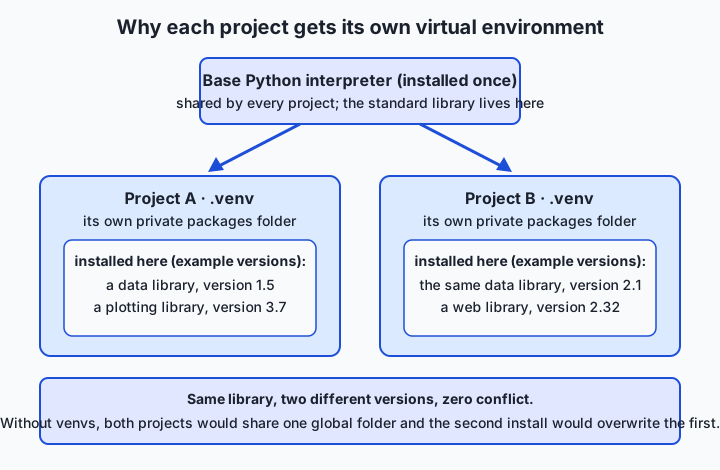
The stakes are concrete, not abstract. Picture two projects: one needs version 1.5 of a data library, another needs version 2.1 of the same library, and the two versions are not compatible. If both projects share one global pile of packages, installing what the second project needs quietly breaks the first — and you discover this only when yesterday’s working code suddenly throws errors. That single failure mode is behind a huge share of “it worked on my machine, why not on yours?” frustration. It costs hours of debugging, and in a team it costs everyone’s hours at once.
Here is the payoff you are building toward. Every serious AI project is, underneath, a specific version of Python plus a pinned list of libraries at exact versions. When you can reproduce that combination on any machine, your results become reproducible too — the same code, the same packages, the same output. Reproducibility is the floor that all trustworthy AI work stands on, and it starts with the humble skill you learn today: installing Python and giving each project its own isolated environment.
The idea in plain language
There are really two ideas here, and they fit together.
The first idea is the interpreter. Python is a language, but “Python” is also the name of the program that reads your code and does what it says. That program is called the interpreter, usually run from the terminal as python3. You can hand it a file full of code and it runs the whole file, top to bottom. Or you can start it with no file and it gives you a live prompt where you type one line, see the result, type another — this interactive mode is called the REPL, for read-eval-print loop. Same interpreter, two ways to feed it code.
The second idea is the virtual environment. Out of the box, Python comes with a large standard library, but real work needs extra libraries that other people wrote and published. You install those with a tool called pip. The problem is where they get installed. If every library goes into one shared, global location, all your projects are forced to agree on one version of everything — which, as we just saw, they often cannot. A virtual environment (a “venv”) solves this by giving one project its own private folder of installed packages, walled off from the rest of the system. Activate the venv and python and pip quietly point at that private folder instead of the global one. Deactivate it and you are back to normal. Each project gets its own clean, named workspace, and the projects never step on each other.
Everything else today — how to install Python, how to make and use a venv, what requirements.txt is for — is detail hanging off those two ideas.
Historical background
Python was created by the Dutch programmer Guido van Rossum, who began working on it in December 1989 and released the first version to the public in 1991. He named it not after the snake but after the British comedy troupe Monty Python’s Flying Circus, which is why Python culture has always leaned toward readable, slightly playful examples rather than dense formality. From the start the language prized clarity: code that a human can read almost like English, with meaning carried by indentation rather than braces and semicolons.
For years two major versions coexisted, and this history still shapes the commands you type. Python 2.0 arrived in 2000. Python 3.0, a deliberately backward-incompatible cleanup of the language, was released on 3 December 2008. Because Python 3 broke some Python 2 code, the world took over a decade to move across, and during that long overlap many systems shipped both — with python meaning the old Python 2 and python3 meaning the new one. Python 2 finally reached its official end of life on 1 January 2020, and today “Python” means Python 3. But the naming scar remains: on many machines python3 is the safe, unambiguous command, which is why this course uses it.
The tools for isolating projects grew up alongside the language. Early on there was no built-in way to keep projects’ packages apart, so in 2007 Ian Bicking released a third-party tool called virtualenv that created isolated environments by hand. The idea proved so essential that a slimmed-down version was folded into Python itself: the venv module became part of the standard library in Python 3.3 (2012), described in a design document known as PEP 405. Package installation followed a similar path — the installer that became pip appeared around 2008, the Python Package Index (PyPI), the public warehouse of shared libraries, launched in 2003, and since Python 3.4 (2014) a fresh Python install comes with pip already included. So the whole toolkit you use today — interpreter, venv, pip, PyPI — was assembled piece by piece over two decades in response to real pain.
What it is — and what it is not
A Python installation is the interpreter program plus its standard library, sitting somewhere on your disk and reachable from your terminal. A virtual environment is not a second copy of Python and not a virtual machine or container — it is a lightweight folder that mostly contains links back to your real Python, plus its own private place to install packages and a small script that, when “activated,” rewires your shell so python and pip resolve to that folder. That is the whole trick.
Because these words get muddled, it helps to say plainly what each is not.
| It is often confused with… | …but actually |
|---|---|
| A virtual environment vs. a virtual machine | A venv is just a folder redirecting python/pip; a virtual machine emulates a whole computer. A venv is tiny and instant. |
| A venv vs. a container (like Docker) | A container packages an entire operating system and its files; a venv isolates only Python packages, within your existing OS. |
pip vs. Python itself | Python is the interpreter that runs code; pip is a separate program that downloads and installs libraries into wherever Python is looking. |
| Installing a package globally vs. into a venv | Global installs are shared by every project and cause version clashes; a venv keeps each project’s packages private. |
python vs. python3 | On many systems these differ (or one is missing). python3 is the explicit, portable way to name Python 3. |
Keep one more distinction clear: a virtual environment isolates packages, not Python versions. All your venvs typically share one base interpreter. If you need two different versions of Python — say 3.11 for one project and 3.13 for another — that is a separate job, handled by a version manager like pyenv, which we meet shortly.
Why it was created and what problems it solves
Virtual environments exist to solve one stubborn conflict: different projects want different, sometimes incompatible, versions of the same libraries — and a single computer, with one global pile of packages, cannot satisfy them all at once.
Before venvs, you had exactly one place where packages lived. Installing a new library, or upgrading one, changed that shared place for every project on the machine. Upgrade a library because Project B needs the new features, and Project A — which depended on the old behavior — silently breaks. Worse, some system utilities on macOS and Linux are themselves written in Python and rely on specific package versions; installing over them can damage the operating system’s own tools. The result was a machine where no project’s dependencies were ever safe from any other’s.
The venv fixes this by making isolation the default. Each project gets a private environment, so “install this library at this version” affects only the project you are working on. Two immediate benefits follow. First, no global pollution: your system Python stays pristine, and experiments in one project cannot harm another or the OS. Second, reproducibility: because a project’s exact dependencies live in one clearly named place, you can write them down (in a requirements.txt file) and recreate the same environment on another machine or another day. That second benefit is the quiet hero of the whole course — it is what turns “it works on my machine” into “it works on any machine.”
How it works
Let’s walk from a bare interpreter up to a fully isolated project, in the order you will actually do it.
The interpreter and the two ways to run code
When you type python3 in a terminal and press Return with no filename, you land at the REPL — a prompt (>>>) where you type one expression, the interpreter evaluates it, prints the result, and waits for the next line. It is the fastest way to try something small. Type exit() to leave.
When you instead run python3 hello.py, the interpreter reads the whole file and executes it from top to bottom, printing whatever the code tells it to. Scripts are how real programs are stored and shared; the REPL is your scratchpad.
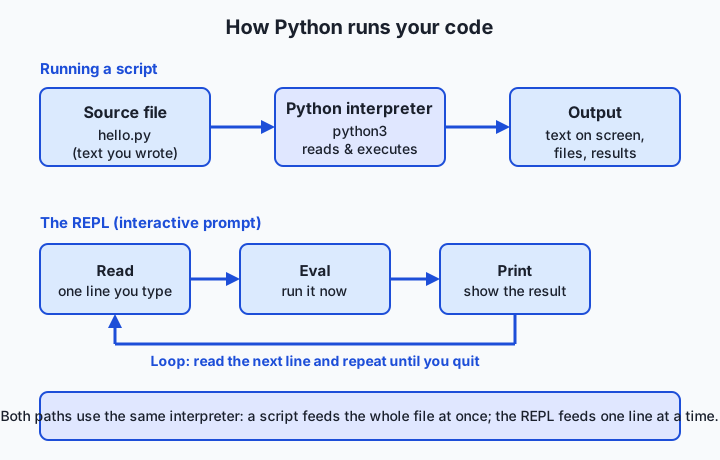
Both paths flow through the same interpreter. A script hands it an entire file at once; the REPL hands it one line at a time. Nothing else differs.
Finding which Python you are running
On Day 11 you learned about PATH — the ordered list of folders your shell searches to turn a typed command into a program on disk. That idea matters now, because you may have several Pythons installed (one from the OS, one from python.org, one from a version manager) and only one of them answers when you type python3. To see which, run which python3 (macOS and Linux) — it prints the full path of the interpreter that will run. Run python3 --version to see its version number. When something behaves strangely, “which Python am I actually using?” is nearly always the first question to ask, and which answers it.
Creating and using a virtual environment
The built-in venv module makes an environment in one command. Suppose your project folder is myproject. Inside it you run python3 -m venv .venv — the -m venv part means “run the standard-library module named venv,” and .venv is the folder it creates to hold the environment. (The leading dot is just a convention that keeps it tidy and easy to ignore in listings; any name works.)
Creating the environment does not turn it on. To use it you activate it, which edits your current shell so python and pip point inside .venv:
| Task | macOS / Linux (bash or zsh) | What it does |
|---|---|---|
| Create the environment | python3 -m venv .venv | Builds a .venv folder with a private packages area |
| Activate it | source .venv/bin/activate | Rewires this shell so python/pip mean the venv’s |
| Confirm it worked | which python | Should now print a path ending in .venv/bin/python |
| Install a package | pip install <name> | Installs into the venv only, never globally |
| Freeze exact versions | pip freeze > requirements.txt | Writes every installed package and its version to a file |
| Recreate elsewhere | pip install -r requirements.txt | Installs exactly those pinned versions |
| Turn it off | deactivate | Restores your shell to the normal, global Python |
Once activated, your prompt usually shows the environment’s name in parentheses, like (.venv), so you always know it is on. Now pip install requests puts the requests library inside .venv and nowhere else. When you are done, deactivate returns you to normal — the environment still exists on disk, ready to activate again next time.
pip, PyPI, and requirements.txt
pip is Python’s package installer, and by default it downloads from the Python Package Index (PyPI) — a huge public repository of open-source libraries, the same kind of package manager idea you met on Day 13, now specialized for Python. pip install pandas asks PyPI for the pandas package, downloads it, and drops it into the active environment.
The final piece is writing your dependencies down. pip freeze lists every installed package with its exact version, like requests==2.32.3. Redirect that to a file — pip freeze > requirements.txt — and you have a precise recipe for the environment. Anyone (including future you) can then run pip install -r requirements.txt in a fresh venv and get the identical set of packages. This one file is how a project’s environment travels from machine to machine unchanged.
An everyday analogy
Think of your computer as a shared workshop, and the base Python installation as the workshop’s power and workbenches — always there, used by everyone. Each project you take on is a job that needs its own particular set of tools at particular settings.
Without virtual environments, everyone works off one giant shared pegboard of tools. If your birdhouse job needs a saw set one way and your bookshelf job needs the same saw set another way, you are constantly readjusting the one saw and hoping you remember the setting — and the moment a coworker “improves” it for their job, yours is silently ruined. This is the global-packages problem exactly: one shared pile, endless collisions.
A virtual environment is a rolling tool cart, labeled for one job. When you start the birdhouse project, you wheel up its cart and stock it with precisely the tools and settings that job needs. Activating the venv is wheeling that cart to your bench; every tool you now reach for is the birdhouse cart’s version. The bookshelf project has its own cart with its own saw at its own setting, and the two never interfere — even though both plug into the same shared workshop power (the one base Python). Deactivating is wheeling the cart back to storage; the cart and its tools are untouched, ready for tomorrow. And requirements.txt is the packing list taped to the cart: read it, and you can restock an identical cart in any workshop in the world. The analogy holds all the way down because a venv really is just a labeled container of tools that redirects which “saw” you grab.
Examples in practice
Let’s make it concrete with a short, real session. First, confirm the interpreter and try the REPL:
$ python3 --version
Python 3.14.0

$ python3
>>> 2 + 2
4
>>> "AI".lower()
'ai'
>>> exit()
The >>> lines are the REPL: you type, it evaluates, it prints. Now create and use an environment for a project:
$ mkdir myproject && cd myproject
$ python3 -m venv .venv
$ which python
/usr/bin/python            # still the global Python — not activated yet

$ source .venv/bin/activate
(.venv) $ which python
/Users/you/myproject/.venv/bin/python    # now inside the venv

(.venv) $ python -c "import sys; print(sys.prefix)"
/Users/you/myproject/.venv               # confirms isolation
That sys.prefix line is the proof of isolation: sys.prefix is where Python thinks its environment lives, and after activation it points inside .venv. Install something and record it:
(.venv) $ pip install requests
(.venv) $ pip freeze > requirements.txt
(.venv) $ cat requirements.txt
requests==2.32.3
...
(.venv) $ deactivate
$ which python
/usr/bin/python            # back to normal
The whole story of the day lives in that transcript: an interpreter you can talk to, an environment you create, activate to redirect python/pip, install into privately, freeze into a recipe, and deactivate when done. In today’s lab you will run exactly this flow yourself — offline, no downloads required — and watch which python and sys.prefix change to prove the isolation is real.
Implications: security, privacy, performance, scalability, and cost
Security. Installing packages means running other people’s code, so the source matters. pip pulls from PyPI, which is open to anyone, so occasional malicious or typo-squatted packages appear (a fake reqeusts hoping you mistype requests). Install only packages you mean to, prefer well-known ones, and pin exact versions in requirements.txt so an attacker cannot slip a bad update in under a name you already trust. Because a venv keeps installs project-local, a suspect package is at least confined to that project rather than your whole system.
Privacy. A virtual environment is local and offline once built — creating it, as today’s lab shows, needs no network at all. Nothing about your code or data leaves the machine simply by making an environment. The privacy questions come later, from the packages you add and what they phone home; the environment itself is inert.
Performance. Virtual environments add essentially no runtime cost — activation just changes some path settings, and code inside a venv runs exactly as fast as it would globally. The real performance benefit is human: minutes to recreate a known-good environment instead of hours untangling a broken global one.
Scalability. This is where the day pays off across a whole team and across servers. When every project pins its dependencies, a new teammate goes from empty machine to working setup with one pip install -r requirements.txt. The same file drives automated build servers and deployment. Isolation is what lets one machine host dozens of projects with contradictory requirements without any of them colliding.
Cost. Everything here is free and open source — the interpreter, venv, pip, and PyPI cost nothing. The cost avoided is engineer time: reproducible environments are the cheapest insurance you will ever buy against the expensive, morale-draining “works on my machine” bug hunt.
Alternatives: free, open source, and commercial
The built-in venv plus pip is the standard, always-available baseline, and it is what this course uses. But you should know the neighboring tools and when each earns its place. All of the following are free.
| Tool | What it does | When to choose it |
|---|---|---|
venv + pip (built in) | Creates one isolated package environment; installs from PyPI | The default. Always present, nothing to learn twice, works everywhere. Start here. |
virtualenv | The original third-party environment creator; a bit faster and more configurable than venv | Legacy projects or when you need its extra options; for most people venv is enough now |
pyenv | Installs and switches between multiple Python versions on one machine | When different projects need different Python versions (e.g. 3.11 vs 3.13). Pairs with venv, doesn’t replace it |
uv | A very fast, modern tool that manages Python versions, environments, and packages together | When install speed matters or you want one tool for versions + packages; increasingly popular |
poetry | Manages dependencies, environments, and packaging with a single project file and a lock file | When you are building a library to publish, or want stricter, lock-file-based dependency resolution |
conda | A separate package and environment manager, strong with scientific and compiled libraries | Data-science and numerical work where non-Python dependencies are painful with pip; common in research |
The honest summary: learn venv + pip first because it is universal and teaches the concepts cleanly. Reach for pyenv the day you need two Python versions, and look at uv or poetry once you are comfortable and want speed or reproducibility guarantees. conda lives in its own world and is worth knowing if your work leans heavily numerical. None of them changes the mental model you built today; they just automate more of it.
Comparison with related concepts
| Concept A | Concept B | Key difference |
|---|---|---|
| Virtual environment | Global (system) Python | A venv isolates a project’s packages; the global install is shared by everything and prone to version clashes |
venv | pyenv | venv isolates packages for one Python; pyenv installs and switches between different Python versions |
pip | PyPI | pip is the installer program; PyPI is the online repository it downloads packages from |
Script (python3 file.py) | REPL (python3) | A script runs a whole file at once; the REPL runs one typed line at a time, interactively |
python | python3 | Historically python could mean Python 2; python3 explicitly names Python 3 and is portable |
requirements.txt | An installed venv | The file is a text recipe of versions; the venv is the actual folder of installed packages built from it |
When to use it — and when not to
Create a virtual environment for every real project — that is the professional default, and it costs one command. The moment a project needs even one library from PyPI, it should have its own venv so that library, at its exact version, is captured and isolated. Any code you intend to keep, share, hand to a teammate, or run again next month belongs in a venv with a requirements.txt beside it. In this course, every project from here on will start this way.
There are a few honest exceptions. If you are only using Python’s standard library and never installing anything, a venv adds little (though it still costs nothing to make one, and habits are worth keeping). The REPL for a ten-second calculation needs no environment. And for throwaway one-liners you will never run again, ceremony is optional. But the failure mode is almost always too few environments, not too many: the beginner mistake is installing everything globally “just to try it,” then discovering months later that two projects have quietly poisoned each other’s dependencies. When in doubt, make the venv.
The connection to your AI goal is direct and worth stating plainly. Every AI project you build or clone will be a specific Python version plus a pinned list of libraries — the training framework, the data tools, the model runtime — at exact versions that were tested to work together. That combination lives in a virtual environment and is written down in a requirements file. When you can recreate it faithfully, your experiments become reproducible: the same code and the same environment give the same result, on your laptop today and on a server next year. Almost every “it works on my machine” mystery in AI work turns out to be a Python-environment problem — a missing package, a mismatched version, the wrong interpreter. The unglamorous skill you learned today is therefore the foundation the glamorous work rests on. Master it now and you will never have to think about it again.
Knowledge check
Try these from memory before looking back:
- In one or two sentences each, explain the difference between the Python interpreter and a virtual environment.
- Your teammate can run a project fine, but on your machine it crashes with “module not found.” Give the most likely cause and the file that would fix it.
- What does
source .venv/bin/activateactually change about your shell, and how can you confirm it worked? - Explain why installing packages globally is risky, using the two-projects-need-different-versions example.
- When would you reach for
pyenvrather thanvenv, and why are they not competitors?
Hands-on exercise
Time to prove the isolation is real on your own machine. In this exercise — worked through in full in today’s lab directory — you will create a virtual environment, activate it, and watch which python and sys.prefix move inside it, then clean up. It requires no downloads and no network.
Open your terminal and run each command, watching what changes:
python3 --versionConfirms Python 3 is installed and prints its version. If this fails, install Python first (see the lab’s requirements file).
mkdir venv-demo && cd venv-demo
python3 -m venv .venv
Creates a project folder and builds a virtual environment named .venv inside it. This step is entirely offline.
which python
source .venv/bin/activate
which python
Run which python before and after activating. Before, it points at the global Python; after, it points inside .venv/bin — visible proof the environment is active.
python -c "import sys; print(sys.prefix)"Prints where Python thinks its environment lives. While the venv is active, this path ends in .venv, confirming isolation.
deactivate
cd .. && rm -rf venv-demo
Turns the environment off and removes the demo folder, leaving nothing behind.
Expected output
A typical run (your paths will differ — that is the point):
$ python3 --version
Python 3.14.0

$ python3 -m venv .venv
$ which python
/opt/homebrew/bin/python3        # global, before activation

$ source .venv/bin/activate
(.venv) $ which python
/Users/you/venv-demo/.venv/bin/python    # now inside the venv

(.venv) $ python -c "import sys; print(sys.prefix)"
/Users/you/venv-demo/.venv               # isolation confirmed

(.venv) $ deactivate
$
Line by line: the version confirms Python 3; which python shows the global interpreter before activation and the venv’s interpreter after; sys.prefix points inside .venv, which is the definition of “the environment is isolated”; and deactivate returns you to normal, with the (.venv) prompt marker disappearing.
Validate your work
You are done when you can check every box:
-
python3 --versionprints a 3.x version. -
python3 -m venv .venvcreated a.venvfolder (list it withls .venv). -
which pythonprinted a different path before and after activation. - After activation,
sys.prefixended in your.venvpath. - Your prompt showed
(.venv)while active and lost it afterdeactivate. - After cleanup, the
venv-demofolder is gone (lsshows novenv-demo).
Troubleshooting
python3: command not found. Python is not installed or not on yourPATH. See the lab’srequirements/README.md: macOS and most Linux ship it, or install via your OS package manager (Day 13) or python.org.source: no such fileor activate not found. You are not in the folder that contains.venv, or the venv did not build. Confirm withls .venv/bin/— you should see anactivatefile. On Windows the path is.venv\Scripts\activateinstead.which pythonlooks the same after activating. The activation did not take effect in this shell. Re-runsource .venv/bin/activatein the same terminal window; activation only affects the shell you run it in.- Prompt shows no
(.venv)marker. Some shells suppress it, but the environment can still be active — trustwhich pythonandsys.prefixover the prompt text.
Common mistakes
- Installing packages globally by forgetting to activate. If you
pip installbefore activating, the package lands in the global Python and pollutes it. Always confirm(.venv)(orwhich python) first. - Committing the
.venvfolder to version control. The environment is large, machine-specific, and rebuildable; commit therequirements.txtinstead and add.venvto.gitignore. - Confusing
pythonwithpython3. Inside an active venv,pythonis correct and points at the venv. Outside one, preferpython3to avoid an accidental Python 2. When unsure, runwhich python.
Practice assignment
Open the worksheet in the starter directory of today’s lab (starter/venv-worksheet.md) and complete it for your machine. Record: your python3 --version output; the full path that which python prints before activation and after activation; and the sys.prefix value while the venv is active. Then, in one short paragraph (4–6 sentences), explain in your own words what activation changed and why sys.prefix pointing inside .venv proves the project’s packages are isolated from the global Python. Keep the worksheet — the next lessons build directly on this environment.
Extension challenge
Go one step further and make a reproducible environment recipe using only the standard library, so no network is needed. With your venv active, run pip freeze — on a brand-new venv it prints little or nothing, which is itself informative: a fresh environment starts empty except for the installer. Now create a requirements.txt by hand containing a single commented line documenting your Python version, for example # built and tested with Python 3.14, and add a note that this project uses only the standard library. Then, from memory, write down the exact command a teammate would run inside a fresh venv to install from your file (pip install -r requirements.txt) and explain, in two or three sentences, why pinning exact versions in that file — the way real AI projects do with == version markers — is what makes an environment reproducible across machines and across time. You have now practiced, in miniature, the exact discipline that keeps professional AI experiments repeatable.
Quiz
Q1. What is the Python "interpreter"?
- A website that translates Python into other programming languages
- The program (run as python3) that reads your code and executes it
- A file that lists which packages a project needs
- The folder where installed packages are stored
Show answer
Answer: B. The program (run as python3) that reads your code and executes it
Python is both a language and the program that runs code written in it. That program is the interpreter, usually invoked as python3, and it can run a whole script file or accept lines interactively in the REPL.
Q2. What is the difference between running a script and using the REPL?
- A script runs an entire file at once; the REPL evaluates one typed line at a time interactively
- A script needs a virtual environment but the REPL does not
- The REPL runs faster because it skips the interpreter
- Scripts use python3 while the REPL uses a completely different program
Show answer
Answer: A. A script runs an entire file at once; the REPL evaluates one typed line at a time interactively
Both feed the same interpreter. Handing it a file (python3 hello.py) runs the whole file top to bottom; starting python3 with no file gives the REPL — read, evaluate, print, loop — where you type one line at a time.
Q3. Why does this course prefer the command python3 over python?
- python3 runs three times faster than python
- python is only available on Windows
- On many systems python historically meant Python 2, while python3 explicitly and portably names Python 3
- python cannot create virtual environments
Show answer
Answer: C. On many systems python historically meant Python 2, while python3 explicitly and portably names Python 3
During the long overlap between Python 2 and Python 3, many machines shipped both, with python meaning the old Python 2. python3 removes the ambiguity and works portably across systems.
Q4. What problem does a virtual environment primarily solve?
- It makes Python code run faster at runtime
- It lets different projects keep their own package versions so they do not conflict in one shared global location
- It encrypts your source code for security
- It replaces the need to install Python at all
Show answer
Answer: B. It lets different projects keep their own package versions so they do not conflict in one shared global location
Without isolation, all projects share one global pile of packages, so one project needing a different version of a library breaks another. A venv gives each project a private package folder, ending those collisions.
Q5. After running source .venv/bin/activate, how can you confirm the environment is active?
- Restart the computer and check again
- Run which python and see a path ending in .venv/bin/python (and often a (.venv) prompt marker)
- Check that the file requirements.txt exists
- Run python3 --version and confirm it prints 3.x
Show answer
Answer: B. Run which python and see a path ending in .venv/bin/python (and often a (.venv) prompt marker)
Activation rewires the current shell so python and pip point inside the venv. which python then prints a path inside .venv, and most shells also show a (.venv) marker in the prompt. sys.prefix pointing inside .venv is the definitive proof.
Q6. What is the relationship between pip and PyPI?
- They are two names for the same program
- pip is the online repository and PyPI is the installer
- pip is the installer program; PyPI (the Python Package Index) is the online repository it downloads packages from
- PyPI is a virtual environment manager and pip creates environments
Show answer
Answer: C. pip is the installer program; PyPI (the Python Package Index) is the online repository it downloads packages from
pip is the tool that installs packages, and by default it fetches them from PyPI, the public online index of open-source Python libraries — the Python-specific version of the package-manager idea from Day 13.
Q7. What does a requirements.txt file give you?
- A backup copy of your source code
- A text recipe of the exact packages and versions, so the same environment can be recreated elsewhere
- A faster interpreter for large projects
- Automatic activation of the virtual environment
Show answer
Answer: B. A text recipe of the exact packages and versions, so the same environment can be recreated elsewhere
pip freeze writes every installed package and its exact version to requirements.txt. Running pip install -r requirements.txt in a fresh venv rebuilds the identical set of packages, which is what makes an environment reproducible across machines and time.
Q8. You need Python 3.11 for one project and Python 3.13 for another on the same machine. Which tool is designed for that?
- venv, by creating two environments
- pip, by installing both versions
- pyenv, which installs and switches between multiple Python versions
- requirements.txt, by listing both versions
Show answer
Answer: C. pyenv, which installs and switches between multiple Python versions
A venv isolates packages but shares one base interpreter. Switching between different Python versions is a separate job handled by a version manager like pyenv, which installs and selects among multiple Python versions and pairs with venv rather than replacing it.
Glossary
- interpreter
- The program (run as python3) that reads Python code and executes it, either from a whole script file or one line at a time in the REPL.
- REPL
- The read-eval-print loop: Python's interactive prompt (>>>), where you type one line, it evaluates and prints the result, then waits for the next line.
- script
- A file of Python code, run all at once with python3 filename.py, as opposed to typing lines interactively in the REPL.
- virtual environment
- A lightweight, isolated folder that gives one project its own private set of installed packages, kept separate from the global Python and from other projects.
- venv
- Python's built-in module for creating virtual environments, used as python3 -m venv .venv; also a common name for the environment folder it creates.
- activate
- To turn on a virtual environment (source .venv/bin/activate), which rewires the current shell so python and pip point inside that environment; deactivate turns it off.
- pip
- Python's package installer: the tool that downloads and installs libraries into whichever environment is active, by default from PyPI.
- PyPI
- The Python Package Index, the public online repository of open-source Python libraries that pip downloads from by default.
- package
- A reusable library of Python code, published on PyPI and installed with pip, that adds functionality beyond the standard library.
- dependency
- A package that a project needs in order to run; a project's dependencies (and their exact versions) are what a virtual environment isolates and requirements.txt records.
- requirements.txt
- A plain-text file listing a project's packages and their exact versions, used with pip install -r requirements.txt to recreate the same environment elsewhere.
- pyenv
- A tool that installs and switches between multiple versions of Python on one machine; it manages Python versions and pairs with venv, which manages packages.
- standard library
- The large set of modules that ships with Python itself, available without installing anything from PyPI.
Sources and further reading
- venv — Creation of virtual environments — Python Software Foundation (accessed 2026-07-12)
- Installing Python Modules — Python Software Foundation (accessed 2026-07-12)
- The Python Tutorial — Python Software Foundation (accessed 2026-07-12)
- Python Virtual Environments: A Primer — Real Python (accessed 2026-07-12)
- Python (programming language) — Wikipedia (accessed 2026-07-12)
Kept in this browser, no account needed. Your progress page turns the whole record into one link you can bookmark or open on another device.